

Approvals
The agent stops, shows you exactly what it is about to do, and waits. Approve and it resumes from where it paused; decline and the action is abandoned with that outcome on the record. Delegation without a blank cheque.
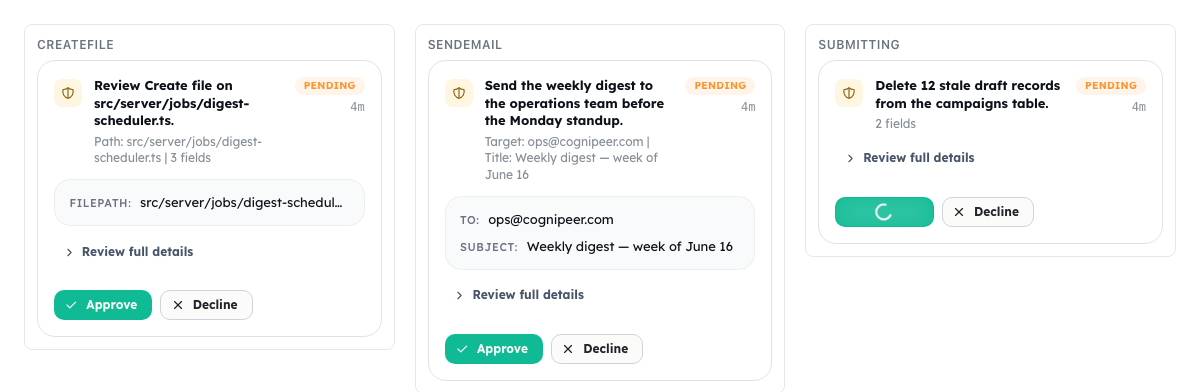
You see the real arguments
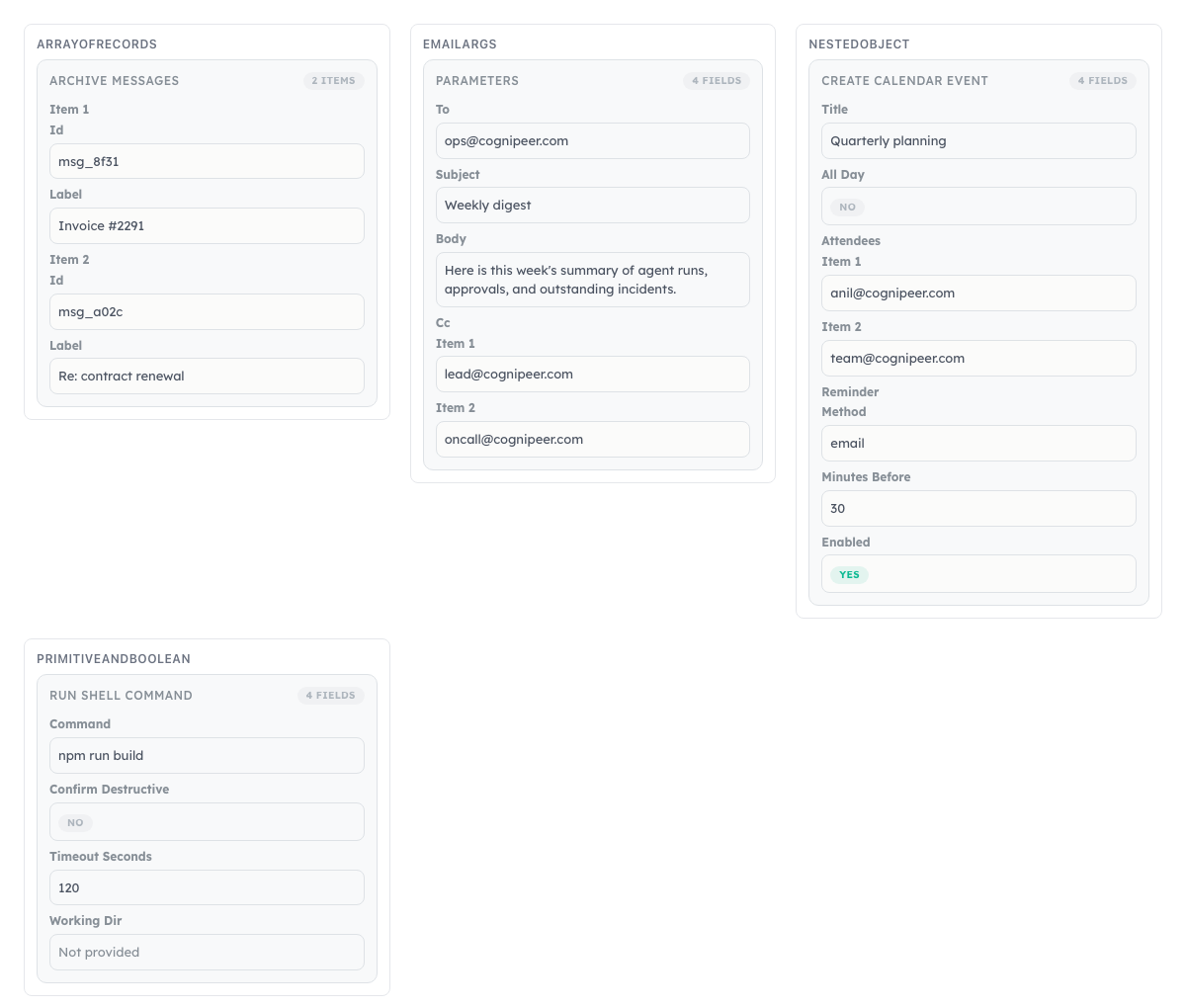
The actual recipient, the actual command, the actual event — not a summary of what the agent intends.
Decide anywhere
In chat, from an email deep-link, or in the approvals view. A decision in one channel resolves it everywhere.
“Yes to all” has a boundary
A blanket yes covers one tool for one job and expires with it. It can never become a standing bypass.
Pulse treats human approval as a first-class part of the product experience. Before a sensitive action runs, the agent can pause and request a decision — keeping a person in the loop without breaking the flow of work.
How approvals work
When the agent reaches an action governed by an approval policy, it stops and emits an approval request into your timeline. The pending action waits until it is approved or rejected. Approve it and the agent resumes exactly where it paused; reject it and the action is abandoned with that outcome recorded.
Because the approval stays attached to the original work, context is preserved across the pause. There is no lost thread when you come back to decide.
Where you can approve
The same approval request can be acted on through three channels:
| Channel | Best for |
|---|---|
| In-chat | Quick decisions in the moment, in context next to the action |
| Email deep-link | Approving away from the app — the link opens directly to the decision |
| Approvals UI | Reviewing several pending requests in one dedicated place |
A decision made in any channel resolves the request everywhere. Approve by email and the in-chat request updates to reflect it.
Approval policies
Policies decide which actions require approval and under what conditions. You decide where the line sits — approval before sending external messages, before modifying CRM records, before an irreversible operation — while routine work proceeds unattended.
The line can be drawn around a whole surface, one app, one tool, one kind of call, or around something no surface owns:
app:acme-crm::*                  ask before anything that app does
app:acme-crm::delete_*           ask only before its deletions
*::run_sandbox_command(rm *)     ask before deleting files, not before listing them
*::http_request(url=*169.254.*)  ask before anything reaching cloud metadata
*::*(*@*) ask before anything at all carries an addressThe last two shapes matter more than they look.
The dangerous half of most tools is not the name but the arguments: running a shell command is routine, running rm -rf is not. A condition is evaluated with the real arguments in hand, immediately before the call would execute — so the same tool can run freely all morning and stop the moment it is pointed somewhere that warrants a look.
And some lines are not about a surface at all. An address can leave through a mail tool, a raw HTTP call, an MCP server or a shell command; a rule that covered only one of those would be a rule you trusted more than it deserved. *:: matches on the tool name alone, whatever surface owns it, which is why those rules are written above the surface tabs rather than inside one.
See Security & governance for the full rule grammar, who may write rules, and how a member's own choices interact with them.
WARNING
Approval policies are a safety boundary. Set them around actions with external or irreversible effects so the agent cannot complete them without an explicit human decision.
Human-in-the-loop by design
Approvals make Pulse safe to delegate to. The agent can plan and execute autonomously, run tasks on a schedule, and reach into integrations — but the moments that matter still route through a person. This is what lets teams hand real work to the agent while staying in control of sensitive steps.
Approval requests sit naturally alongside the work that triggered them. You see what the agent intends to do, why, and the exact action awaiting your call — then decide in one click.
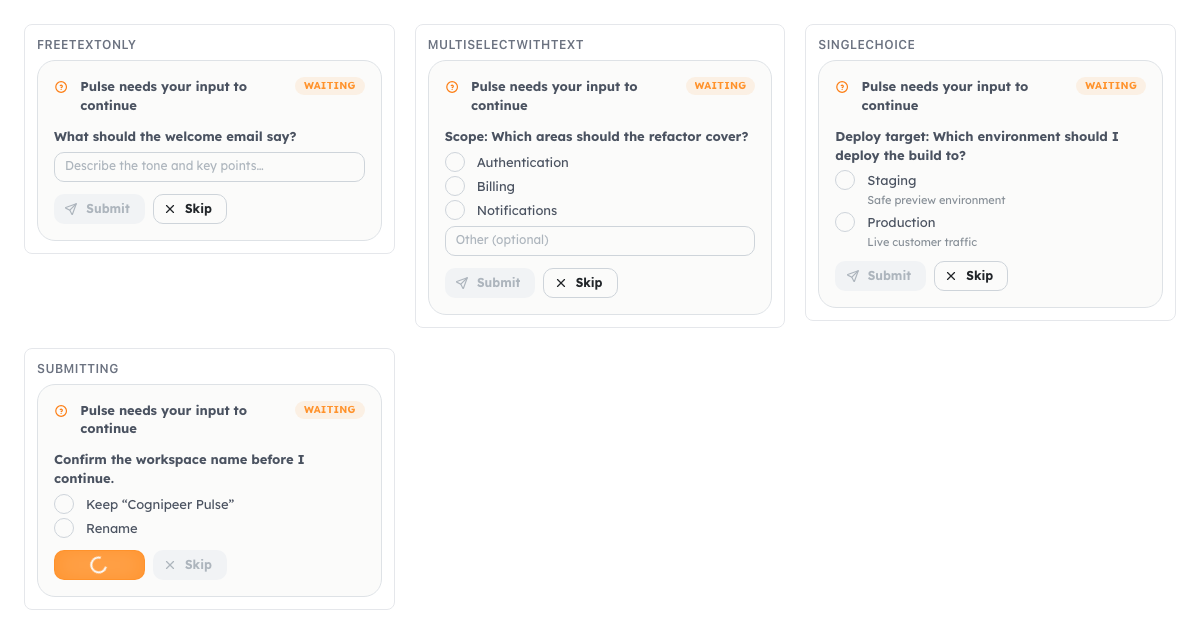
When the agent needs information rather than permission, it asks a structured question instead — free text, single choice, or multi-select — and waits for your answer before continuing.
Managing approvals
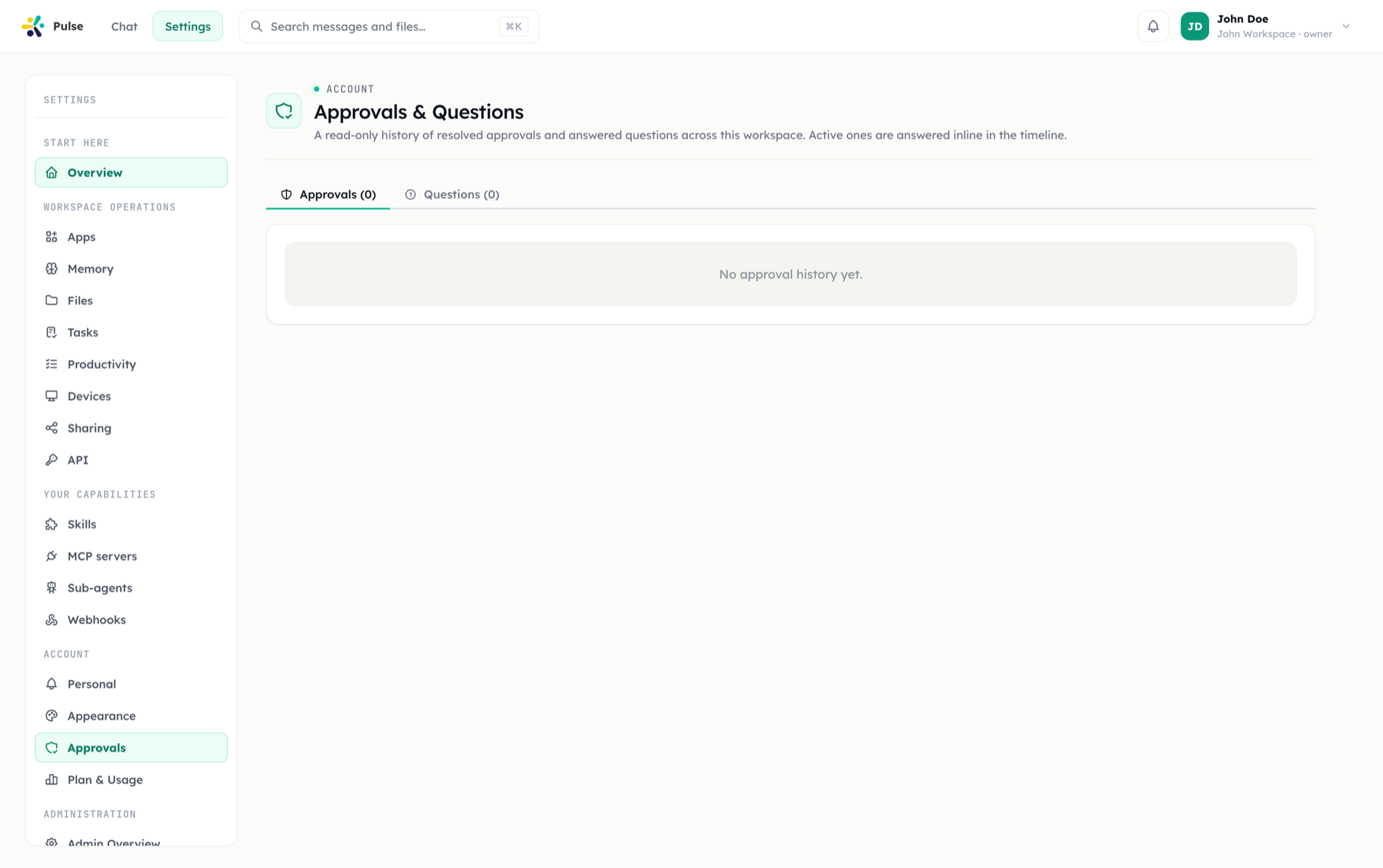
The dedicated approvals area in settings lets you review pending requests and see resolved decisions. Combined with task run history, you get a clear audit trail of what was requested, who decided, and what happened next.
Which actions require approval is decided by the layers in Security & governance: the tool's class, your organization's policy, and the Manual/Auto switch in the composer.