

Meeting Agent
Send a notetaker instead of taking notes. It joins the call on Meet, Zoom or Teams, records, transcribes, and writes back a structured summary — TL;DR, decisions, action items, open questions — into your timeline and your files.
Three platforms, one flow
Google Meet, Zoom and Microsoft Teams behave the same way from your side.
Notes you can act on
Action items come out as action items — ready to become todos or tasks rather than a wall of transcript.
Off until you turn it on
Per-user opt-in, and an admin can withhold it workspace-wide. It never joins a call nobody asked it to.
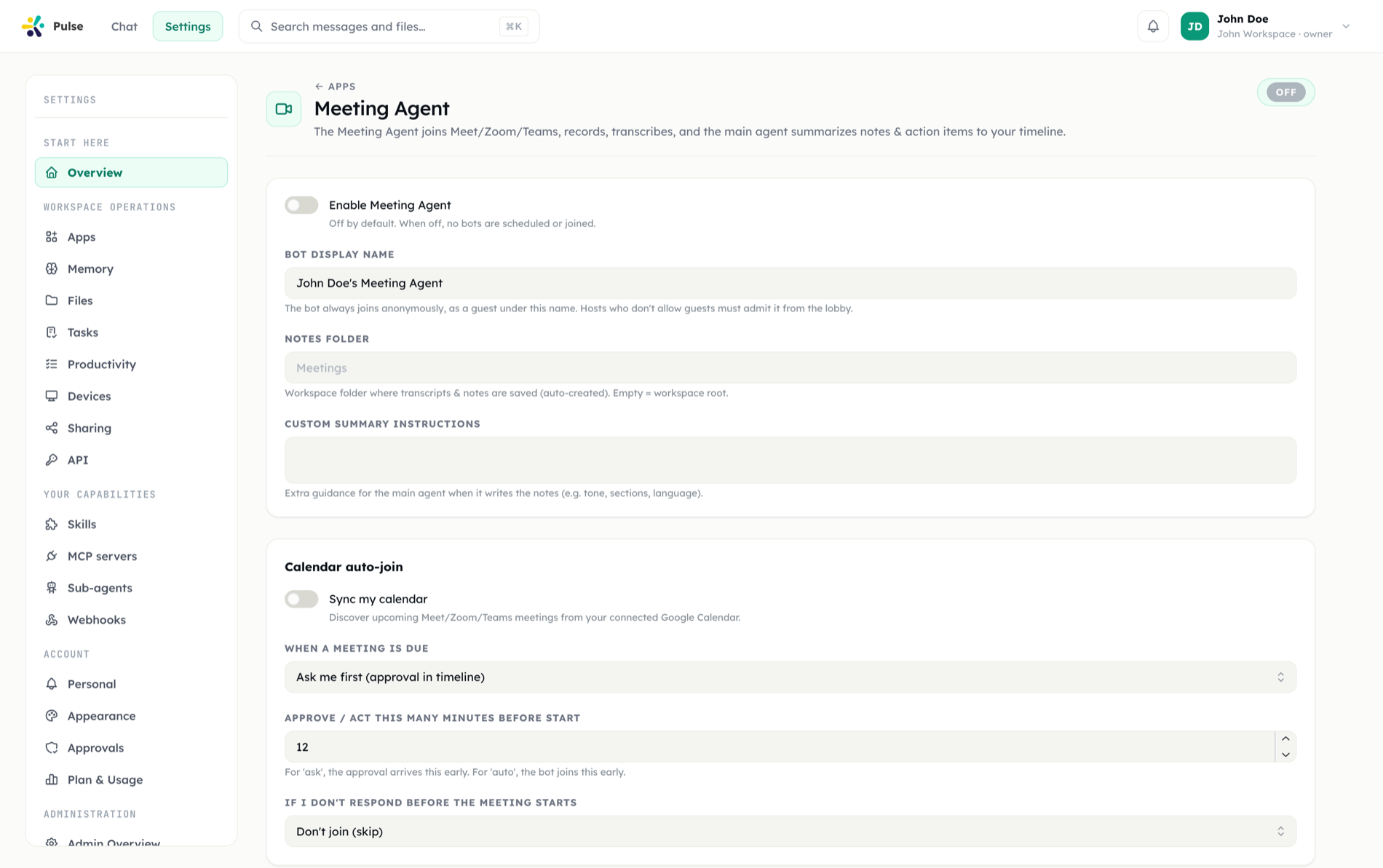
The Meeting Agent sends a notetaker bot to your meetings. It joins the call, records the audio, transcribes it, and produces structured notes — TL;DR, key points, decisions, action items, and open questions — delivered to your timeline and saved into Files.
A built-in app, on Enterprise plans
The Meeting Agent ships as a built-in app and requires an Enterprise plan — on other plans it appears in Apps with a Requires Enterprise plan notice. Organization admins can disable it for the whole workspace (it cannot be uninstalled). It is off by default per user; enable it in its settings under the Apps area.
Supported platforms
| Platform | Notes |
|---|---|
| Google Meet | Works with a signed-in Google account, or when the host allows anonymous participants |
| Zoom | Requires a captured, signed-in Zoom session — Zoom's anti-bot checks only admit authenticated participants |
| Microsoft Teams | Joins via the web client |
The bot appears in the participant list under a display name — by default "<your name>'s Pulse" (configurable). It may land in the lobby first; the host has to admit it, and it gives up after 10 minutes if nobody lets it in.
Two ways to send the bot
On demand. Paste a meeting link in chat and ask:
Join this meeting and take notes: https://meet.google.com/abc-defg-hijThe bot joins immediately. Links are validated — anything that is not a Meet, Zoom, or Teams URL is rejected.
From your calendar. With calendar sync enabled, Pulse scans your connected Google calendars for upcoming meetings that carry a Meet, Zoom, or Teams link. Before each one starts (default: 12 minutes ahead, configurable 0–60), the auto-join policy decides what happens:
| Policy | Behavior |
|---|---|
| Off | The meeting is skipped |
| Ask | Pulse posts a join-approval request to your timeline (and mobile push, if enabled); you approve or decline |
| Auto | The bot joins without asking |
If an Ask request goes unanswered by meeting start, a fallback setting decides whether to skip (default) or join anyway.
During the meeting
Meetings appear as cards in the Tasks view, interleaved with your other background work, each with a live status: scheduled → launching → joining → waiting → recording → processing → transcribed → done. Opening a card shows:
- A live view — a screenshot of what the bot sees, refreshed every few seconds
- The participant roster, with who is currently present
- A streaming activity log
- A Leave & note button to pull the bot out early and finalize notes from what was captured so far
When the bot leaves on its own
You never have to remember to dismiss it. The bot leaves automatically when:
- The meeting ends
- It is alone in the call for ~90 seconds (everyone else hung up)
- A calendar meeting runs past its scheduled end plus a 10-minute grace period
- The maximum duration cap is reached (default 3 hours, configurable)
What you get afterwards
Once the bot leaves, Pulse transcribes the recording and runs the assistant over the transcript — with access to your memory, todos, and files — to write the notes. You receive:
- A summary message in your timeline with the structured notes
- A notes file and a full transcript file (Markdown), saved to your configured notes folder in Files
- Optionally, the raw recording (off by default — enable keep recording in settings)
Both documents open in the in-app file viewer from the meeting detail, ready to preview, download, or share.
If nothing could be recorded — the bot was never admitted, or the call ended before any audio — Pulse posts a plain timeline note explaining why. There are no silent failures.
Desktop meeting recordings now generate summaries reliably again after a runtime fix for a production failure that could prevent summary files from being produced.
TIP
The transcript is a best-effort text of the meeting audio; it does not label individual speakers. The participant roster in the meeting detail tells you who was present.
Managing it from chat
The assistant can manage the Meeting Agent conversationally:
Turn on the meeting agent and set auto-join to "ask", 10 minutes before start.List my recent meetings.Settings you can change on the Meeting Agent's settings screen (or via chat): enable/disable, calendar sync, auto-join policy and lead time, bot display name, notes folder, transcript language, maximum duration, keep-recording, and custom notes instructions. The screen opens from the Settings link on the Meeting Agent's card in Settings → Apps.
Related
- Tasks & automation — where meetings surface and run
- Files & artifacts — where notes and transcripts land
- Approvals — how join-approval requests work