

Integrations
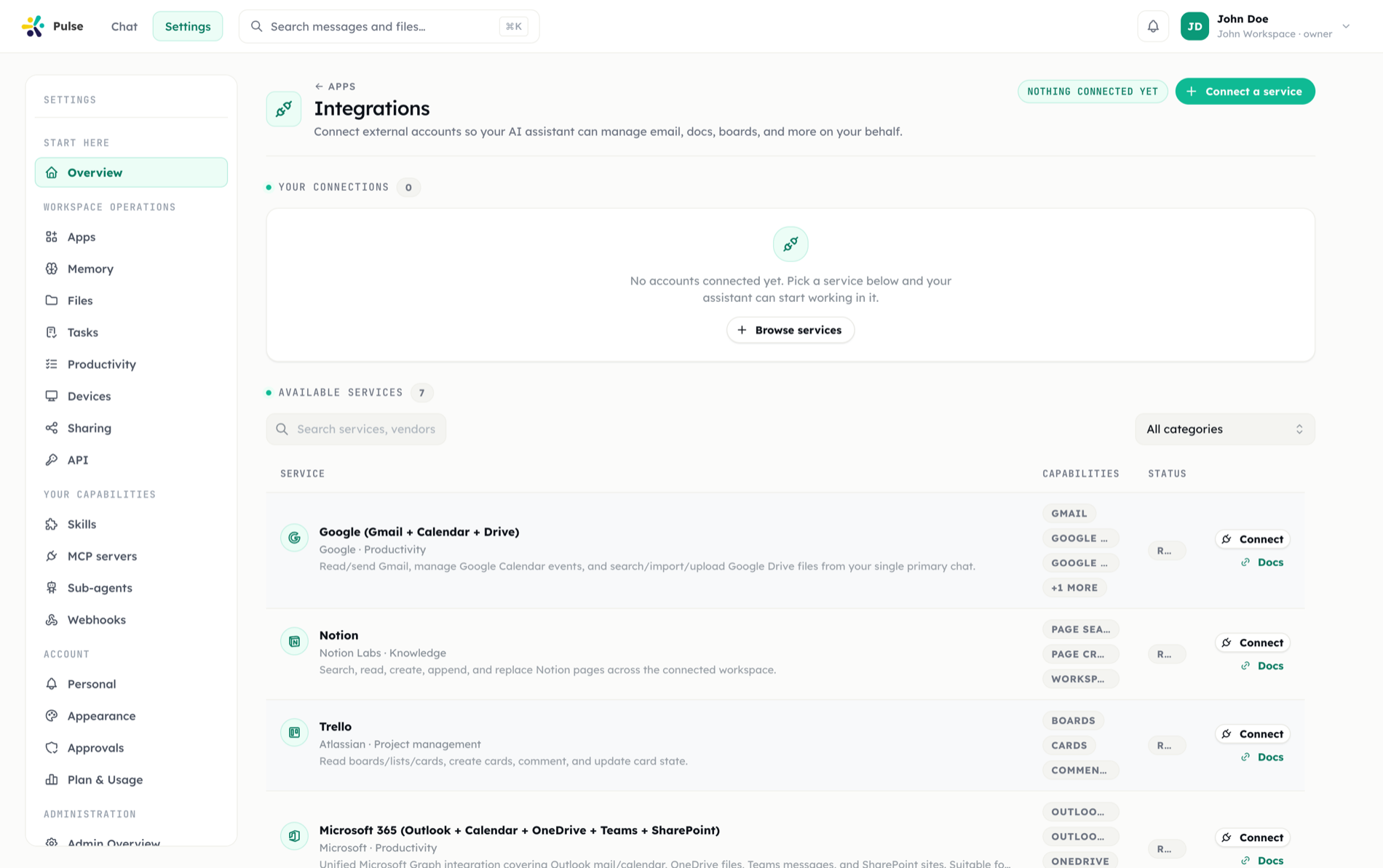
Connect the account, then just ask. Google, Microsoft 365, Slack, GitHub, Notion, Trello and the rest arrive as built-in apps — what you manage here are the accounts they act with on your behalf.
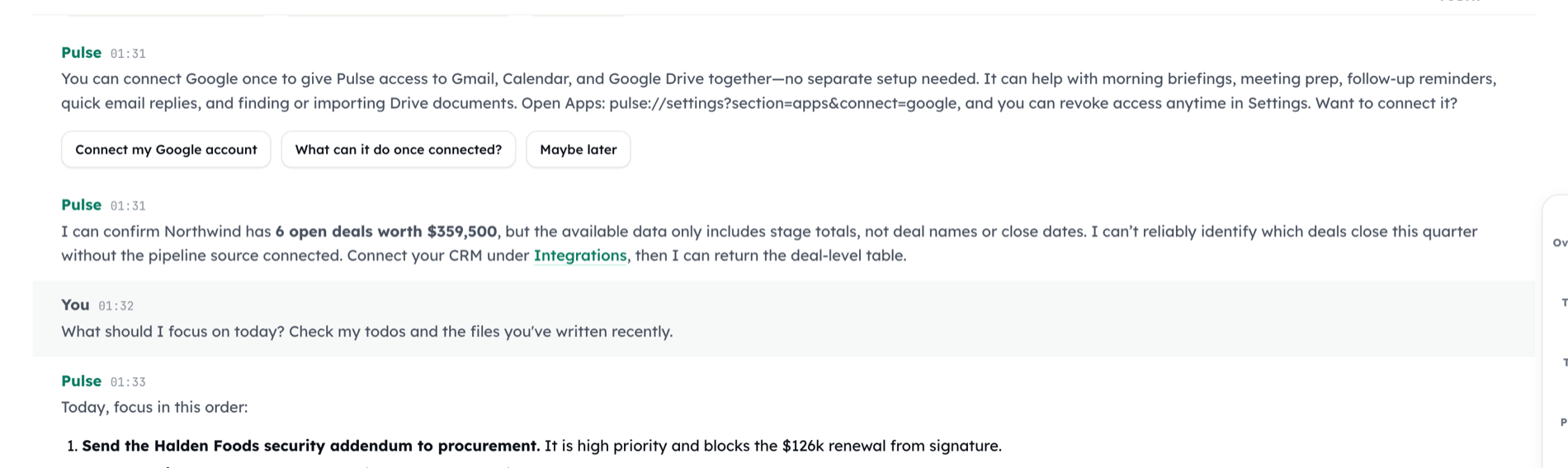
Connect when it's needed
The first time the assistant needs an account it says so and raises a Connect card, then resumes where it paused.
More than one account
Two Google accounts, three inboxes — connect them all and set which one is the default.
It acts as you
Every call uses your connection and your permissions on the far side. Nothing runs with wider access than you have.
What this is
An integration is a managed connection between Pulse and an external product. Providers are offered to the workspace as apps; you connect one or more accounts per provider, and the assistant uses them during conversations, tasks, and approval-driven workflows.
When to use it
Connect an account when you want Pulse to:
- Summarize activity from an external system.
- Draft or post updates in a communication tool.
- Create, update, or review records after approval.
- Pull context from project, CRM, storage, or knowledge tools.
- Run scheduled work that depends on another product.
Two ways to connect
From chat — the usual way. You do not need to set anything up in advance. Ask for the work; the first time the assistant needs an account you have not connected, a Connect card appears in your timeline. Connect from the card and you are returned to what you were doing — the paused work can pick up where it left off. See Connect cards for exactly when cards appear.
Ahead of time — from Settings. Open Settings → Apps, find the provider's card, and use Connect account — the OAuth flow or credential form runs in place and brings you back to the hub. Useful when rolling out a workspace or connecting a second account. The full accounts view lives one step deeper: open any account from its card and follow Manage all accounts.
TIP
Connect only the providers a workspace actually needs. For tools that can change customer records, send messages, or spend money, pair the integration with approval policies before rollout.
Multiple accounts and the default account
You can connect more than one account per provider — say, a work and a personal Google account. In your integration settings, accounts are grouped under their provider, with + Add account to connect another.
Each provider has a default account: the one the assistant uses when a request does not say which account to use. You can make any healthy account the default from its row.
If you have several accounts and never chose a default, Pulse adopts the account it was already using as your sticky default rather than interrupting your work to ask. The adopted default is visible in your integration settings — change it there if it picked the wrong one.
Account status and reconnecting
Each account row shows its status, with the same vocabulary the in-chat cards use:
| Status | Meaning | What to do |
|---|---|---|
| Connected | Healthy and usable | Nothing |
| Needs reconnect | The grant expired or was revoked | Use Reconnect on the row, or the card in chat |
| Error | The last sync or call failed | Open the account's detail view for specifics |
An account that needs reconnecting cannot be made the default until it is healthy again. Each account also shows when it last synced, and a detail view lists the access it was granted and any webhooks registered through it.
Who controls what
- You connect and manage your own accounts, choose your defaults, and reconnect when needed.
- Organization admins control whether a provider's app is enabled, available, or disabled for the workspace, and how it is rolled out. A provider you cannot see here is usually disabled at the app level.
Review or test the result
After connecting a provider, ask Pulse for a low-risk task:
Summarize the open issues assigned to me and show the draft here.Review whether Pulse found the right source, used the right account, and returned the result in the timeline. If the task would write to another tool, verify that an approval appears before the action runs.
Troubleshooting
The provider is not available
The provider's app may be disabled for your workspace, or rolled out to an audience that does not include you. Ask an organization admin to check its state in Organization apps.
Authorization fails
Confirm that you are signed into the correct provider account and that your provider admin allows third-party connections.
Pulse used the wrong account
Set the right account as the default for that provider in your integration settings, or name the account explicitly in your request.
Pulse cannot find the expected data
Review the connected workspace, project, repository, folder, or account. Many providers scope access to a specific workspace or resource during authorization. If the assistant reports that the account's access is too narrow, reconnect the account and grant the wider access it asks for — this is not the same as connecting a new account.
A write action runs without the expected approval
Pause rollout and review approval policies. Sensitive actions should require a human decision before Pulse writes to an external system.
Related
- Apps — states, connect cards, and org-wide rollout
- Skills
- Approvals
- Settings & administration