

Settings & administration
One question, one place to answer it: who gets this capability, in what state, with which accounts? Settings is organized app-first, because in Pulse capability arrives as apps — and everything else is the account, policy and access controls around them.
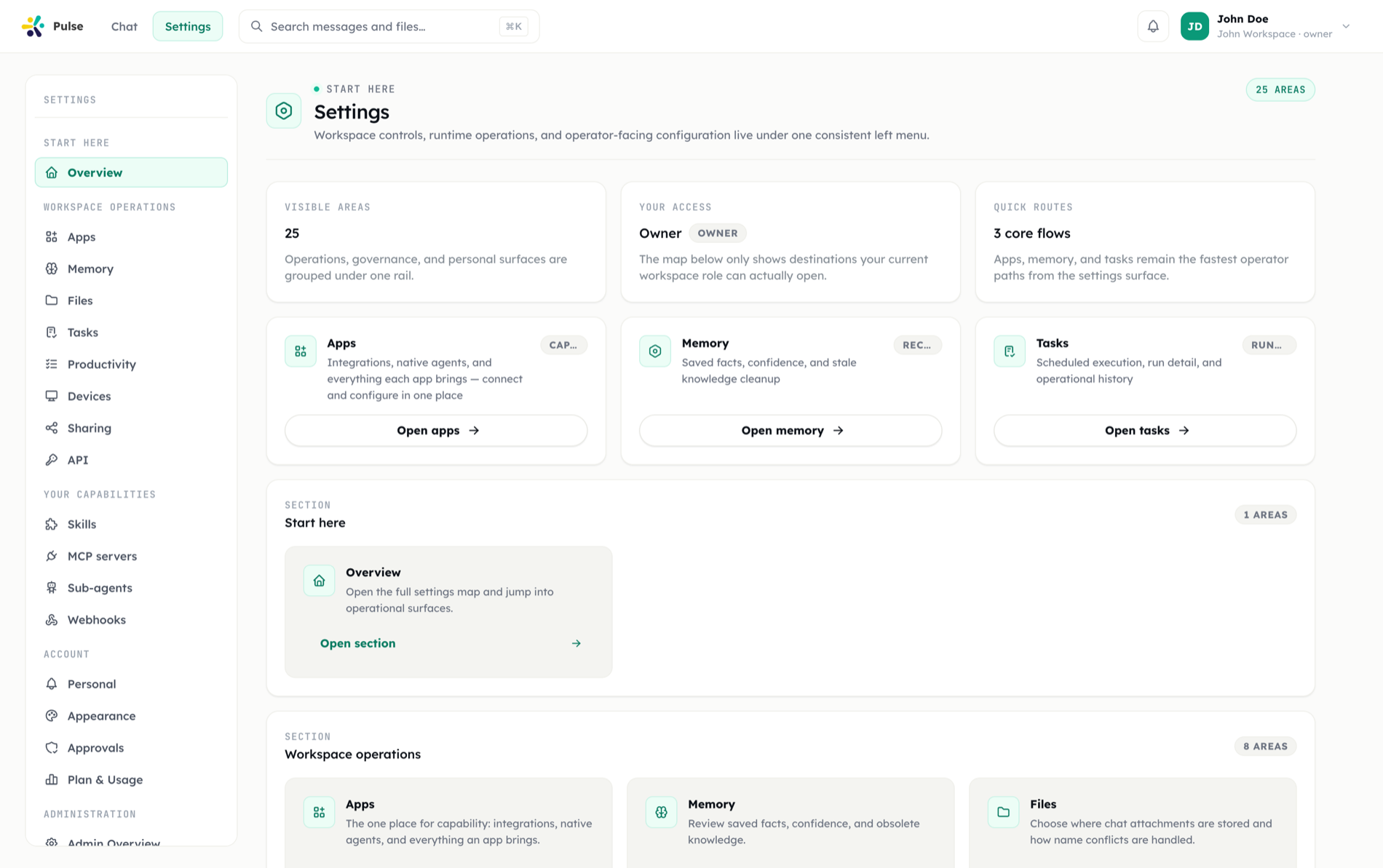
Personal, then organizational
Your side covers your data and account. The administration section governs the whole workspace.
Capability is one mechanism
Skills, MCP servers and sub-agents all reach members through apps, so rollout, audit and rollback are the same everywhere.
Three layers of control
Roles decide who configures what; app state and audience decide who gets it; policy decides what still needs a human.
Settings is where you administer a Pulse workspace. It is organized app-first: most capability in Pulse — integrations, the Meeting Agent, the Code Agent, skills, MCP servers, sub-agents, webhooks, chat panels — arrives as an app, so both the personal and the organization side of Settings center on apps, with account, policy and access controls around them.
Your side: the Apps hub and personal settings
Each user has a personal settings area, scoped to them. The rail is deliberately short — capability lives under Apps, and the pages around it cover your data, your account and how Pulse looks:
- Apps — the hub described in Apps: every app visible to you, its state, the accounts it uses, and its per-user settings. Connecting an integration account happens right on the card, and each app has its own detail page.
- Memory, Files, Tasks, Todos & Check-in, Devices, Sharing — the rest of the workspace rail: saved facts, attachment storage, scheduled work, daily check-ins, registered devices, and cross-Pulse collaboration.
- Personal — profile details, how your assistant knows you, delivery preferences, and variables the assistant can use, including secret values stored encrypted and never displayed back.
- Appearance — theme, interface language, and which chat panels you see and in what order. See below.
- API — personal access tokens for the public REST surface, each minted with an explicit set of scopes, with the API reference and incoming webhooks one step away.
- Approvals and Plan & Usage — a read-only history of approvals and questions from your main chat, and your plan, daily limits, and what is left today.
- Security — your own tool policy matrix. It is off by default in current deployments, because the composer's Manual/Auto toggle asks the question per message instead. See Security & governance.
Appearance
Everything about how Pulse looks to one person lives on one page:
| Setting | Stored where |
|---|---|
| Theme | Per browser |
| Chat panels — which appear, and in what order | Per account, server-backed, so your phone matches your browser |
| Interface language | Not yet — Pulse is English-only today, and the page says so rather than hiding the seat |
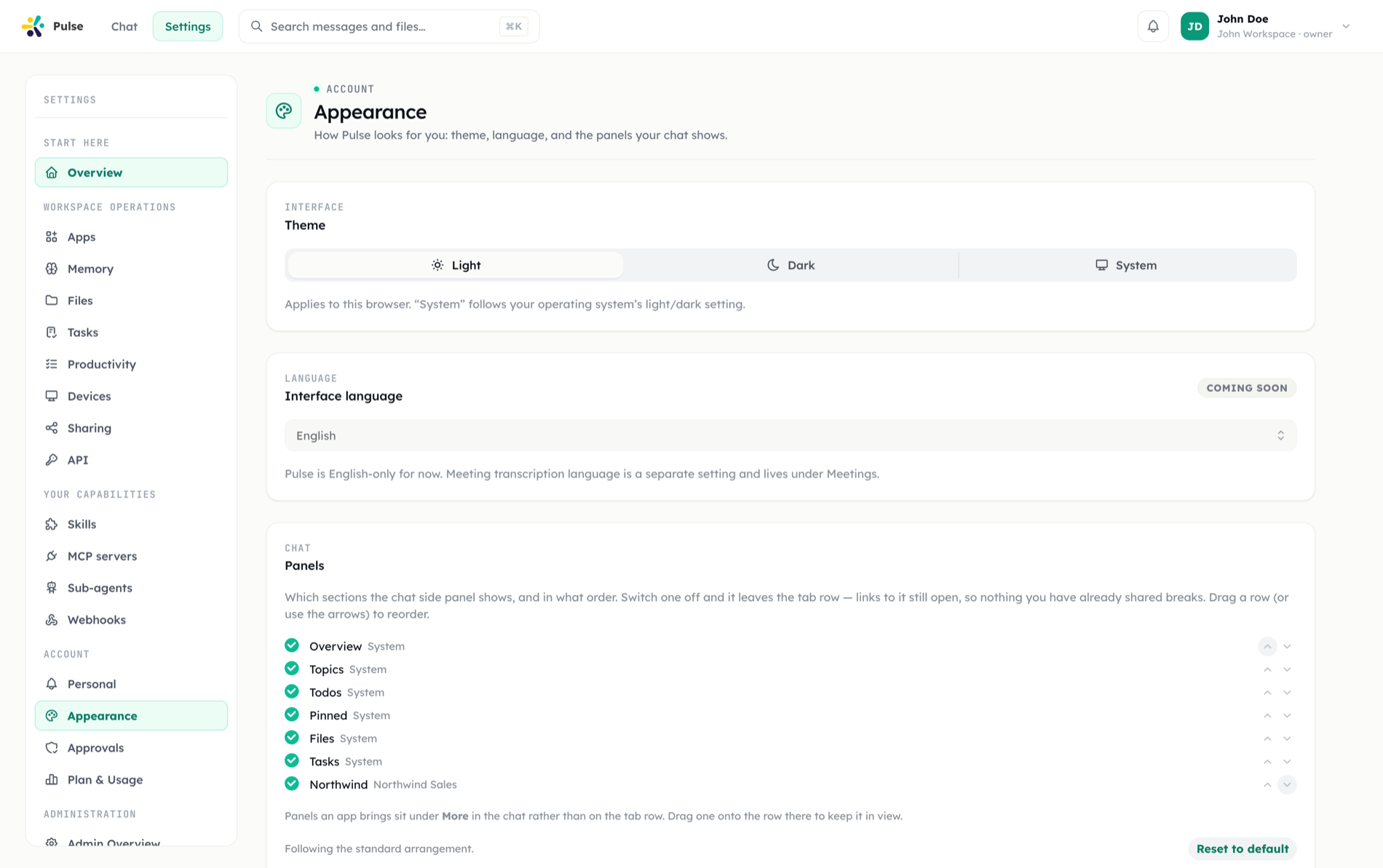
Panels that do not fit the tab row collapse under a More ▾ menu, and you can drag to reorder. App-contributed panels default into the overflow rather than pushing built-in tabs off the row — drag one forward to promote it. Meeting transcription language is a separate setting and lives under Meetings.
Your organization can set a default arrangement for everyone, or lock it entirely; when locked, the page says the layout is set by your organization.
The organization side
Workspace administration covers the controls that govern the whole team:
| Area | What it controls |
|---|---|
| Admin overview | Landing page — jump into every admin surface |
| Organization apps | Each app's state, org-wide installs, required apps, audiences — and authoring: create, publish, roll back manifest apps |
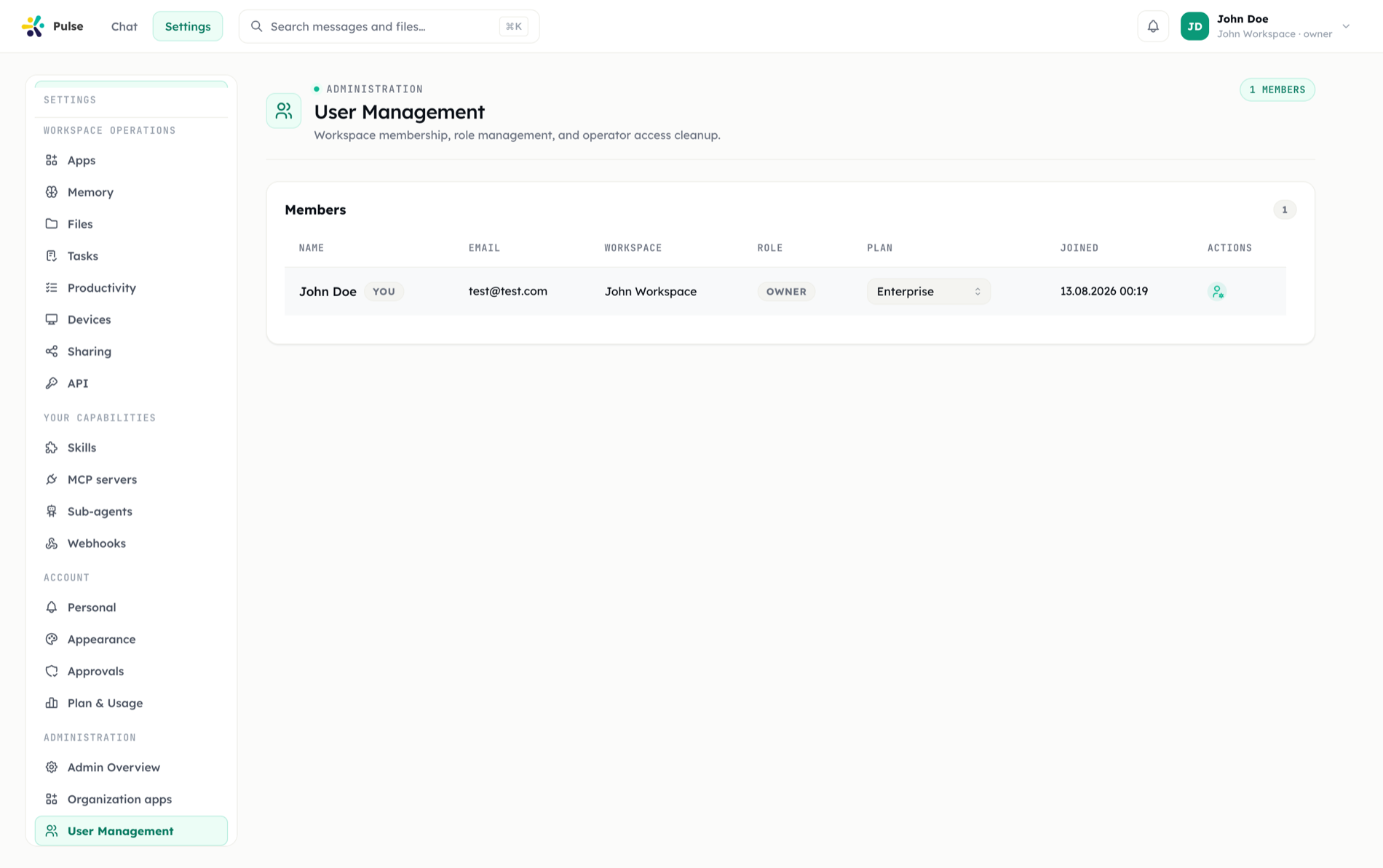
| User management, Groups, Invitations, Authentication | Who is in the workspace, what they may do, and how they sign in |
| Security | Organization-wide tool policy profiles, enforcement, and member self-service gates |
| Sharing policies | Defaults governing how files and resources are shared and revoked |
| Usage and plan | Consumption against quotas, seat and license counts, and which plan-gated apps the workspace can use |
Three org-side patterns are worth calling out:
- Distributing capability = distributing an app. To give the team a skill, create the app that carries it — the Create app chooser has a quick path that writes one skill and rolls it out in a single pass — then adjust Required and audience on the app's card. One mechanism for rollout, audit and rollback.
- There is no separate Organization MCP page. Org-level MCP is a capability an app declares, authored on the app's own page and rolled out with the app. A second entry point would be a second way for a shared server to exist with no manifest behind it.
- Policies compose with roles and approvals. Roles decide who can configure what; app state and audience decide who gets which capability; security profiles and approvals decide which agent actions still require a human. Layers over the same workspace, each answering one question.
Groups
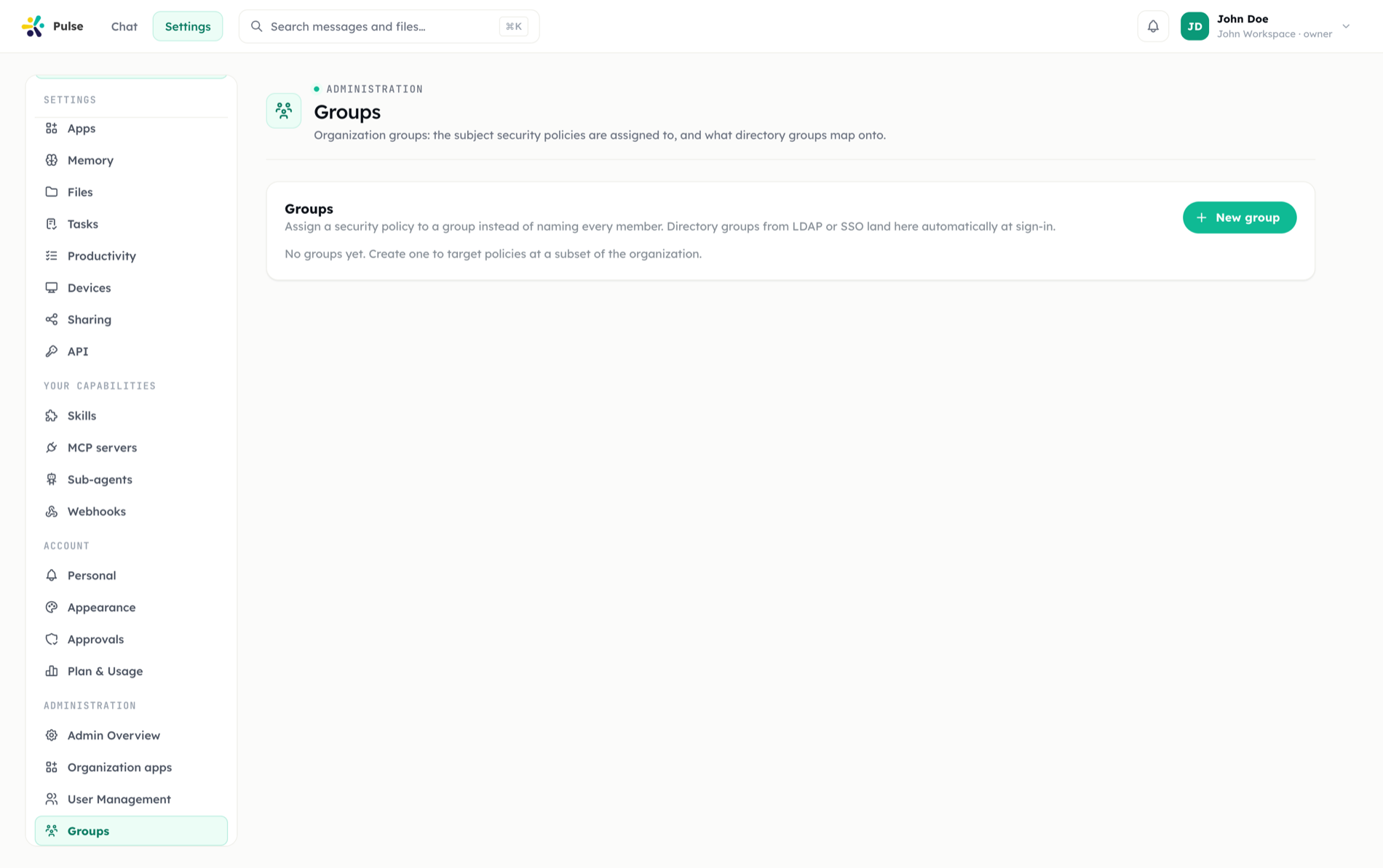
Groups exist so policies can target a subset of the organization without naming individuals: an app's audience, a security policy assignment, and directory-group mappings all take a group. Membership is evaluated live, so a member who joins a group later is covered automatically.
Members and roles
API access
Technical access to Pulse goes through personal access tokens against the public REST surface. Tokens are stored hashed, shown once at creation, carry an optional expiry, can be revoked, and carry coarse scopes (messages:read, files:write, webhooks:manage, …) — see the scope reference and API access. The in-product API Reference page under Settings documents every endpoint.
One place to govern Pulse
Because Pulse spans timeline, tasks, approvals, apps, memory, files, voice, devices and webhooks, Settings is the single place those pieces are administered. The app-first organization means the question "who gets this capability, in what state, with which accounts?" always has the same answer: look at the app.