

Getting started with Pulse
From an empty workspace to an assistant running work on your behalf. Five steps: open the timeline, connect a tool when it asks, delegate something real, approve what matters, and keep what it produced.
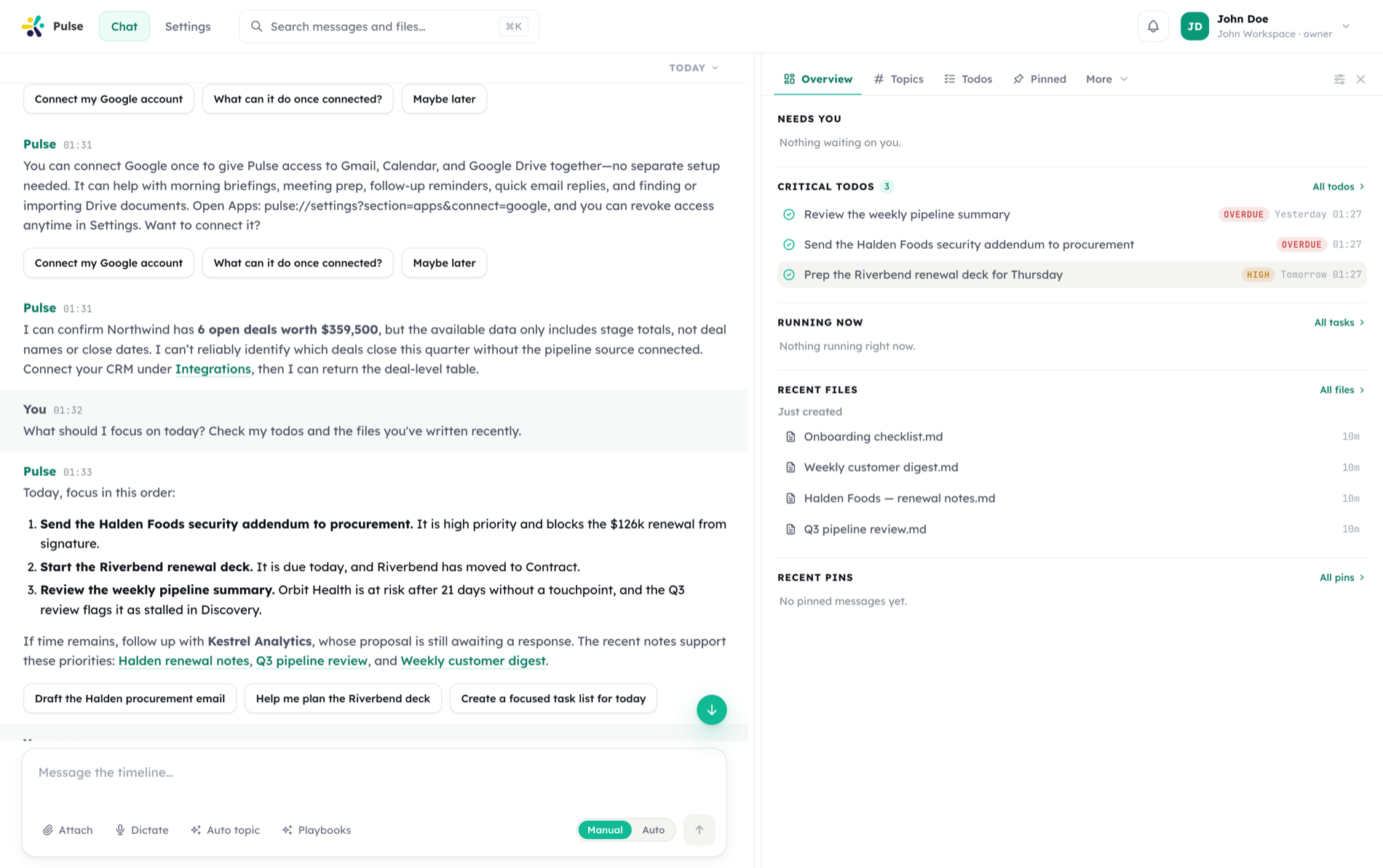
If you are new to the platform, it helps to know where Pulse sits: Studio is where teams build agents, and Pulse is the assistant that runs the work through a single persistent timeline.
1. Open your workspace
Sign in and you land directly in your timeline — the one persistent chat that everything in Pulse revolves around. There are no separate threads to manage; new tasks, results, and approval requests all appear here.
Your first message can be anything you would ask a capable teammate. The Main Agent reads your intent, decides what to do, and either answers immediately or starts background work.
One assistant, one thread
Each person gets a single timeline. This is intentional — it keeps history, context, and pending work in one place instead of scattered across sessions.
2. Connect a tool when Pulse asks
Most useful work touches a tool you already use — Slack, GitHub, Notion, Jira, Google. You do not need to set anything up first: ask for the work, and the first time the assistant needs an account you have not connected, a Connect card appears right in the chat. Connect from the card and the work picks up where it left off.
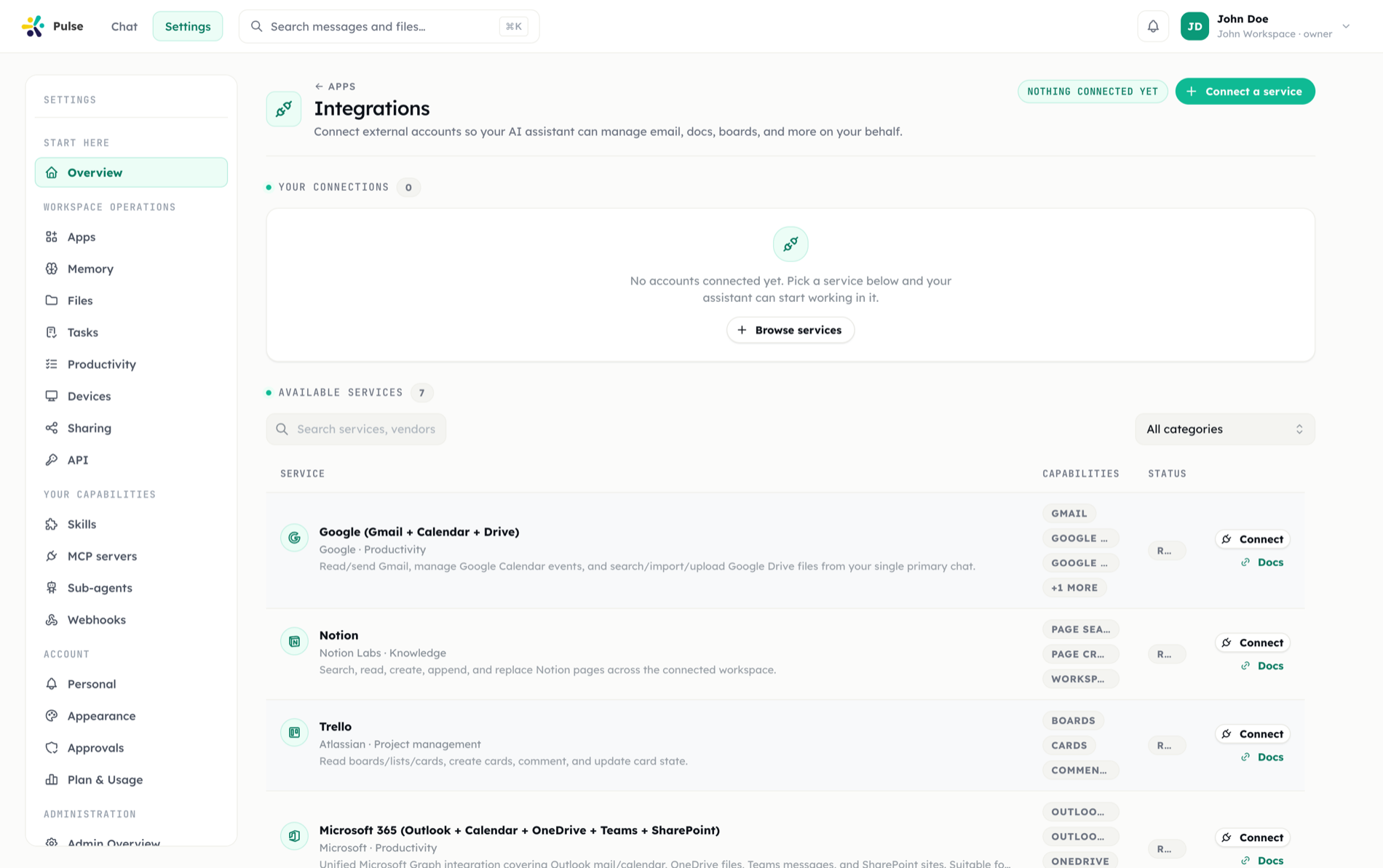
You can also authorize providers up front from your integration settings. See Apps for how capability arrives in a workspace in the first place.
3. Delegate your first task
Ask the assistant to do something concrete. For example:
Summarize the open issues in our GitHub repo and post the summary to #standup in Slack.The assistant will plan the steps, then hand long-running parts to a background worker. You can keep chatting while it runs — progress and results stream back into the timeline.
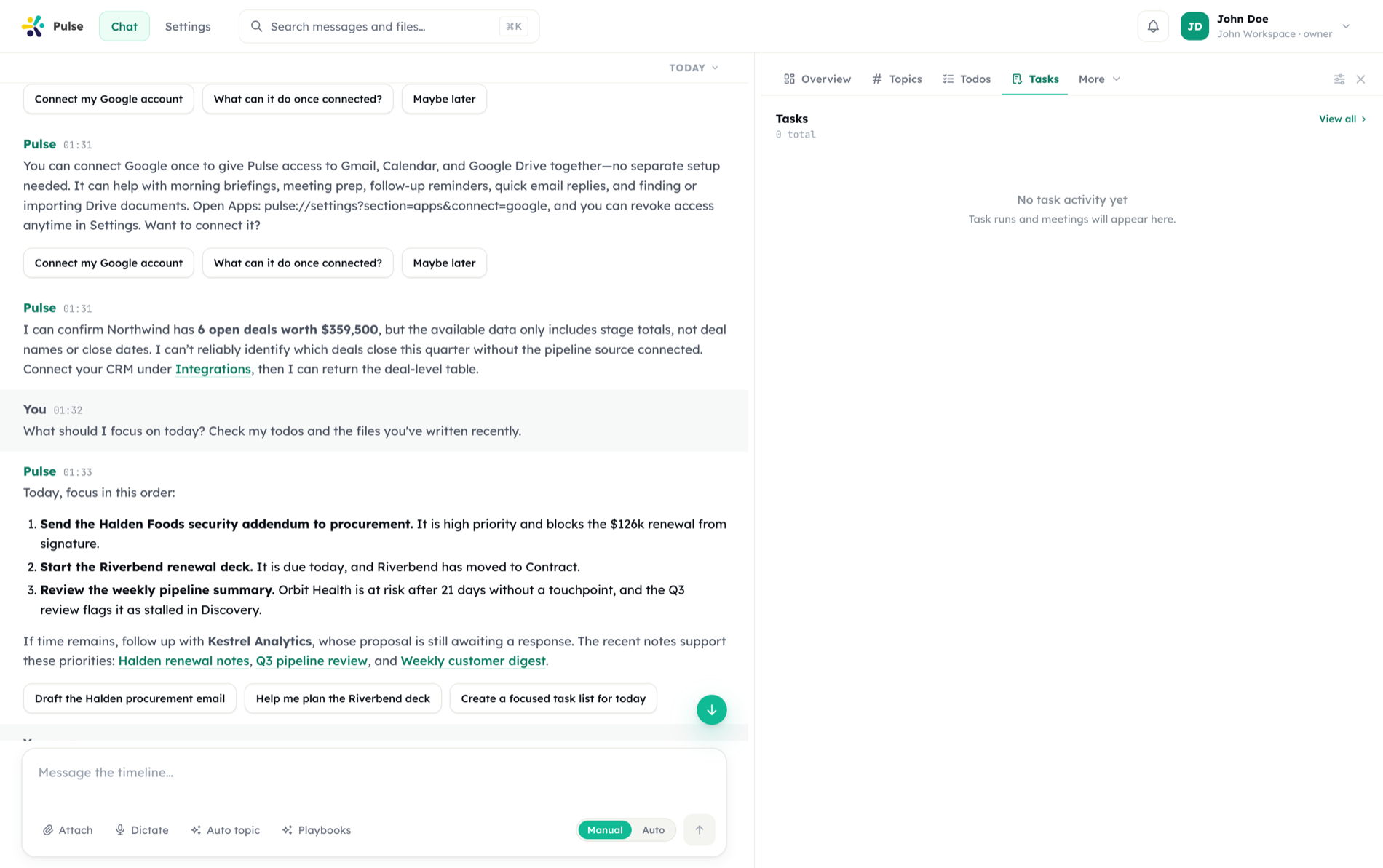
For recurring work, ask for a schedule:
Every weekday at 9:00, send me a digest of yesterday's support tickets.Pulse registers this as a scheduled task and runs it on cron without further prompting.
4. Approve sensitive actions
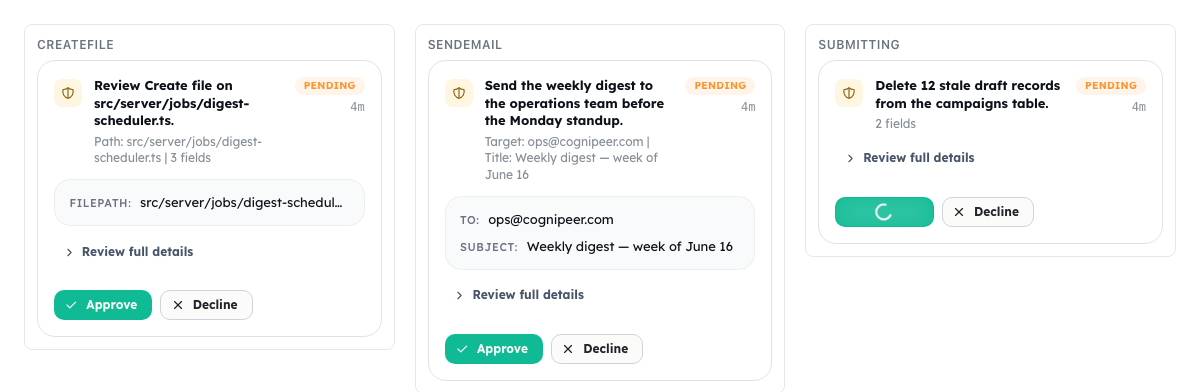
When a task would do something consequential — sending an external message, changing a record, spending budget — Pulse pauses and asks first. You can approve from the chat, an email deep-link, or the approvals view. Nothing sensitive happens without your sign-off.
5. Keep what matters
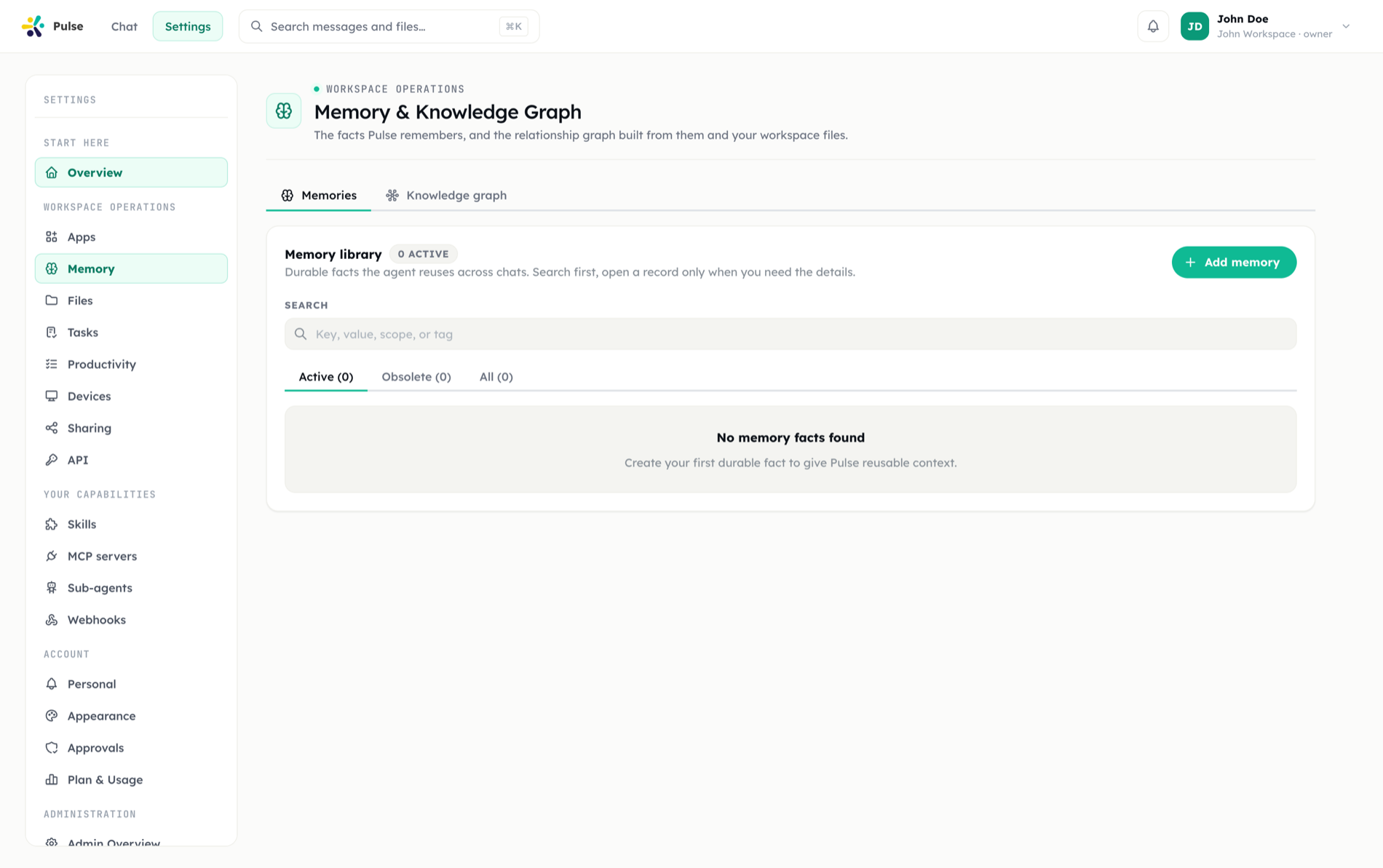
As you work, the assistant stores durable facts in memory and can generate files and artifacts — documents, spreadsheets, slides, or diagrams — that sync across your devices and can be shared with your team.
What's next
- Timeline — how the interface and the two agents work
- Tasks & automation — immediate, delayed, and scheduled runs
- Integrations — the full provider catalog
- Voice mode — talk to Pulse in real time