

Peer Channels
A Peer is the assistant. A channel is where people reach it. The same Peer — same prompt, same tools, same knowledge — can answer on your website, in Slack, in Teams, over WhatsApp, or through an API, without being rebuilt for each one.
Channels are configured per Peer, from the Peer's Channels tab.
Available channels
| Channel | Reach it from | Typical use |
|---|---|---|
| Web Chat | A widget embedded on your site | Customer-facing support and pre-sales |
| Slack | A Slack workspace | Internal Q&A, team assistants |
| Microsoft Teams | A Teams app | Internal assistants in Microsoft-first organisations |
| WhatsApp (Twilio) | A WhatsApp number via Twilio | Customer messaging, notifications, support |
| Chatwoot | Your Chatwoot inbox | AI-assisted support desks with human handover |
| API Access | Your own backend | Embedding a Peer inside your product |
| A2A | Another agent | Exposing a Peer as a remote agent endpoint |
Web Chat
Embeds the Peer as a chat widget on your website, so it is available to visitors without an account. This is the channel most customer-facing Peers start with.
Embed snippets, styling parameters and the client SDK live in the Developer Hub.
Slack
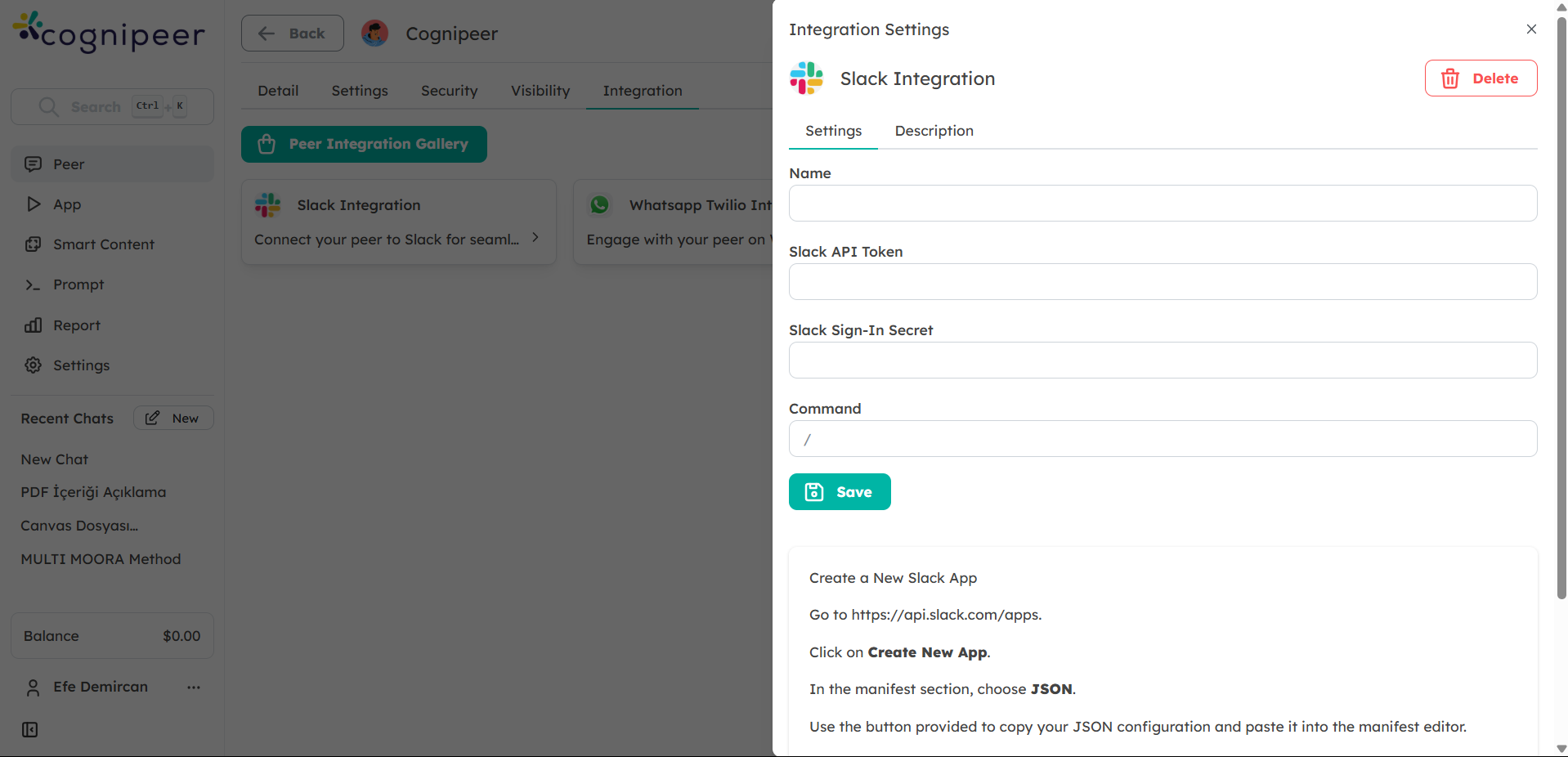
Puts the Peer in your Slack workspace, where it can answer in channels and direct messages. Good for internal assistants: policy questions, "where do I find…", first-line IT and HR support.
Microsoft Teams
Connects the Peer to Microsoft Teams using a peer-per-app model: each configured Peer gets its own Teams bot identity, so it appears as its own chat target rather than one shared bot answering for everything.
The setup form walks operators through it with copyable endpoints, a manifest preview and a draft Teams package, so onboarding does not require a Teams developer.
WhatsApp (Twilio)
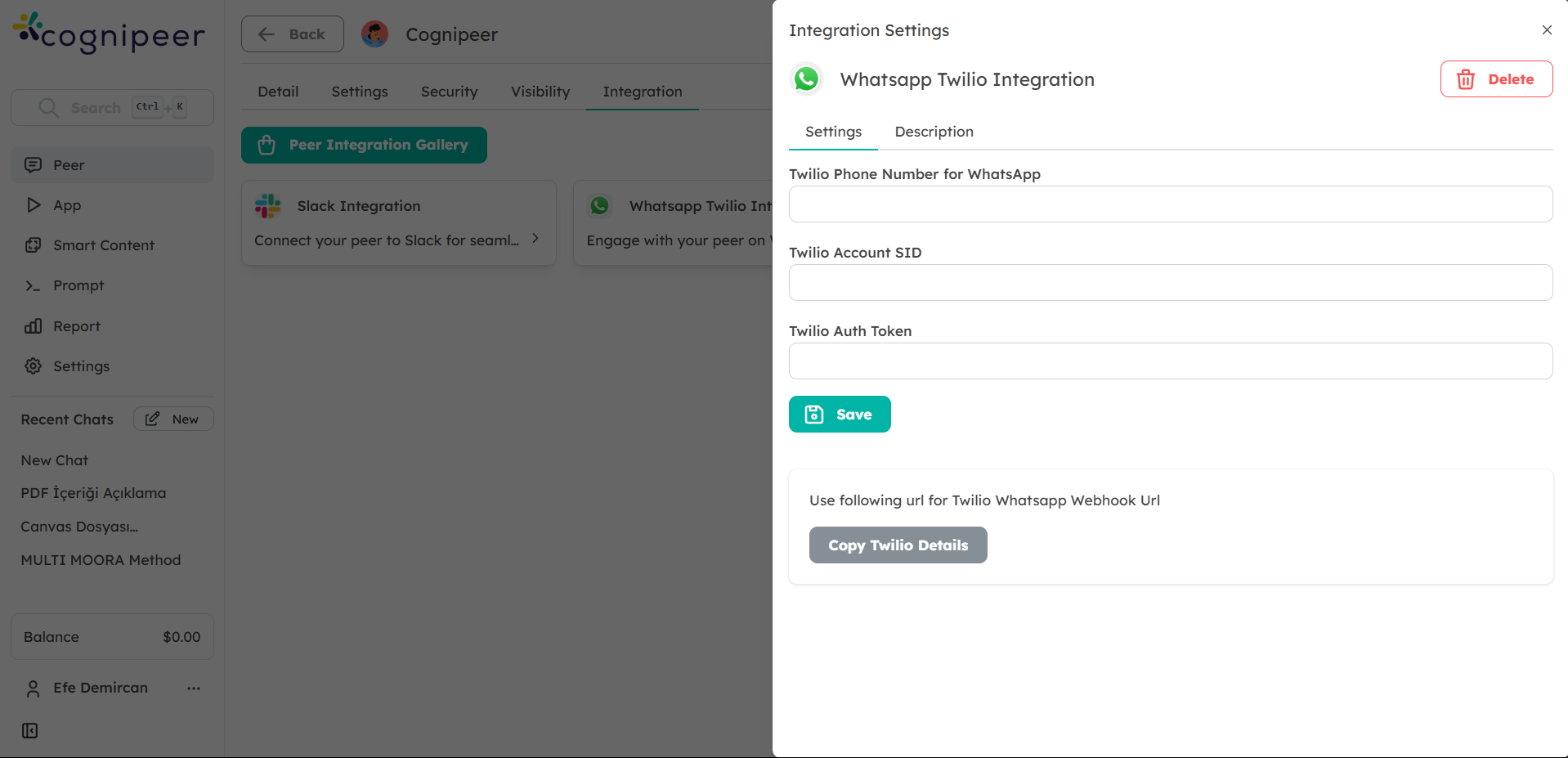
Sends and receives WhatsApp messages through Twilio's API. Suited to customer support, order and appointment updates, and any audience that already lives in WhatsApp.
You supply the Twilio credentials and number; the channel handles the rest.
Chatwoot
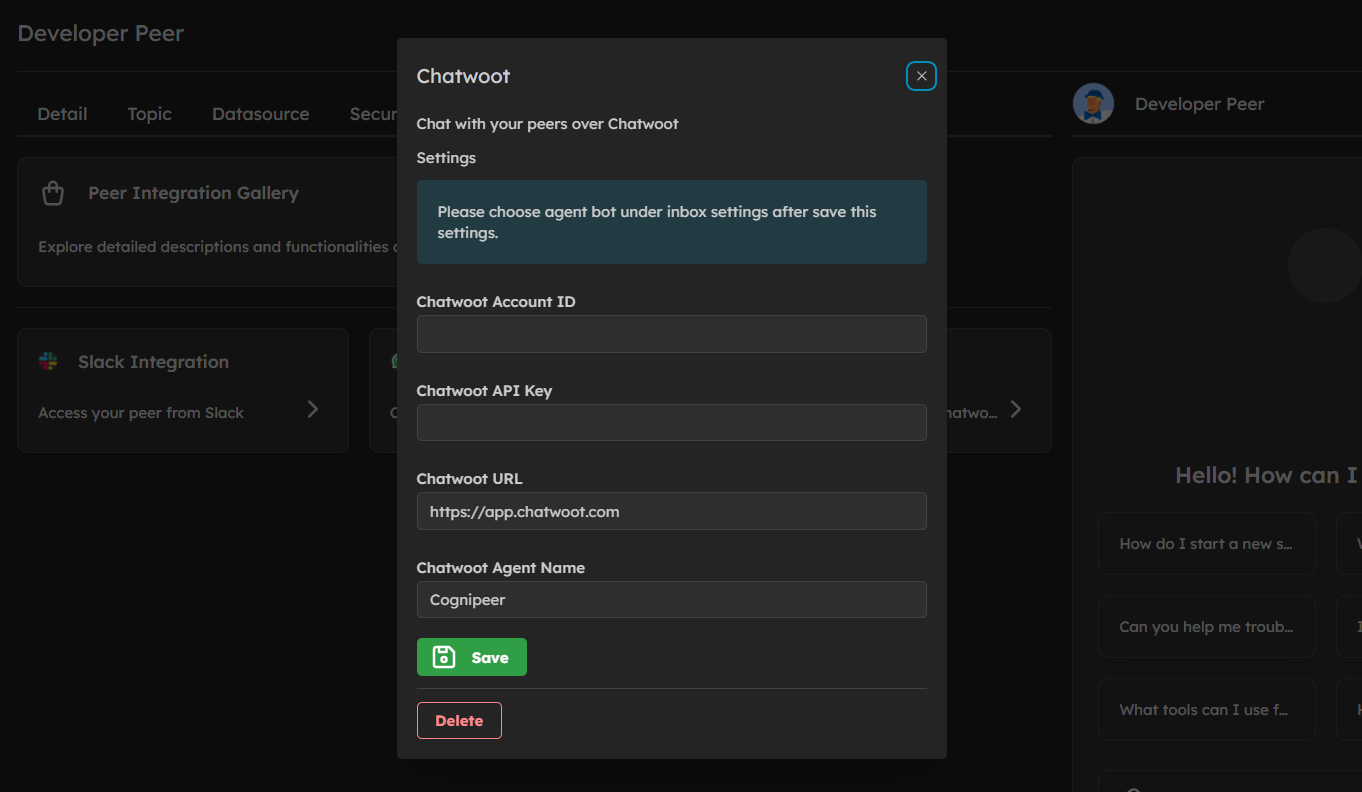
Brings the Peer into a Chatwoot inbox, so it can answer customer conversations alongside your human agents and hand over when it should. Agents manage Peer conversations exactly like any other Chatwoot conversation.
API Access
Exposes the Peer over Cognipeer's REST endpoints so you can call it from a backend service, an internal tool, or your own product. You control authentication, payloads and how the response is rendered.
A2A (agent-to-agent)
Exposes the Peer through the Agent-to-Agent protocol: another agent discovers it via an Agent Card and sends requests over JSON-RPC. Use it when Cognipeer should behave like a remote agent endpoint rather than a REST service you call.
Authentication uses a workspace API token from Settings → Tokens, sent as Authorization: Bearer <token>.
Current scope is deliberately narrow: inbound only, blocking text requests, no streaming, no push notifications, and no client-tool callbacks.
Installing a channel
- Open the Peer and go to Channels.
- Choose Channel Gallery.
- Pick the channel and complete its setup form — credentials, endpoints or embed details, depending on the channel.
- Save. The channel appears in the Peer's channel list with its status.
The list shows how many channels are connected, how many are active, and how many need attention, so a channel whose credentials expired is visible without opening it.
Per-channel settings
Every channel has its own settings, independent of the Peer's:
- Channel System Prompt — added to the Peer's system prompt when a message arrives through this channel. This is how one Peer speaks differently in Slack than it does to customers on the website, without duplicating the Peer.
- Conversation History Limit — how many previous messages to include as context on this channel. Leave it empty to use the Peer's own setting.
- Active — turn a channel off without deleting it or losing its configuration.
A channel also shows its last sync and current status: Active, Pending, Error or Inactive.
Which channel for what
- Answering customers on your site → Web Chat.
- Answering employees → Slack or Microsoft Teams, whichever your organisation already lives in.
- Reaching customers where they message → WhatsApp.
- Adding AI to an existing support desk → Chatwoot, so humans keep the handover.
- Putting a Peer inside your own product → API Access.
- Letting another agent call your Peer → A2A.
Related
- Channel usage analytics — traffic and cost per channel
- Peer settings — the behaviour every channel inherits
- Developer Hub — embed scripts, SDKs, endpoint references