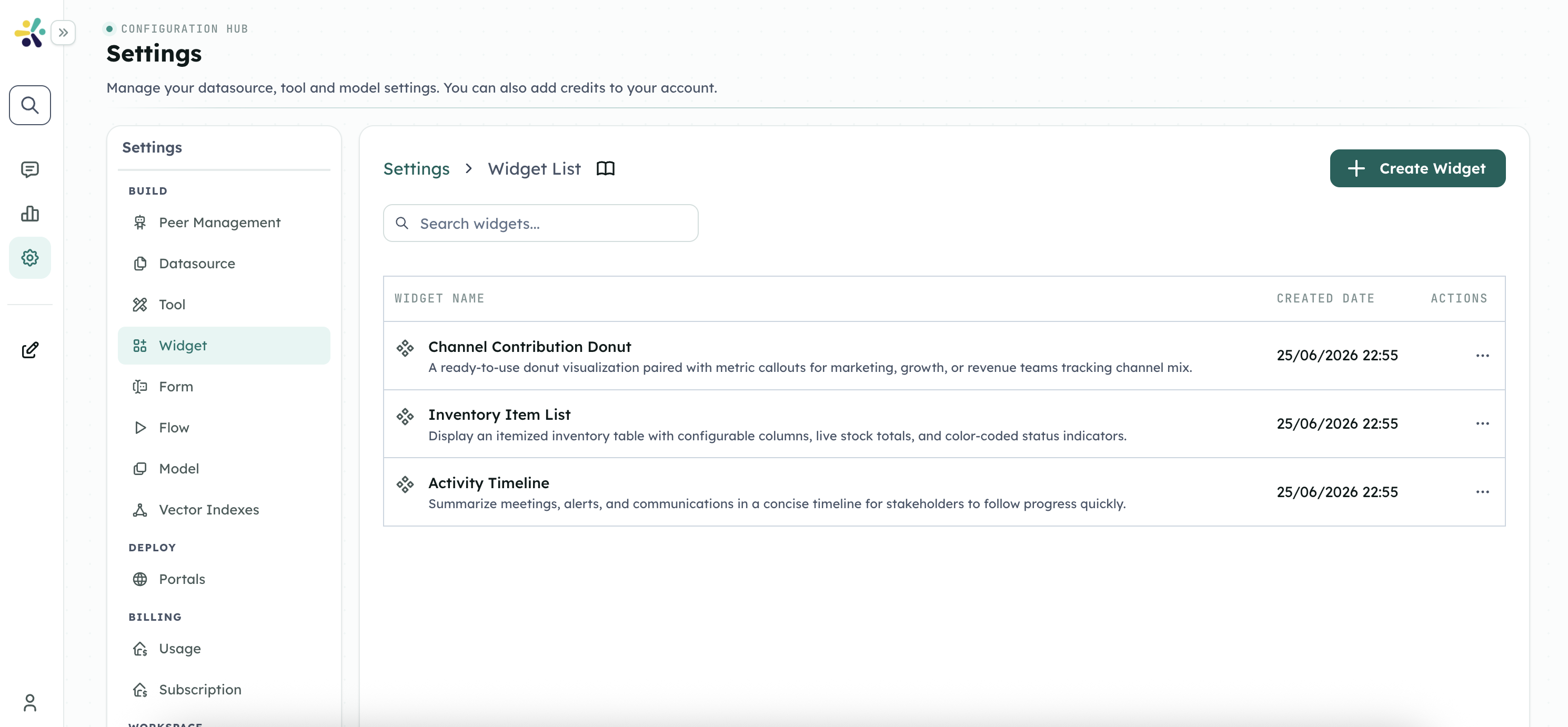
Widget System
The Widget System allows you to create custom, interactive React components that can be dynamically rendered in peer conversations. Widgets enable rich data visualization, interactive forms, and dynamic content that goes beyond simple text responses.
Overview
Widgets provide:
- Interactive Visualizations: Charts, graphs, and data displays
- Dynamic Content: Real-time data presentation
- Custom UI Components: Tailored user experiences
- Reusable Components: Share widgets across peers
- Secure Execution: Sandboxed JavaScript/React environment
Key Concepts
What is a Widget?
A widget is a self-contained React component defined through JSON configuration and JavaScript code. When a peer sends a message with widget data, Cognipeer AI dynamically renders the widget with the provided data.
Widget Structure
{
"key": "sales-funnel-progress",
"name": "Sales Funnel Progress",
"description": "Displays sales pipeline stages with conversion rates",
"category": "sales",
"tags": ["sales", "analytics", "funnel"],
"schema": { /* JSON Schema for data validation */ },
"component": "/* React component code */"
}2
3
4
5
6
7
8
9
Widget Components
- Key: Unique identifier (e.g.,
sales-funnel-progress) - Name: Display name for the widget
- Description: What the widget does
- Schema: JSON Schema defining expected data structure
- Component: React component code (JavaScript)
- Category: Organization category
- Tags: Searchable keywords
Creating a Widget
Step 1: Navigate to Widget Management
- Go to Settings → Widgets
- Click "Create New Widget"
Step 2: Define Basic Information
{
"key": "task-kanban",
"name": "Task Kanban Board",
"description": "Kanban-style task board with drag-and-drop",
"category": "productivity",
"tags": ["tasks", "kanban", "project-management"]
}2
3
4
5
6
7
Step 3: Define Data Schema
Specify the expected data structure using JSON Schema:
{
"$schema": "http://json-schema.org/draft-07/schema#",
"type": "object",
"properties": {
"columns": {
"type": "array",
"items": {
"type": "object",
"properties": {
"id": { "type": "string" },
"title": { "type": "string" },
"tasks": {
"type": "array",
"items": {
"type": "object",
"properties": {
"id": { "type": "string" },
"title": { "type": "string" },
"priority": { "type": "string" },
"assignee": { "type": "string" }
},
"required": ["id", "title"]
}
}
},
"required": ["id", "title", "tasks"]
}
}
},
"required": ["columns"]
}2
3
4
5
6
7
8
9
10
11
12
13
14
15
16
17
18
19
20
21
22
23
24
25
26
27
28
29
30
31
Step 4: Write Component Code
Create a React component (JavaScript):
function TaskKanbanWidget({ data }) {
const { columns } = data;
return (
<div className="kanban-board">
{columns.map(column => (
<div key={column.id} className="kanban-column">
<h3>{column.title}</h3>
<div className="task-list">
{column.tasks.map(task => (
<div key={task.id} className="task-card">
<h4>{task.title}</h4>
{task.priority && (
<span className={`priority-${task.priority}`}>
{task.priority}
</span>
)}
{task.assignee && (
<div className="assignee">{task.assignee}</div>
)}
</div>
))}
</div>
</div>
))}
<style jsx>{`
.kanban-board {
display: flex;
gap: 1rem;
overflow-x: auto;
padding: 1rem;
}
.kanban-column {
min-width: 300px;
background: #f5f5f5;
border-radius: 8px;
padding: 1rem;
}
.task-card {
background: white;
border-radius: 4px;
padding: 0.75rem;
margin-bottom: 0.5rem;
box-shadow: 0 2px 4px rgba(0,0,0,0.1);
}
.priority-high { color: #e74c3c; }
.priority-medium { color: #f39c12; }
.priority-low { color: #27ae60; }
`}</style>
</div>
);
}
// Export the component
export default TaskKanbanWidget;2
3
4
5
6
7
8
9
10
11
12
13
14
15
16
17
18
19
20
21
22
23
24
25
26
27
28
29
30
31
32
33
34
35
36
37
38
39
40
41
42
43
44
45
46
47
48
49
50
51
52
53
54
55
56
57
58
59
Step 5: Test the Widget
Use the preview feature to test with sample data:
{
"columns": [
{
"id": "todo",
"title": "To Do",
"tasks": [
{
"id": "1",
"title": "Design mockups",
"priority": "high",
"assignee": "John"
}
]
},
{
"id": "in-progress",
"title": "In Progress",
"tasks": [
{
"id": "2",
"title": "Implement API",
"priority": "medium",
"assignee": "Sarah"
}
]
},
{
"id": "done",
"title": "Done",
"tasks": [
{
"id": "3",
"title": "Setup database",
"priority": "low",
"assignee": "Mike"
}
]
}
]
}2
3
4
5
6
7
8
9
10
11
12
13
14
15
16
17
18
19
20
21
22
23
24
25
26
27
28
29
30
31
32
33
34
35
36
37
38
39
40
Step 6: Save and Publish
- Click "Save Widget"
- Widget is now available for use
- Add to peers as needed
Using Widgets in Peers
Step 1: Enable Widget for Peer
- Navigate to peer settings
- Go to "Widgets" tab
- Click "Add Widget"
- Select from available widgets
- Save configuration
Step 2: Peer Sends Widget
The peer can send widget data in messages:
// In peer's response
{
"type": "widget",
"widgetKey": "task-kanban",
"data": {
"columns": [
// ... widget data
]
}
}2
3
4
5
6
7
8
9
10
Step 3: Widget Renders
Cognipeer automatically:
- Validates data against schema
- Loads the widget component
- Renders with provided data
- Displays in chat interface
Pre-built Widgets
Cognipeer includes several ready-to-use widgets:
1. Sales Funnel Progress
Key: sales-funnel-progress
Purpose: Visualize sales pipeline stages and conversion rates
Data Structure:
{
"stages": [
{
"name": "Leads",
"count": 1500,
"value": "$150,000",
"conversionRate": 0.25
},
{
"name": "Qualified",
"count": 375,
"value": "$112,500",
"conversionRate": 0.40
}
],
"totalValue": "$150,000",
"conversionRate": 0.10
}2
3
4
5
6
7
8
9
10
11
12
13
14
15
16
17
18
2. Shopping Cart Summary
Key: shopping-cart-summary
Purpose: Display shopping cart with items and totals
Data Structure:
{
"items": [
{
"id": "1",
"name": "Product A",
"quantity": 2,
"price": 29.99,
"image": "https://..."
}
],
"subtotal": 59.98,
"tax": 5.40,
"shipping": 9.99,
"total": 75.37,
"currency": "USD"
}2
3
4
5
6
7
8
9
10
11
12
13
14
15
16
3. Skills Comparison Radar
Key: skills-comparison-radar
Purpose: Compare skill levels across categories
Data Structure:
{
"categories": ["JavaScript", "Python", "React", "Node.js", "SQL"],
"datasets": [
{
"name": "Current Skills",
"values": [8, 6, 9, 7, 5]
},
{
"name": "Required Skills",
"values": [9, 8, 9, 8, 7]
}
]
}2
3
4
5
6
7
8
9
10
11
12
13
4. Support Ticket Overview
Key: support-ticket-overview
Purpose: Display support ticket statistics and priority distribution
Data Structure:
{
"total": 42,
"open": 15,
"inProgress": 18,
"resolved": 9,
"priorities": {
"critical": 3,
"high": 8,
"medium": 20,
"low": 11
},
"avgResponseTime": "2h 15m"
}2
3
4
5
6
7
8
9
10
11
12
13
5. User Growth Line Chart
Key: user-growth-line-chart
Purpose: Visualize user growth over time
Data Structure:
{
"labels": ["Jan", "Feb", "Mar", "Apr", "May", "Jun"],
"datasets": [
{
"name": "New Users",
"data": [120, 195, 250, 310, 420, 580]
},
{
"name": "Active Users",
"data": [450, 520, 610, 720, 890, 1050]
}
]
}2
3
4
5
6
7
8
9
10
11
12
13
6. Weather Daily Highlight
Key: weather-daily-highlight
Purpose: Display weather information with icons
Data Structure:
{
"location": "San Francisco, CA",
"current": {
"temp": 68,
"condition": "Partly Cloudy",
"humidity": 65,
"windSpeed": 12
},
"forecast": [
{
"day": "Monday",
"high": 72,
"low": 58,
"condition": "Sunny"
}
]
}2
3
4
5
6
7
8
9
10
11
12
13
14
15
16
17
7. Task Kanban Board
Key: task-kanban
Purpose: Kanban-style task organization
(See full example in Step 4 above)
Widget Development Best Practices
Data Validation
Always define a comprehensive JSON Schema:
{
"$schema": "http://json-schema.org/draft-07/schema#",
"type": "object",
"properties": {
// Define all expected properties
},
"required": ["essentialField1", "essentialField2"],
"additionalProperties": false
}2
3
4
5
6
7
8
9
Error Handling
Handle missing or invalid data gracefully:
function MyWidget({ data }) {
// Provide defaults
const {
title = 'Untitled',
items = [],
showLegend = true
} = data || {};
// Validate critical data
if (!items || items.length === 0) {
return <div>No data available</div>;
}
// Render widget
return (/* ... */);
}2
3
4
5
6
7
8
9
10
11
12
13
14
15
16
Performance
- Memoize expensive calculations:
const processedData = useMemo(
() => processLargeDataset(data),
[data]
);2
3
4
- Lazy load heavy dependencies:
const ChartLibrary = lazy(() => import('chart-library'));- Limit re-renders:
const MemoizedComponent = memo(SubComponent);Styling
Use inline styles or CSS-in-JS for isolation:
// Inline styles
<div style={{ color: 'blue', fontSize: '16px' }}>
// CSS-in-JS (styled-jsx)
<style jsx>{`
.widget { color: blue; }
`}</style>
// Avoid global CSS that might conflict2
3
4
5
6
7
8
9
Accessibility
Make widgets accessible:
<button
aria-label="Close widget"
onClick={handleClose}
tabIndex={0}
>
<CloseIcon />
</button>2
3
4
5
6
7
Security
- Sanitize user inputs: Never render raw HTML from untrusted sources
- Validate URLs: Check external resource URLs
- Limit API calls: Don't make external requests without user consent
Advanced Features
Interactive Widgets
Add user interactions:
function InteractiveWidget({ data, onAction }) {
const [selected, setSelected] = useState(null);
const handleClick = (item) => {
setSelected(item);
// Notify parent
onAction?.({
type: 'itemSelected',
payload: item
});
};
return (/* ... */);
}2
3
4
5
6
7
8
9
10
11
12
13
14
Dynamic Data Loading
Fetch additional data if needed:
function DynamicWidget({ data }) {
const [details, setDetails] = useState(null);
useEffect(() => {
if (data.needsDetails) {
fetch(`/api/details/${data.id}`)
.then(r => r.json())
.then(setDetails);
}
}, [data]);
return (/* ... */);
}2
3
4
5
6
7
8
9
10
11
12
13
Responsive Design
Make widgets mobile-friendly:
function ResponsiveWidget({ data }) {
const isMobile = useMediaQuery('(max-width: 768px)');
return (
<div className={isMobile ? 'mobile-layout' : 'desktop-layout'}>
{/* ... */}
</div>
);
}2
3
4
5
6
7
8
9
Widget Management
Organizing Widgets
Use categories and tags:
- Categories:
sales,analytics,productivity,customer-service - Tags: Specific keywords for search and filtering
Version Control
Maintain widget versions:
- Clone widget before major changes
- Test new version separately
- Update peers gradually
- Keep rollback option
Permissions
Control widget access:
- WIDGETS_USE_BASIC: Can use widgets in peers
- WIDGETS_MANAGE: Can create and edit widgets
Troubleshooting
Widget Not Rendering
Possible Causes:
- Invalid JSON schema
- Data doesn't match schema
- Syntax error in component code
- Missing required fields
Solutions:
- Validate schema at jsonschemavalidator.net
- Test with sample data in preview
- Check browser console for errors
- Review schema requirements
Styling Issues
Problem: Styles not applying or conflicting
Solutions:
- Use scoped styles (styled-jsx)
- Add unique class prefixes
- Use inline styles for critical styling
- Check CSS specificity
Performance Issues
Problem: Widget is slow or causes lag
Solutions:
- Optimize data processing
- Use React.memo for expensive components
- Implement virtualization for large lists
- Lazy load heavy dependencies
API Integration
Create Widget
POST /api/v1/widget
{
"key": "my-widget",
"name": "My Custom Widget",
"description": "Description...",
"category": "analytics",
"tags": ["custom", "analytics"],
"schema": { /* JSON Schema */ },
"component": "/* React component code */"
}2
3
4
5
6
7
8
9
10
Add Widget to Peer
POST /api/v1/peer/:peerId/widgets
{
"widgetId": "widget_123",
"enabled": true,
"config": {
"defaultProps": {}
}
}2
3
4
5
6
7
8
Send Widget in Message
POST /api/v1/conversation/:conversationId/message
{
"message": {
"type": "widget",
"widgetKey": "sales-funnel-progress",
"data": {
"stages": [/* ... */]
}
}
}2
3
4
5
6
7
8
9
10
Related Documentation
- Peer Settings - Configure peer widget settings
- React Documentation - React component development
- JSON Schema - Schema validation
- API Reference - Widget API documentation
Summary
The Widget System extends Cognipeer AI's capabilities beyond text, enabling rich, interactive experiences in peer conversations. By creating custom widgets, you can visualize data, build interactive forms, and deliver dynamic content tailored to your specific use cases.
Getting Started:
- Explore pre-built widgets
- Add widgets to your peers
- Test with sample data
- Create your first custom widget
- Share widgets across your organization
Widgets make your peers more engaging, informative, and powerful.