

Optimizing Peer Performance with Topics
Topics structure an AI Peer’s knowledge and improve response accuracy in specific areas. Organizing knowledge by topic helps the Peer handle specialized queries and provide relevant responses.
Topic Configuration Steps
1. Accessing the Peer Management Interface
To begin optimizing your Peer’s performance, you need to access the Peer management interface. Follow these steps:
- Log in to your Cognipeer dashboard.
- Navigate to the Peer List section, where all your Peers are listed.
- Click on the Peer you want to optimize. This will open the Peer’s detail page.
2. Navigating to the Topic Section
Once you are on the Peer’s detail page, you can start managing topics:
- On the Peer’s detail page, locate the Topic tab. This tab contains all the topics associated with the Peer.
- Click on the Topic tab to view the list of existing topics or to add new ones.
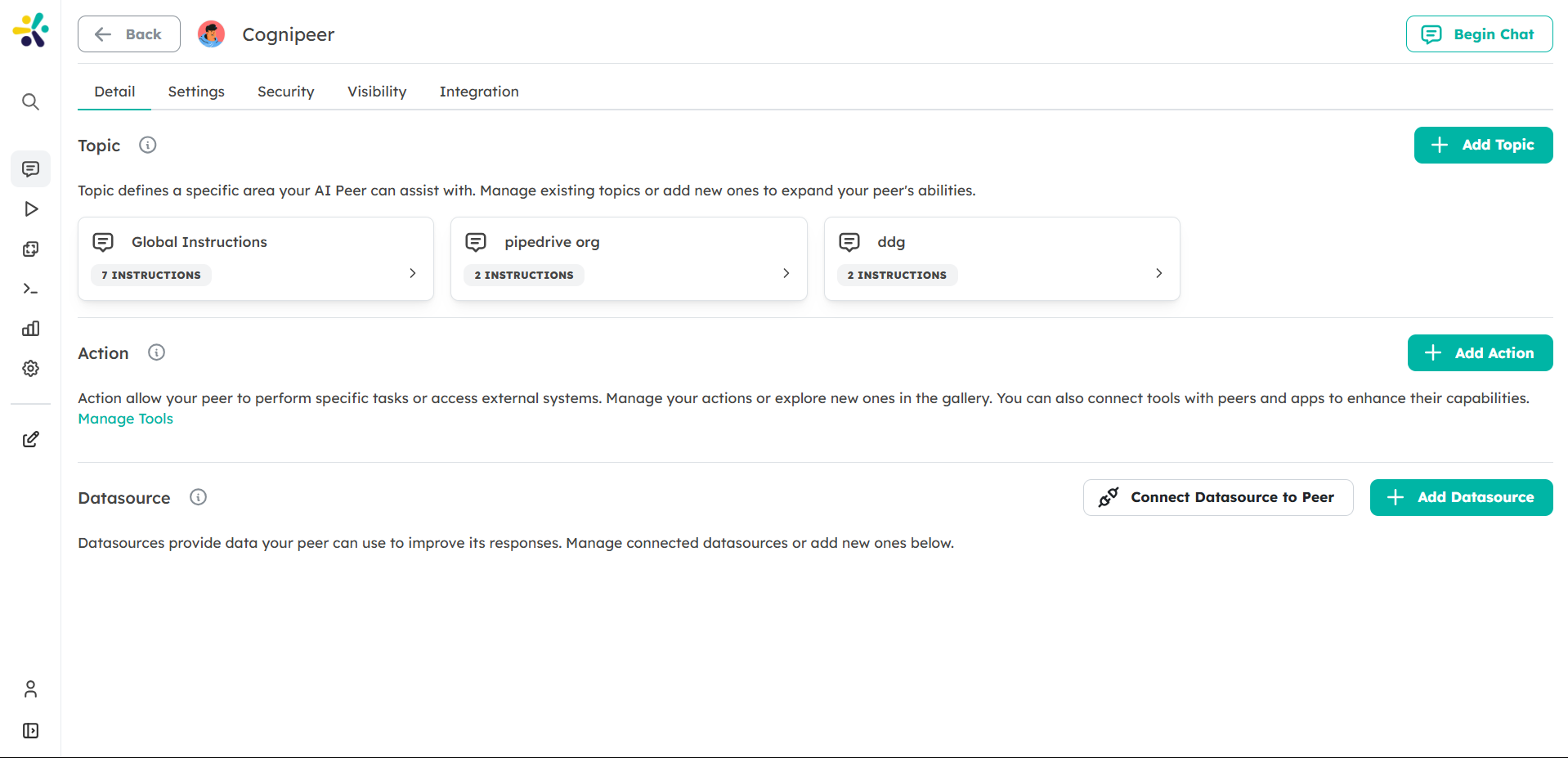
3. Adding a New Topic
To improve your Peer’s performance, you can add new topics that align with the areas of knowledge you want the Peer to specialize in:
- Click the Add Topic button.
- A form will appear with the following fields:
- Title: Enter the name of the topic (e.g., “Customer Support” or “Sales”).
- Prompt: Provide a brief description of the topic.
- Instructions: Add specific instructions that will guide the Peer in handling queries related to this topic.
- Select the actions that the Peer should take when handling this topic. For example, you can choose actions like Search, Knowledgebase, or Web Search.
- Click Save to add the topic to the Peer.
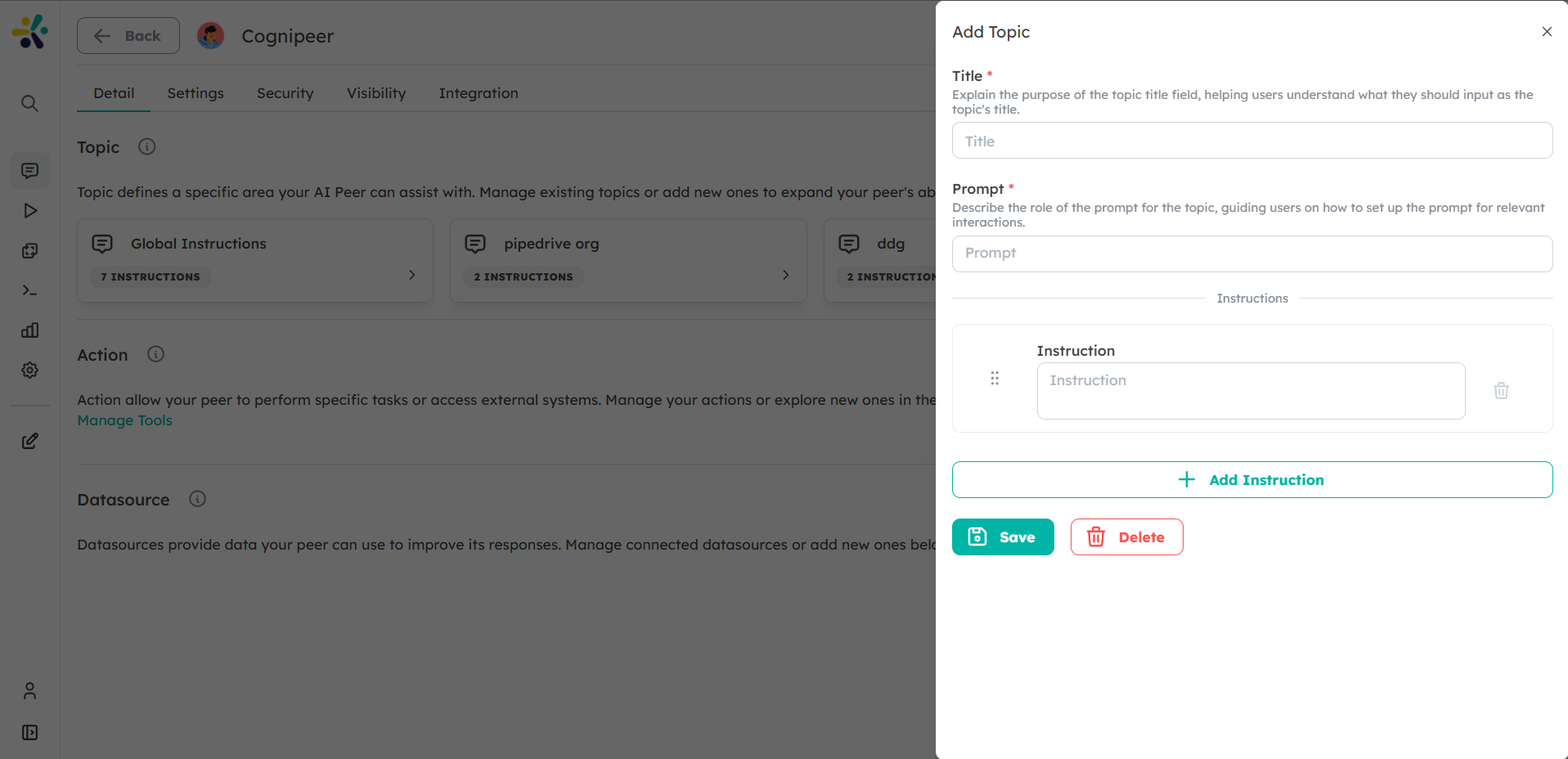
4. Structuring Topics for Better Performance
To get the most out of your Peer, it’s important to structure your topics effectively. Here are some best practices:
- Use Specific Titles: Ensure that each topic has a clear and specific title. For example, instead of using a broad title like “Support,” use “Technical Support” or “Billing Support.”
- Provide Detailed Instructions: The more detailed the instructions, the better your Peer will perform. Include specific keywords, phrases, or actions that the Peer should focus on.
- Limit Overlap: Avoid creating topics that overlap too much in scope. This can confuse the Peer and lead to less accurate responses.
5. Managing Existing Topics
You can also edit or delete existing topics to further optimize your Peer’s performance:
- In the Topic tab, locate the topic you want to edit or delete.
- Click on the topic to open its details.
- Make any necessary changes to the title, prompt, instructions, or actions.
- Click Save to update the topic, or click Delete to remove it.
6. Testing Your Peer’s Performance
After adding or editing topics, it’s important to test your Peer to ensure it’s performing as expected:
- Go to the Chat Interface on the Peer’s detail page.
- Ask the Peer questions related to the topics you’ve added or modified.
- Evaluate the Peer’s responses to ensure they are accurate and relevant to the topic.
If the responses are not satisfactory, you can go back and refine the topics or instructions.
7. Monitoring and Iterating
Optimizing your Peer’s performance is an ongoing process. Regularly monitor how well your Peer is handling queries and make adjustments as needed:
- Use the Usage tab to view statistics on how often each topic is being used and how well the Peer is performing.
- Based on the data, you can add new topics, refine existing ones, or remove topics that are not being used.