

Using SmartContent & Canvas
This guide provides detailed instructions on how to use the SmartContent & Canvas features in Cognipeer for collaborative document creation and editing.
Initiating a Canvas Session
To start using Canvas for document creation, you need to have a conversation with a Peer that has the Canvas system tool added.
Starting Commands
You can initiate a Canvas session using various commands, such as:
- "Let's create a document about [topic]"
- "Prepare a document with canvas about [topic]"
- "I need to write a [document type] using canvas"
- "Open canvas so we can work on a document together"
The Peer will recognize these commands and activate the Canvas interface.
Canvas Interface Overview
Once activated, the Canvas interface appears within the conversation. The interface includes:
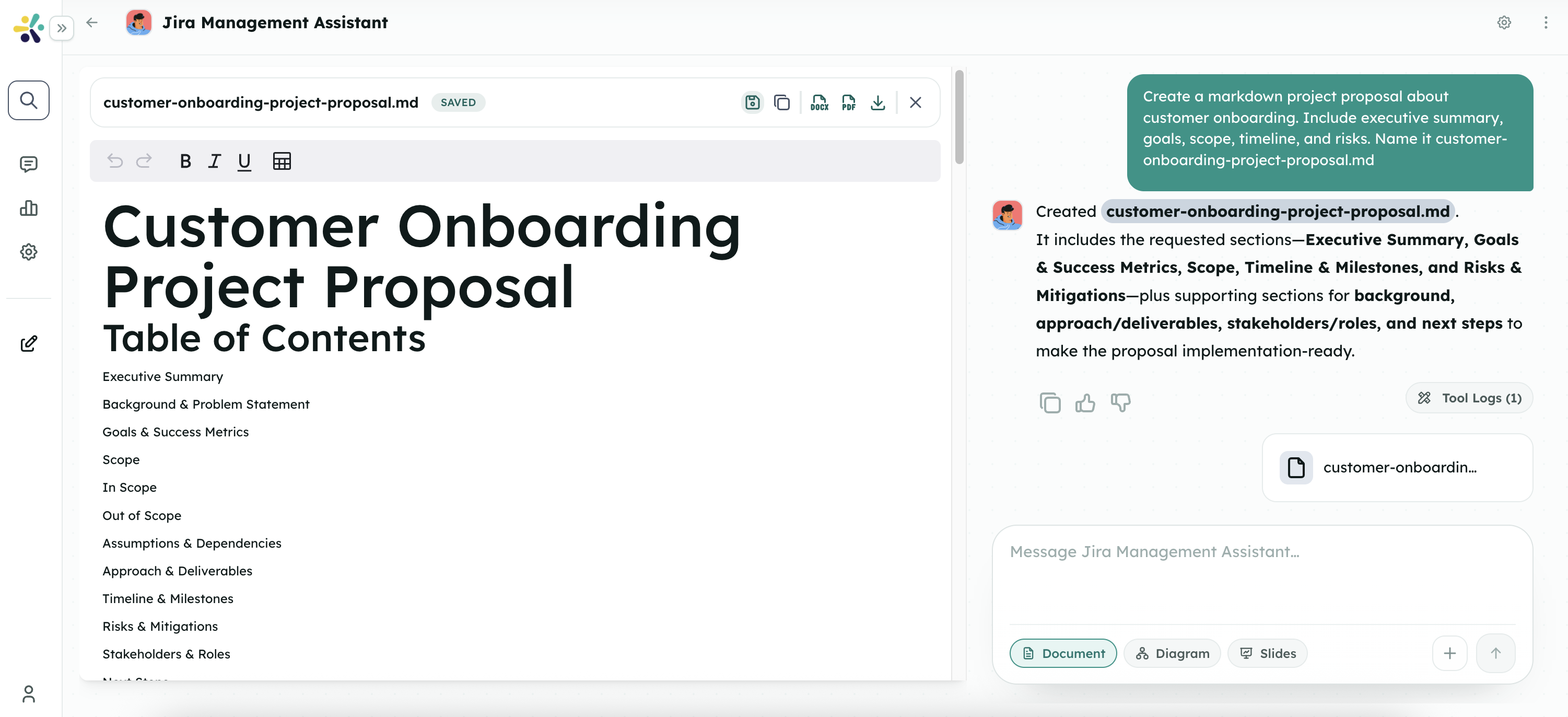
- Editor Selection: Choose between Markdown and Code editors
- Editing Area: The main space where you and the Peer collaborate on content
- Toolbar: Formatting options and actions (varies by editor type)
- Document Actions: Save, export, or create new documents
Working with the Markdown Editor
The Markdown editor is ideal for creating rich text documents with formatting, lists, tables, and other structural elements.
Markdown Editor Features
- Text Formatting: Bold, italic, underline, and other text styles
- Lists: Bulleted and numbered lists
- Headers: Multiple levels of section headers
- Tables: Create and format data tables
- Links and Images: Insert hyperlinks and embed images
- Quotes and Code Blocks: Format special content sections
Collaborative Editing
Both you and the Peer can edit the document simultaneously:
- User Edits: Type directly in the editor to add or modify content
- Peer Contributions: Request specific content from the Peer, who will add it to the document
- Suggestions: The Peer may suggest improvements or additions to the content
- Refinement: Collaboratively refine the document until it meets your requirements
Example Workflow
- Initiate a Canvas session: "Let's create a project proposal using canvas"
- Select the Markdown editor
- Outline the document structure with headers
- Ask the Peer: "Can you draft an executive summary section?"
- Review and edit the Peer's contribution
- Continue building the document section by section
- Request formatting improvements: "Can you format this as a table?"
- Finalize the document together
Working with the Code Editor
The Code editor is designed for technical documentation, code examples, or any content that requires syntax highlighting and code-specific formatting.
Code Editor Features
- Syntax Highlighting: Automatic highlighting based on the programming language
- Line Numbers: Easy reference to specific lines of code
- Indentation: Proper code formatting with automatic indentation
- Language Selection: Choose from multiple programming languages
- Code Execution: Some code snippets may be executable for testing (feature availability varies)
Collaborative Coding
Collaboration in the Code editor works similarly to the Markdown editor:
- User Code: Write code directly in the editor
- Peer Contributions: Ask the Peer to generate code examples or explanations
- Code Review: The Peer can suggest improvements or identify issues
- Documentation: Add comments and explanations around the code
Example Workflow
- Initiate a Canvas session: "Let's create a JavaScript tutorial using canvas"
- Select the Code editor
- Ask the Peer: "Can you provide an example of a function that calculates Fibonacci numbers?"
- Review the generated code
- Add your own comments or modifications
- Request additional examples or explanations
- Organize the document with section comments and structure
- Finalize the tutorial with comprehensive examples and explanations
Managing Multiple Documents
Canvas supports working with multiple documents within a single conversation, allowing you to create related content or different versions of a document.
Creating Additional Documents
To create a new document while in a Canvas session:
- Click the "New Document" button in the Canvas interface
- Provide a name for the new document
- Select the appropriate editor type
- Begin editing the new document
Switching Between Documents
To switch between documents:
- Click the document selector dropdown in the Canvas interface
- Select the document you want to view or edit
- The selected document will load in the editor
Document Organization
Consider these strategies for organizing multiple documents:
- Related Content: Create separate documents for different sections of a larger project
- Versions: Maintain different versions of a document as it evolves
- Formats: Create both technical and non-technical versions of the same content
- Languages: Develop content in multiple languages
Saving and Exporting Documents
Once you've created and refined your document, you have several options for saving and exporting it.
Saving as SmartContent
To save your document as SmartContent in Cognipeer:
- Click the "Save" button in the Canvas interface
- Provide a name for the document
- Select visibility settings:
- Private: Only you can access it
- Shared: Specific users or teams can access it
- Public: All users in your workspace can access it
- Click "Save" to store the document
Saved SmartContent can be accessed later from the SmartContent section of Cognipeer.
Exporting Documents
To export your document for external use:
- Click the "Export" button in the Canvas interface
- The document will be downloaded to your device
Continuing Work Later
You can return to a document in progress by:
- Continuing the same conversation and asking the Peer to resume work on the document
- Accessing a saved document from the SmartContent section and requesting modifications
Tips for Effective Collaboration
Clear Instructions
Provide clear instructions to your Peer about what you want to create:
- "Let's create a marketing plan with the following sections: Executive Summary, Target Audience, Messaging, Channels, and Budget"
- "I need a technical specification document that includes system architecture, API endpoints, and data models"
Iterative Development
Build your document iteratively:
- Start with an outline or structure
- Develop one section at a time
- Review and refine each section
- Connect sections with transitions
- Add final touches and formatting
Leverage Peer Expertise
Ask your Peer for specific contributions:
- "Can you suggest a better way to phrase this paragraph?"
- "Please generate some code examples for this concept"
- "Help me create a table comparing these options"
- "What additional sections should we include in this document?"
Regular Saving
Save your work regularly, especially for longer documents:
- Create checkpoints by saving versions of your document
- Export important documents in multiple formats for backup
- Save as SmartContent to ensure your work is preserved in Cognipeer
Troubleshooting
As SmartContent & Canvas are relatively new features, you might occasionally encounter issues:
Common Issues and Solutions
- Canvas Not Appearing: Ensure your Peer has the Canvas tool added and try a different activation command
- Editor Not Loading: Refresh the conversation and try initiating Canvas again
- Content Not Saving: Check your network connection and try saving with a different name
- Formatting Issues: Switch between editors or export and re-import the content
- Peer Not Contributing: Provide more specific instructions or break down complex requests into smaller tasks
If you encounter persistent issues, contact your Cognipeer administrator or support team for assistance.
By following these guidelines, you can effectively use SmartContent & Canvas to create, edit, and manage documents collaboratively with your Peers in Cognipeer.