

Apps
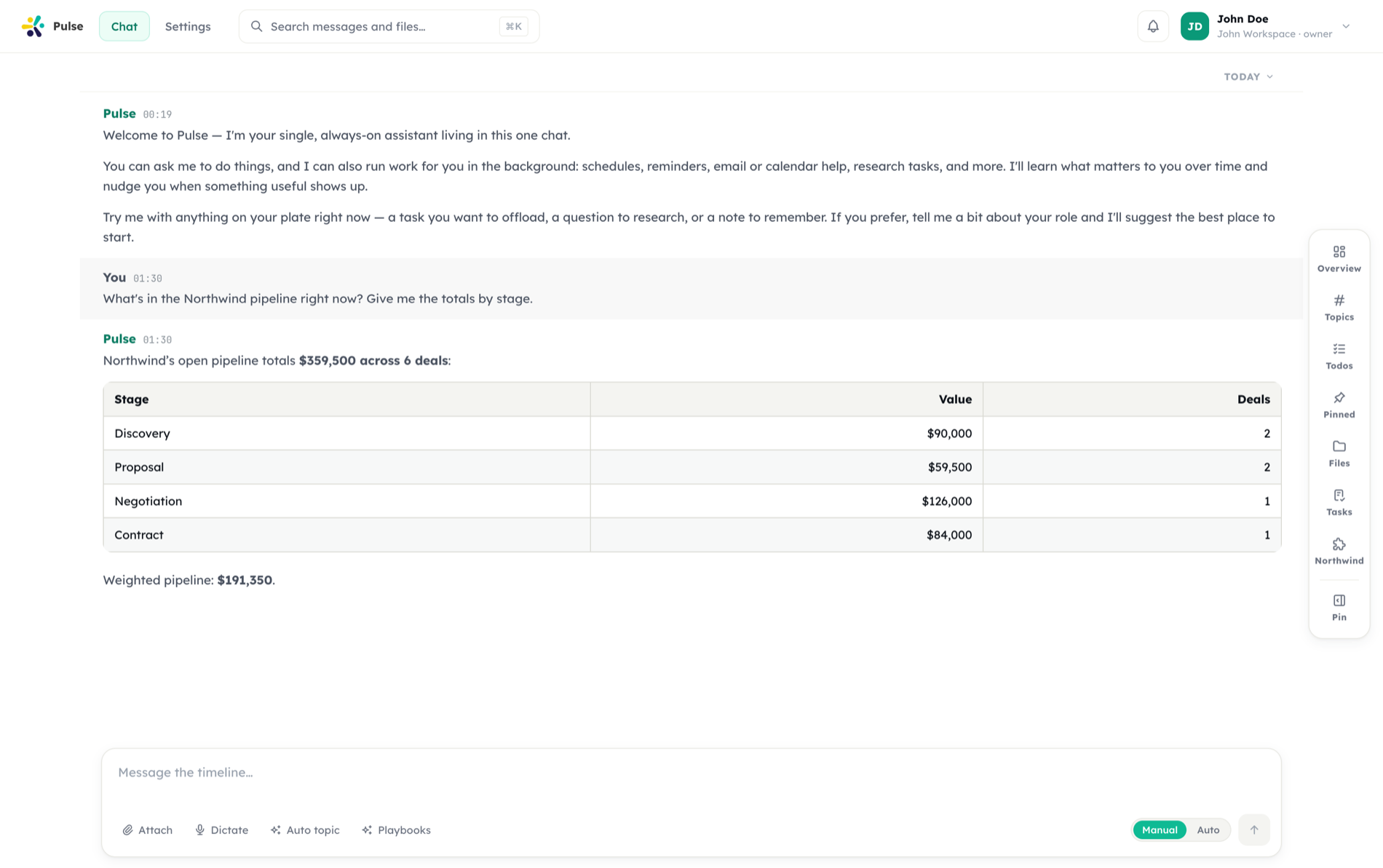
An app is how your assistant learns to do something new. Tools, skills, MCP servers, sub-agents, webhooks and a live chat panel arrive as one unit your organization turns on, scopes to the right people, and can roll back in a single move.
Capability, not behaviour
An app widens what your assistant can reach. It never changes how it talks to you — the same agent plans and answers either way.
One rollout mechanism
There is no separate way to push a skill or share an MCP server. Distributing capability is distributing an app.
Scoped to the right people
State, required mode and audience decide who gets it — evaluated live, so someone who joins a group next month is covered.
What an app can contribute
| Contribution | What it means |
|---|---|
| Tools | Declared HTTP operations the assistant and its background workers can call. They appear as app__<appKey>__<toolKey>. |
| Skills | Packaged know-how for a category of work, loaded by background workers on demand. See Skills. |
| MCP servers | A Model Context Protocol server the app declares and Pulse provisions on install. This is the only way an org-shared MCP server exists. |
| Sub-agents | A2A endpoints the main agent can delegate to. Capped at 10 per app, because each one costs a line in every main-agent turn. |
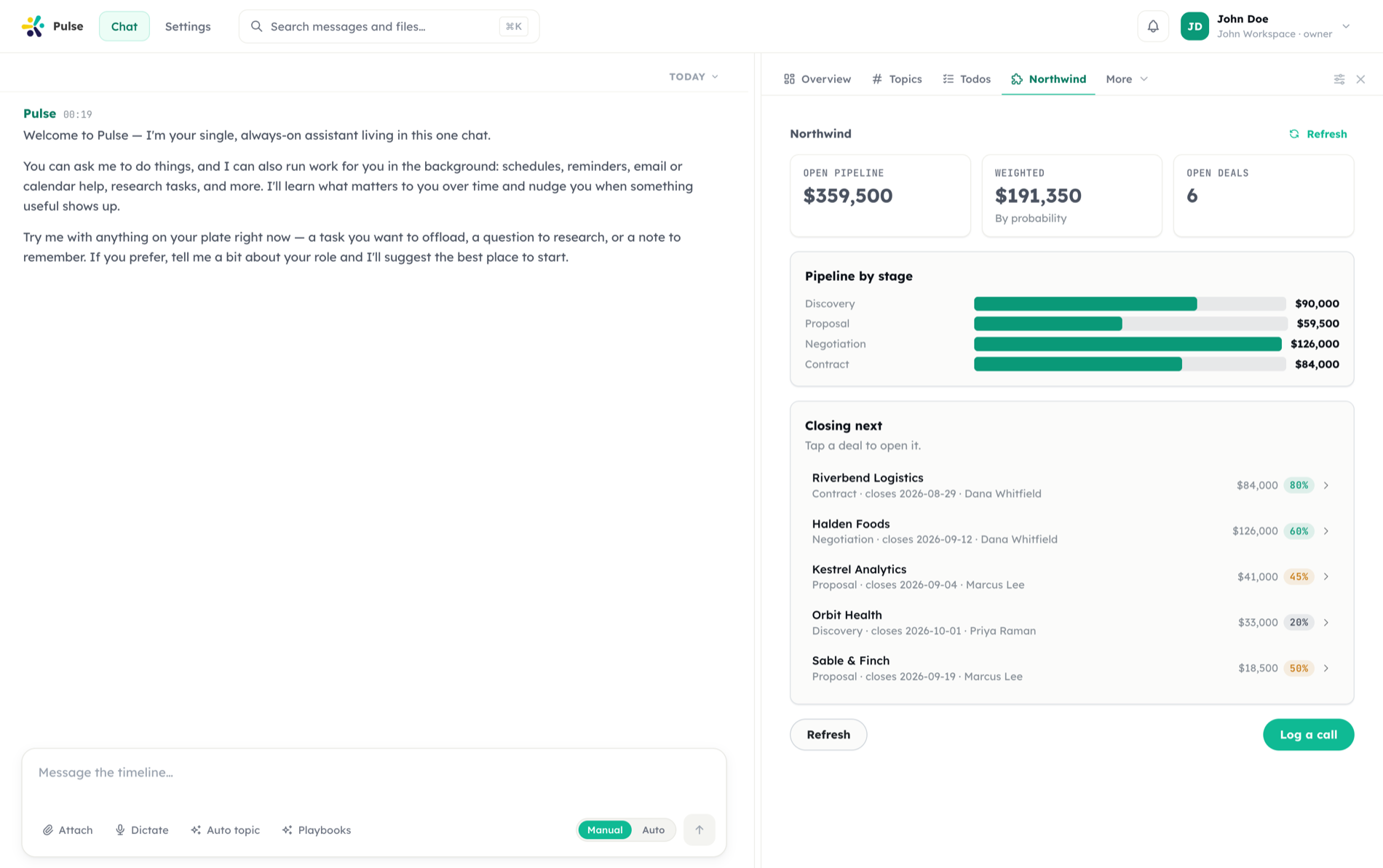
| Chat side panels | A live, interactive panel next to your timeline. One per app. See App surfaces. |
| Incoming webhooks | Inbound event endpoints, configured per installation. |
| Settings form | Org-level and per-user configuration, including encrypted secret fields. |
Apps widen what the assistant can reach. They do not change how it converses with you — the same Main Agent plans and answers either way.
The three runtimes
Every app has a runtime, and it determines how the app is authored and managed.
| Runtime | What it is | Authored where |
|---|---|---|
| Native | Built into Pulse: the integration providers, the Meeting Agent, the Code Agent. | Not authored — enabled, required, or scoped from its catalog card |
| Manifest | A declarative JSON app your organization writes. Tools, MCP, surfaces, sub-agents, settings — no code to host. | The full authoring page: Overview · Capabilities · Surfaces · Manifest · Versions |
| Ad-hoc (capability) | One organization skill or sub-agent, rolled out as an app in a single pass. | A compact capability view: edit the skill underneath, or withdraw the rollout |
Apps also carry a kind — first_party, org_private, partner or public — which records where the app came from. Kind is never client-settable: an app your organization authors cannot stamp itself first-party.
Built-in apps arrive automatically. Every provider offered by the platform catalog shows up enabled in your workspace without anyone installing it. Enabled does not mean connected — it means the capability is on offer, and Pulse will ask you to connect an account the first time it actually needs one.
Built-in apps can be disabled, but never uninstalled. Disabling withholds the capability; uninstalling is reserved for apps an organization added itself.
App states
Every installation is in one of three states, set by organization admins:
| State | Meaning |
|---|---|
| Enabled | The capability is offered to its audience. Users may still need to connect an account before tools work. |
| Available | Visible but not usable yet — typically because the workspace plan does not include it. The card explains what is missing (Requires Enterprise plan). |
| Disabled | Deliberately withheld by an admin. The app's tools are not offered and its capability does not appear. |
Alongside state, an installation carries a separate health status (ok, pending, error) — because a suspended-but-healthy install and a broken-but-enabled one are different facts and a single field could not say both.
Two rules worth knowing:
- Disabled is always a human decision. Pulse never disables an app on its own, and platform updates never re-enable one an admin turned off.
- Disabling never deletes data. Notes, files and history produced by an app stay where they are; work already in flight is allowed to finish.
Uninstalling does remove app-owned capability
Uninstalling an app cascades to the capability rows it created — its skills, sub-agents, MCP servers, incoming webhooks and event listeners. It deliberately never reaches user content: meetings, files, change sets and chat history are not app-owned and are never touched by an uninstall.
Install scope, mode, and audience
Three independent dimensions decide who actually gets an app.
Scope — who installed it:
- Personal — a member installed it for themselves. Personal installs need the organization's app self-service to be open.
- Organization-wide — an admin installed it for the whole workspace.
A member's personal installation always wins over an org-wide one, for tools and for panels alike. Both resolving to the same row is what keeps a connected app from working on one surface and refusing on another.
Mode — whether members may opt out:
| Mode | Meaning |
|---|---|
| Optional | The default. Members can remove the app for themselves. |
| Forced (required) | Members cannot remove or disable it. Only an admin can. |
Audience — who inside the workspace it is offered to:
| Shape | Meaning |
|---|---|
all | Everyone in the workspace. |
subset | Only the named groups and users. |
| exclusions | An exception list that applies to both shapes: everyone (or everyone in the subset) except these members. |
Audience is evaluated live, at read time, not snapshotted at install. Someone who joins a group next month is covered automatically. That is also why exclusions exist as their own list rather than being expressed as a narrowed subset — "everyone except one person" written as a list of everyone else silently excludes whoever joins next.
Audience is enforced in two places, not one: the panel list is filtered by it, and the surface endpoints re-check it. "The tab is hidden" is not the promise an audience makes.
Connecting an account
When the assistant needs an account that is not connected — or a connection whose access has expired — it does not fail silently. It says so in one sentence, and a Connect card appears in your timeline.
Pulse distinguishes six refusal reasons, and only three of them are things a Connect card can fix:
| Reason | Card? | What actually resolves it |
|---|---|---|
| Nothing connected | Yes | Connect the provider |
| Connection expired / revoked / refresh failed | Yes | Reconnect |
| Two or more accounts and no default | Yes | Pick a default account |
| Hidden by security policy | No | Only an admin changing policy |
| Account granted narrower access than the tool needs | No | Re-consent with wider access — a new connection changes nothing |
| Plan does not include the app | No | Only a plan change |
The three excluded reasons deliberately raise no Connect card: a Connect button that cannot fix the problem teaches people that the button does not work.
Cards are deduplicated per app and reason — one turn can hit "nothing connected" on Google and "which account?" on IMAP at the same time, and those are different asks with different buttons. Cards also appear inside threads, and completing a connection returns you to where you were so the paused work can resume.
Managed authentication
A manifest app can run its own OAuth2 flow, with Pulse driving it end to end:
- An admin configures the app's client secret once, on the installation. It is never in the manifest and is never readable back.
- A member presses Connect. Pulse builds the authorization URL — with PKCE, even though this is a confidential client, because the authorization code travels back through the member's browser.
- The provider redirects to one callback URL for the whole deployment (
/api/apps/oauth/callback). It is one URL rather than one per app precisely because a provider's redirect allowlist is edited by hand — the installation is identified by thestateparameter, not by the path. - Pulse exchanges the code, encrypts the token and refresh token onto the member's grant, and returns them to where they started.
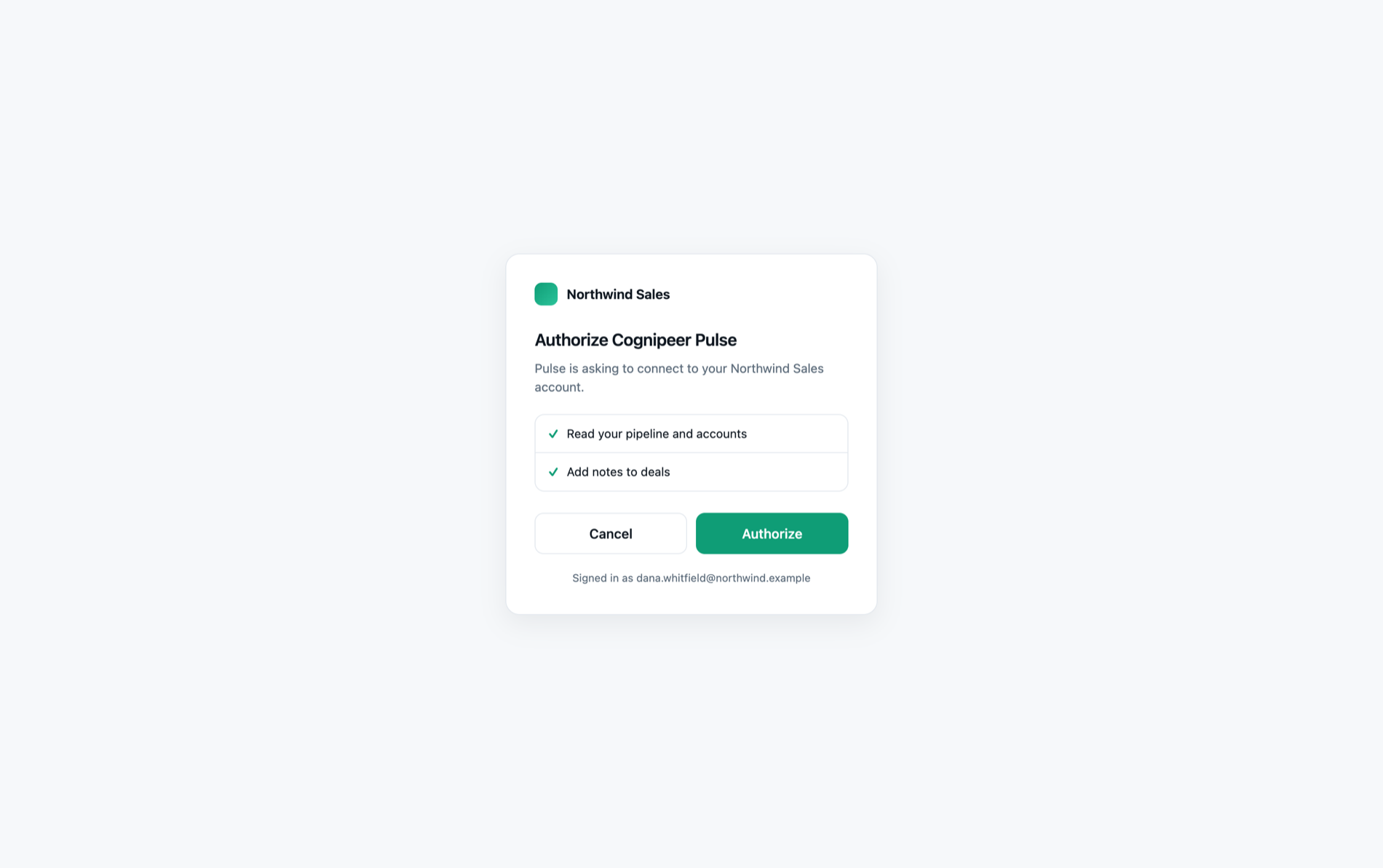
Pending authorizations are database rows with a 10-minute TTL that can be consumed exactly once; a second callback with the same state is a replay and is refused.
Token renewal happens at the moment of use, not on a schedule. A grant is refreshed if it expires within the next minute — or if it is already marked needs reconnect, because "the credential did not work" is a reason to try a refresh, not a reason to skip one. If the refresh fails, the grant is marked needs-reconnect and you get an honest reconnect card. Providers that rotate refresh tokens are handled with a compare-and-set so two concurrent calls cannot leave a healthy grant marked broken.
Grants have four states: active, needs reconnect, revoked, error.
Where the callback URL lives
An app's connection settings show the callback URL up front — you need it to register the app with the external provider. It is shown alongside the client secret field rather than behind it.
Multiple accounts and the default
You can connect more than one account per provider (two Google accounts, for example). Each provider has a default account the assistant uses when you do not say otherwise. If you have several and never picked one, Pulse adopts the account it was already using as your sticky default — visible and changeable in your integration settings. See Integrations.
Managed-auth apps are different: they hold no integration accounts at all — the connection is a grant on the installation — so their app page shows the grant state rather than an account list.
Your Apps hub
Settings → Apps lists every app visible to you in two groups — In your workspace and Available to add — plus anything turned off by your organization. Each row shows what the app is, who it came from (Built into Pulse, Built by your organization), its connection state, and the actions you can take.
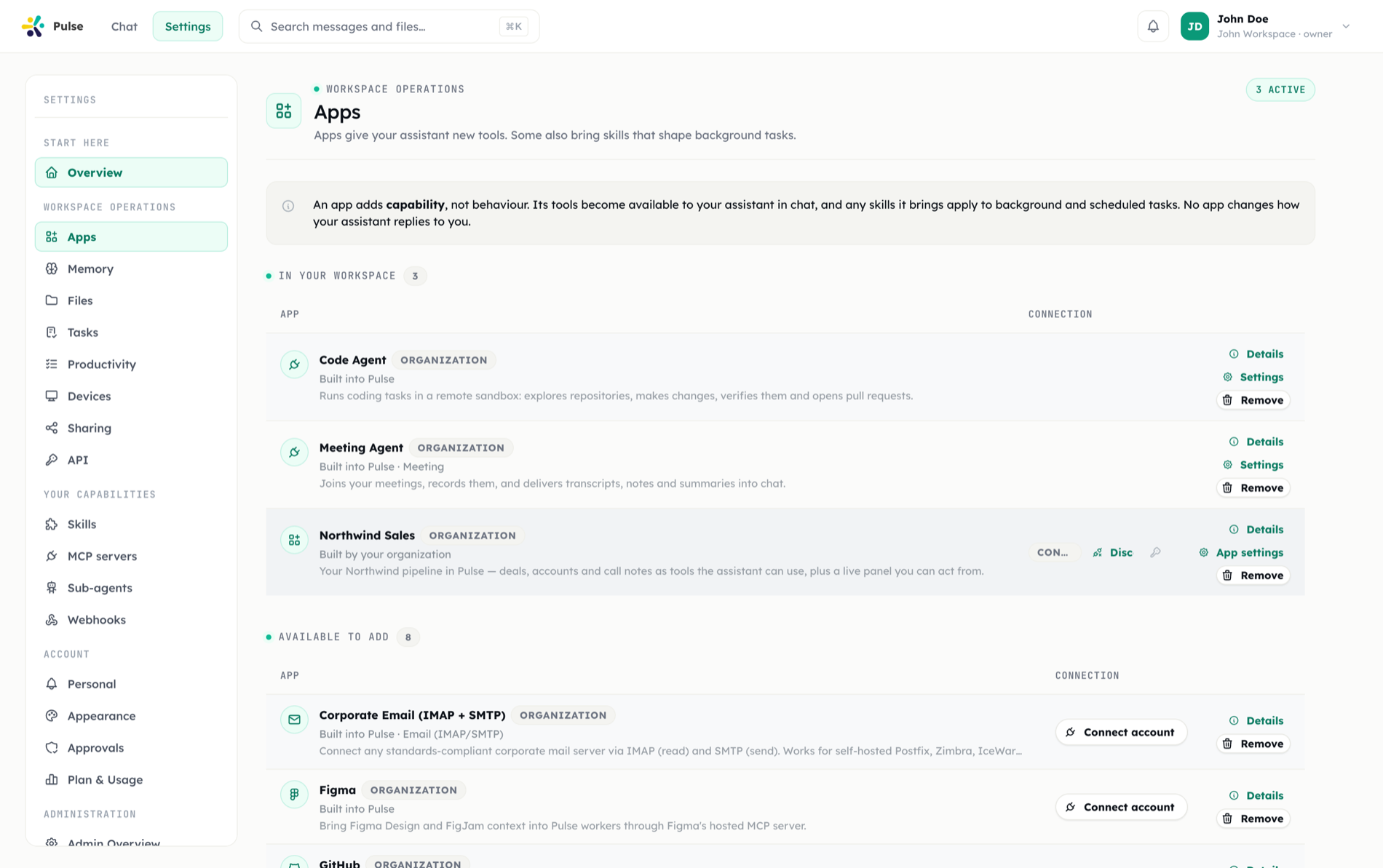
Everything happens on the row:
- Connect account runs the provider's flow in place — OAuth, a credentials form, an MCP connection, or managed auth — and returns you to the hub.
- Details opens the app's own page (below). Settings appears on native agents like the Meeting Agent and Code Agent and jumps to their configuration screen.
- Install adds an app for yourself when your organization allows self-service; Remove takes it away again. Apps your organization installed for everyone — and especially required ones — can only be changed by an admin.
Installing an app that needs managed auth starts the connect flow immediately, rather than leaving you on a row that says "not connected".
The capabilities an app contributes also have their own pages in the settings rail — Skills, MCP servers, Sub-agents, Webhooks — for when you want to browse by kind rather than by app.
The app detail page
Opening an app takes you to its own page, which answers the member's question — what does this give me, which of my accounts is it using, and how do I connect or disconnect it?
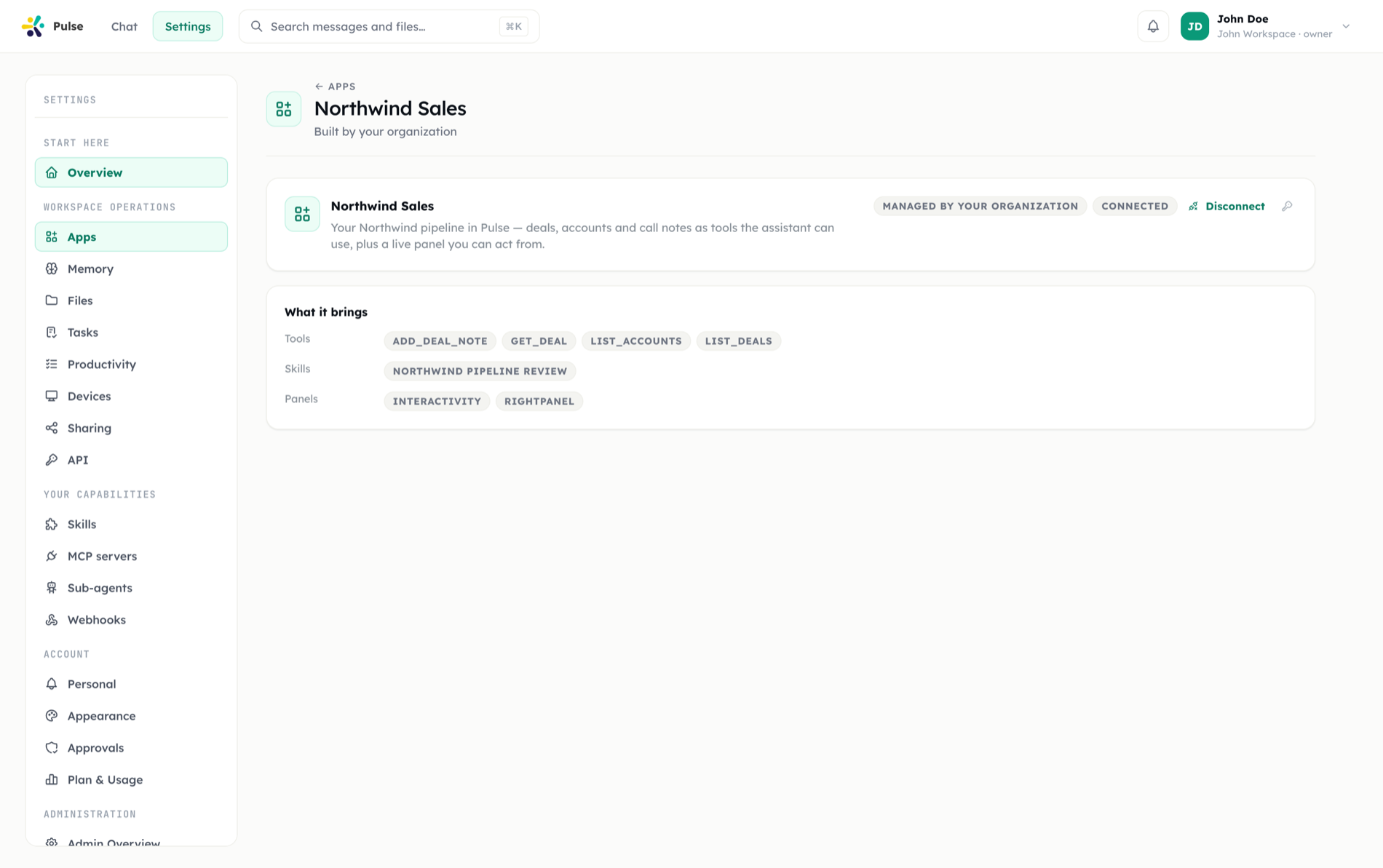
What it brings lists the app's tools, skills, MCP servers and panels by name rather than as a count — because "5 tools" does not tell you whether the one you need is among them. Accounts are listed individually for the same reason, so you can see which one is the default. Apps that need no account omit the accounts section entirely rather than showing an empty heading.
This is the member's page. Authoring, publishing, versions, rollback and suspension live on the admin page below, which is gated on manager access.
Organization apps (admins)
Organization admins manage the workspace-wide side on Settings → Administration → Organization apps.
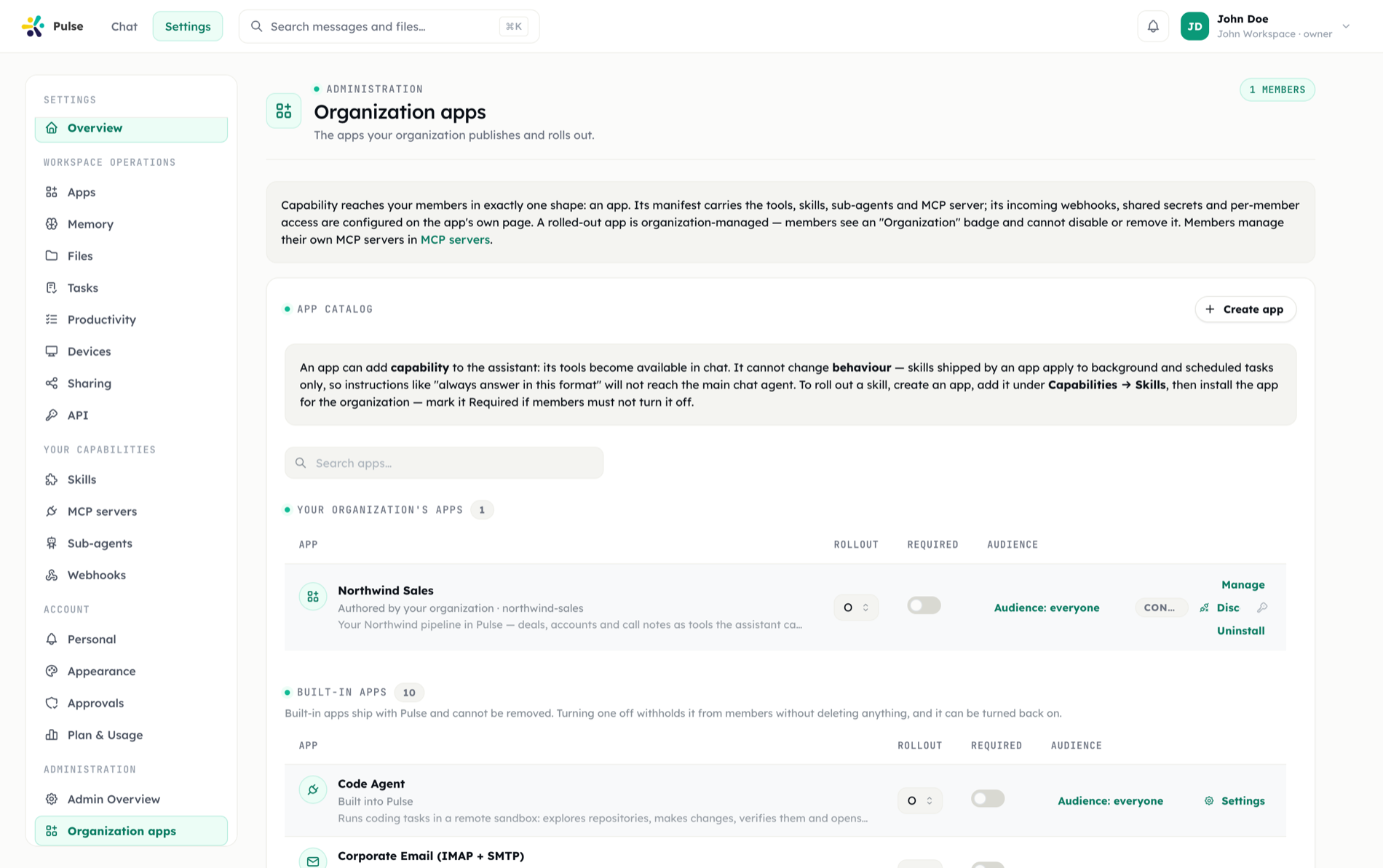
The catalog page carries the per-app controls:
- State — enabled, available, or disabled for the workspace.
- Org-wide install — install for the whole workspace rather than one person. Admin only.
- Required (forced) — members cannot remove or disable it for themselves.
- Audience — everyone, or a subset of groups and users, with an exception list.
- Create app — one door, two paths. App that carries a skill writes one skill and rolls it out as an app in a single pass. Full app (manifest) declares tools, MCP, surfaces, sub-agents and settings in a manifest, then publishes as a versioned draft. See Building apps.
- Skill library — skills no app carries yet, drafts and published entries alike. Create app… on a published row turns it into an organization-managed app.
There is deliberately no separate "Organization MCP" page. Org-level MCP is a capability an app declares, authored on the app's own page and rolled out with the app — a second entry point would be a second way for a shared server to exist with no manifest behind it.
Admin actions on apps are recorded in the audit log.
The app authoring page
Manage on any row opens a dedicated, tabbed page. What you get depends on the runtime:
| Runtime | Page |
|---|---|
| Manifest | Eight tabs (below), plus publish, validate, rollback and suspend |
| Ad-hoc | Overview · Capability — edit the skill underneath, or remove the org-wide rollout |
| Native | A read-only overview. Built-in apps are managed from the catalog row, never authored here |
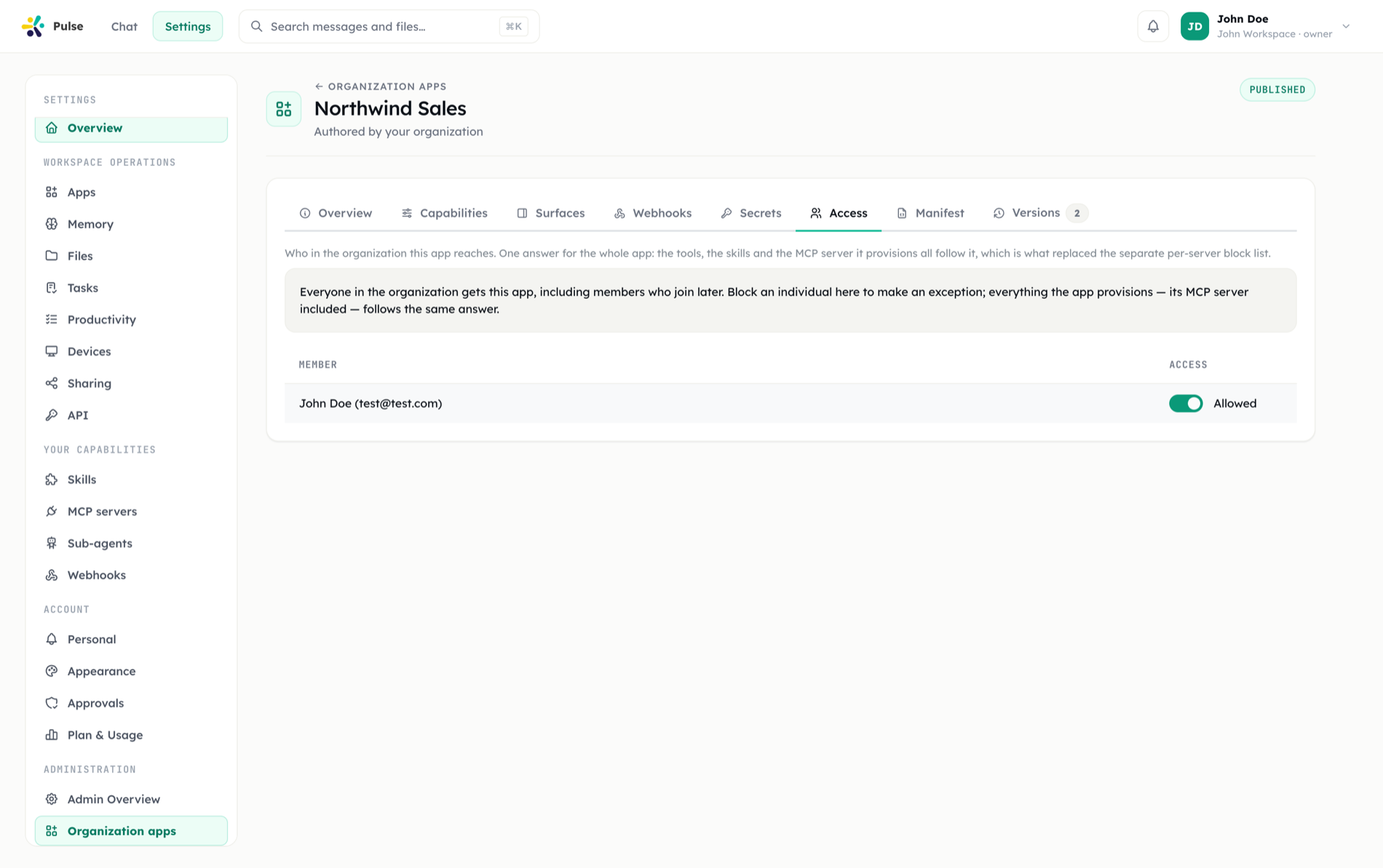
| Tab | What it holds |
|---|---|
| Overview | Identity, status, and the app's rollout at a glance |
| Capabilities | The tools, skills and sub-agents the manifest declares |
| Surfaces | A first-class editor for the app's chat panel and its interactivity endpoint, instead of raw JSON |
| Webhooks | The incoming webhooks this installation owns, and their delivered events |
| Secrets | Org-shared secret values and the managed-auth client secret — write-only, shown next to the callback URL you need to register externally |
| Access | Who in the organization the app reaches. One answer for the whole app: its tools, its skills and the MCP server it provisions all follow it |
| Manifest | The JSON itself, with Validate and Publish |
| Versions | Every published revision, with rollback |
Two behaviours on those tabs are worth knowing:
- Access replaced the old per-server block list. Blocking one person from one MCP server is now an exclusion on the app's audience, which is why it is a single answer rather than one per capability.
- Secrets are write-only and merge on save. The form shows which secrets are configured, never their values, and leaving a field blank leaves it untouched instead of clearing it.
TIP
Use audience and required installs together for gradual rollouts: publish to a pilot group first, then widen the audience once it has proven itself.
Plans and licensing
Some apps require a plan tier — the Meeting Agent requires Enterprise, the Code Agent requires Pro or above. On a workspace whose plan does not include one, it appears in the available state with a Requires plan notice instead of its normal actions.
The requirement is checked when the workspace's capabilities are assembled. If a plan lapses, tools already in place refuse politely — the assistant explains the feature is not licensed rather than failing cryptically — and no Connect card is raised, because connecting would not help. See Plans, licenses and seats.
Chat side panels
The panels next to your timeline — Overview, Todos, Pinned, Files, Tasks and friends — are managed by the same app machinery:
- You choose which panels appear and in what order, from Settings → Appearance. The panel row itself is a measured overflow menu: panels that do not fit collapse under More ▾, and you can drag to reorder.
- Apps contribute their own panels; an enabled app with a panel adds it to your set. App panels default into the overflow menu rather than pushing built-in tabs off the row — drag one forward to promote it.
- Your organization can set a default arrangement for everyone, or lock the arrangement entirely. When locked, the customizer says the layout is set by your organization.
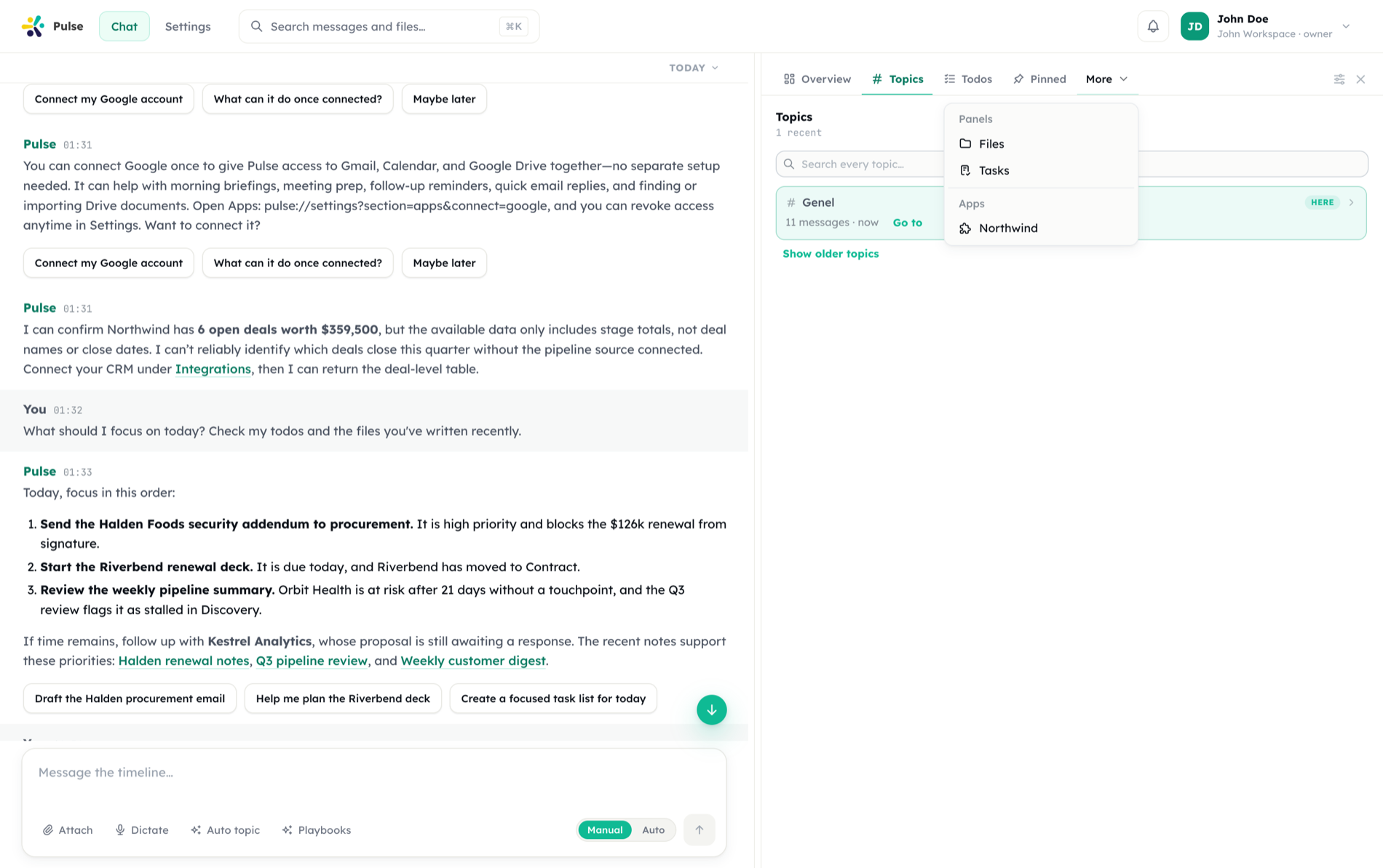
Panel choices are stored per account and server-backed, so your phone shows the same arrangement as your browser.
Hiding a panel never traps you: at least one panel always stays visible, and following a link into a hidden panel still opens it.
App panels can be live and interactive — fetched server-side with your credential injected, with buttons and forms that call back into the app. That protocol is documented in App surfaces.
Troubleshooting
An app shows "Requires plan"
The workspace plan does not include this app. It is visible so you know it exists; upgrading makes it usable. There is nothing to configure on the app itself.
I can't remove an app
Apps installed by your organization for the whole workspace can only be removed by an admin, and required apps cannot be removed by members at all. Built-in apps are never uninstalled — an admin can only disable them.
The assistant says it can't use a tool
Read the reason it gives, and check it against the table above. If an account is missing or expired, a Connect card fixes it. If the tool is hidden by policy or not covered by your plan, connecting will not help — talk to your admin.
An app is missing for some people
Check the audience: it may be rolled out to a subset of groups and users, or those members may be on the exception list. Also check the app's state — disabled hides it for everyone.
The app keeps asking me to reconnect
The grant is being marked needs-reconnect by a failing token refresh. Reconnecting from the app page issues a fresh token and refresh token. If it recurs immediately, the external provider is refusing the refresh — usually a revoked authorization, a rotated client secret, or a scope change on the provider's side.
My app panel says "connect first"
The panel is fetched server-side with your managed-auth credential injected. Without a grant there is nothing to inject, so Pulse asks you to connect rather than passing you a 401 from the app.
Related
- Building apps — manifests, publishing, and the apps API
- App surfaces — live panels, actions, and the signing protocol
- Security & governance — how app capability is gated at run time
- Integrations — accounts, defaults, and reconnecting
- Skills — including app-contributed skills
- Settings & administration