

Security & governance
Pulse gives an agent real capability — and a stack of independent gates in front of it. It sends mail, writes files, runs commands, calls third-party APIs and reaches outside your organization. Every one of those actions passes through the layers on this page first.
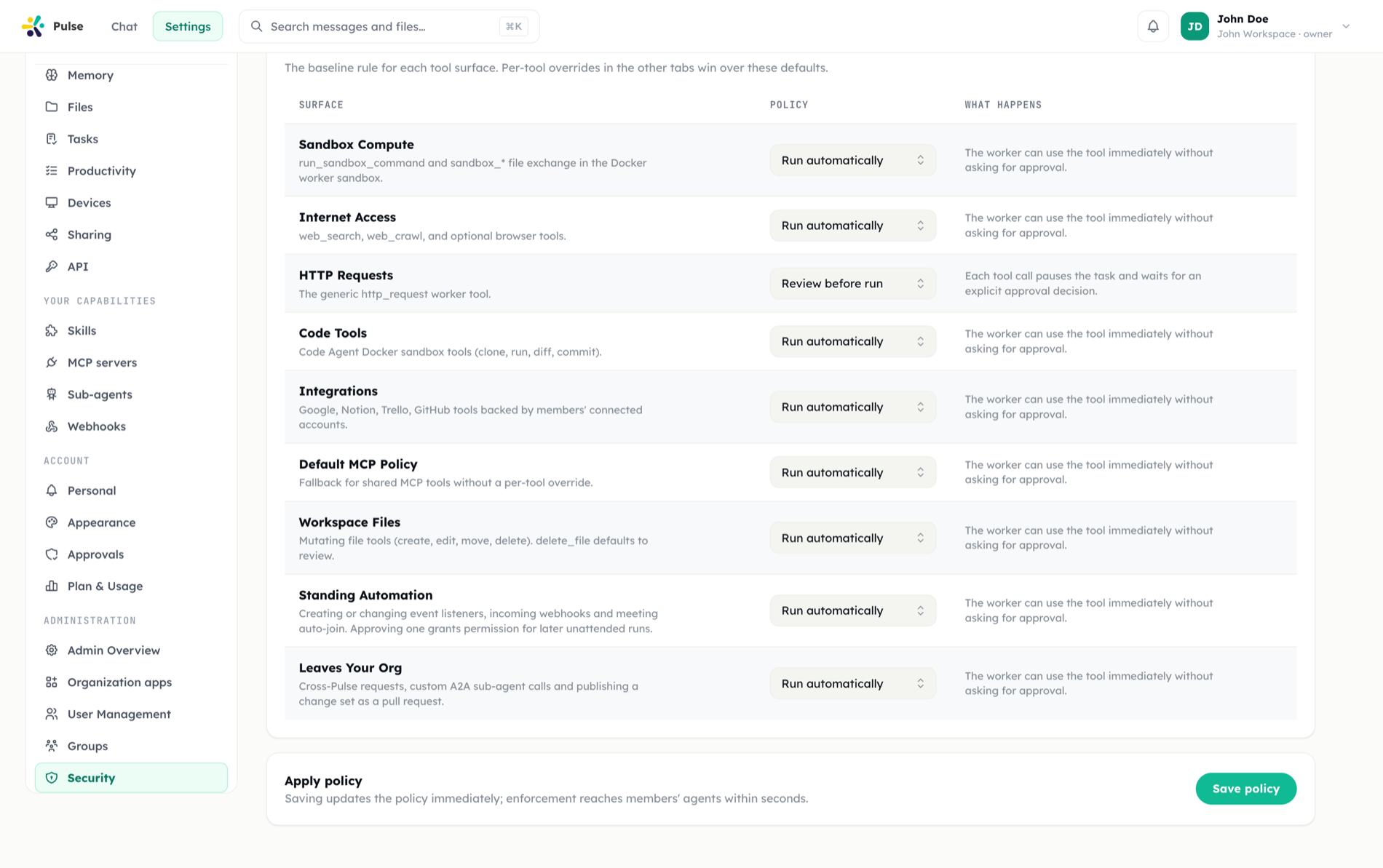
Three answers, not a maze
Every tool resolves to automatic, ask first, or off. Everything else is about who decides — and how much room they leave the person below them.
Most specific wins
A policy can cover one person, several groups and everyone at once. The narrowest match decides, and a narrower policy only changes what it actually states.
Fails closed
A tool nobody classified asks for approval rather than acting silently, and a build fails if one ships unclassified.
The gates are deliberately independent. No single switch turns everything on, and no single mistake turns everything off: an app can be licensed but not enabled, enabled but not connected, connected but policy-blocked, policy-allowed but still waiting for a human. Each layer answers one question and only that question.
The layers, in order
| # | Layer | Question it answers | Who controls it |
|---|---|---|---|
| 1 | Plan & entitlement | Does this workspace's plan include the capability at all? | Your plan / license |
| 2 | App state & audience | Is the capability offered to this member? | Organization admin |
| 3 | Account & grant | Is there a working connection to act with? | The member |
| 4 | Tool class | Is this tool the kind of thing a policy may govern? | Built into Pulse |
| 5 | Policy surface & overrides | May this tool run, and must a human see it first? | Admin, then member |
| 6 | Organization security policy | Does an active org rule override everything above? | Organization admin |
| 7 | Composer autonomy | For this message: Manual or Auto? | The member, per message |
| 8 | Approval / grant | Has a human said yes — once, or for this job? | The member |
| 9 | Egress guard | Is this request allowed to reach that address? | Built in, on-prem opt-out |
| 10 | Secret storage | What is stored, and what can ever be read back? | Built in |
| 11 | Audit log | What happened, and who did it? | Organization admin |
Layers 4–8 collapse into one decision function inside Pulse, evaluated per tool call. Its exact precedence is documented in The decision ladder — that section is the authoritative answer whenever two layers seem to disagree.
1. Tool classes
Before any policy applies, every tool Pulse can bind is classified into one of three classes. The classification is a fixed registry, not a setting, and it decides whether a policy is even allowed to gate the tool.
| Class | Behavior | Examples |
|---|---|---|
| Exempt | Never gated, by anyone — not by a member's setting, not by an active organization policy. | Planning and task dispatch (create_task, continue_task, open_work_session), the todo list, agent memory (remember_fact, recall_facts), topic filing, reply formatting, read-only introspection of Pulse's own state |
| Governed read | Inside the policy engine, but resolves to run in both Manual and Auto. Only an explicit admin policy can pull one up to review or close it. | Workspace file reads, provider reads (Gmail search, Drive list, GitHub PR read, Slack read), sandbox and code-sandbox reads, device reads |
| Governed | Real capability: it writes, spends, executes, or leaves the workspace. Manual pauses it; Auto runs it. | Sending mail or Slack messages, file writes and deletes, sandbox commands, http_request, web search and crawl, standing automation, publishing a pull request |
Three rules follow from this design and are worth knowing:
- Exempt is genuinely absolute. An approval prompt for "may I remember this fact" or "may I write a todo" is noise, not safety, so those tools are outside the policy engine entirely.
- Reads are governed, not exempt. They sit in their own class specifically so an organization can lock them down — while a member in Manual mode is never asked for permission for the agent to look at a file.
- Unknown names fail closed. A tool nobody classified resolves to governed, so it asks for approval rather than acting silently. A test statically scans the codebase and fails the build if a tool is added without being classified, so "unknown" should never reach production.
Two tool families are minted dynamically and cannot be enumerated in advance: MCP tools (named by the remote server) and app manifest tools (app__<appKey>__<toolKey>). MCP tools are always governed. App tools carry the author's own read/write declaration, so a riskClass: "read" tool binds as governed read and a mutating one binds as governed — and any caller that classifies by name alone falls back to governed.
2. Policy surfaces
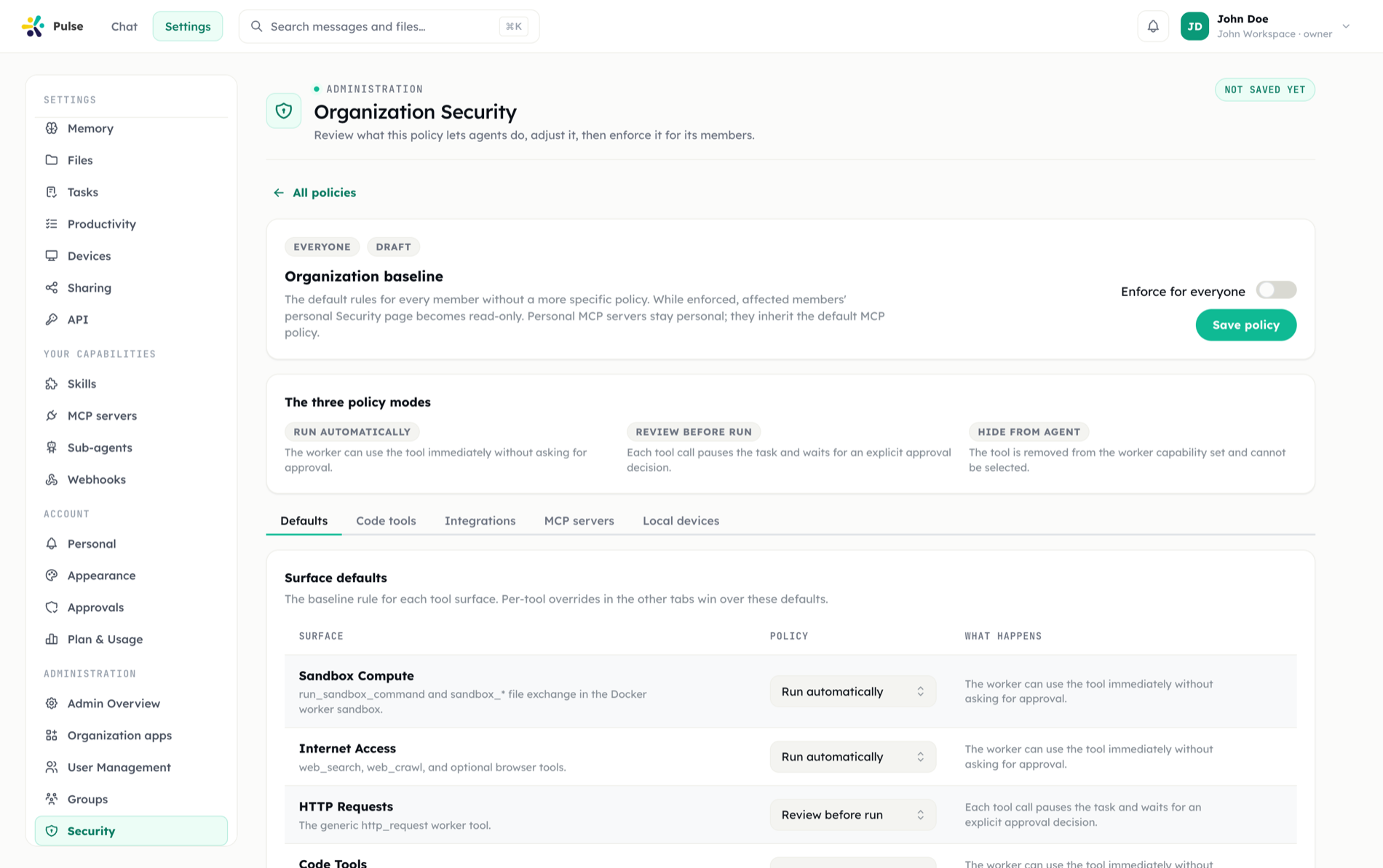
Governed tools are grouped into surfaces. A surface is the coarse knob; each has three modes.
| Mode in the UI | Stored as | Meaning |
|---|---|---|
| Automatic | auto | The agent uses the tool straight away, without asking. |
| Ask first | review | Every call stops and waits for someone to approve it. |
| Off | disabled | The tool is not available to the agent at all. It cannot run it, and cannot ask to. |
The editor shows these as three icon buttons per row — one each for Automatic, Ask first, and Off — rather than a dropdown, so a whole matrix is scannable at a glance. Pressing the button that is already active clears the row back to inheriting.
The surfaces, as they appear in the policy editor:
| Surface | Covers |
|---|---|
| Sandbox Compute | The cloud sandbox: run_sandbox_command and its file exchange. |
| Internet Access | Outbound network and third-party generation: web search, crawl, image generation, the browser tools. |
| HTTP Requests | The generic http_request tool. Its own surface because it can reach anything. |
| Code Tools | The Code Agent sandbox — clone, run, diff, commit. |
| Integrations | Provider tools — Google, Microsoft 365, Slack, Notion, GitHub, Trello, IMAP — and app manifest tools. |
| Default MCP Policy | The fallback for shared MCP tools with no per-tool override. |
| Workspace Files | Mutating file tools — create, edit, move, delete. delete_file stays on review even while the surface runs automatically. |
| Standing Automation | Event listeners, incoming webhooks, meeting auto-join. |
| Leaves Your Org | Cross-Pulse requests, custom A2A sub-agent calls, and publishing a change set as a pull request. |
| (local device) | The desktop worker, which has its own per-capability and per-tool resolver. |
automation and egress are separate surfaces on purpose, and the reasoning is worth repeating because it explains why they cannot be folded into integrations:
- Approving an automation tool is not approving one action — it grants standing permission for future runs that nobody will be present to review. That is a strictly larger grant than any single call.
- Egress tools move data past your organization's trust boundary. Whether the destination is a peer Pulse, a custom sub-agent endpoint or a public pull request, the interesting property is not what the tool does but where the data ends up.
Defaults
A fresh workspace starts with every surface on auto, except httpRequest, which follows the deployment's own approval setting. Conservative exceptions live at tool level rather than surface level: delete_file defaults to review while files is auto, and commit_code_sandbox_changes defaults to review while code is auto.
Pulse also ships a recommended set of irreversible and outbound tools — deletes, shell commands, raw HTTP, every "send" tool, PR merges, cross-Pulse requests and sub-agent dispatch. The Balanced and Strict presets seed from it; an admin may clear any of it.
Policy rules
Surfaces are coarse on purpose. On top of them an admin writes rules, and a rule is one line:
<scope>::<tool>The scope narrows which things the rule covers; the tool half narrows which of their tools. Both halves take *.
Rules are written in one box that sits above the surface tabs, not inside them, because the most useful rules are the ones no single tab can express — "never let anything at all carry an email address", "ask before any tool searches the web for our own name". Those have to reach tools that live on different surfaces at once. The tabs below stay for per-row work: setting one tool, or one server, by hand.
| Scope | Covers |
|---|---|
* | Any tool, anywhere — matched on the tool name alone, across every surface |
app | Every installed app's integration tools |
app:<key> | One app's integration tools |
mcp | Every connected MCP server |
mcp:app:<key> | The MCP server one app provisions |
catalog:<id> | MCP servers added from one marketplace entry |
custom | MCP servers members registered themselves — the least-trusted group |
server:<uuid> | One specific MCP server. Accepted, rarely what you want; see below |
app:<key> and mcp:app:<key> look redundant and are not: an app can ship both integration tools and an MCP server, so the two readings are genuinely different sets of tools. The picker offers whichever ones exist, so this is a distinction you read rather than one you have to remember.
The tool half accepts a name, *, or a glob:
app:acme-crm::*              every tool that app exposes
app:acme-crm::delete_*       its deletion tools
*::*read* anything, anywhere, whose name contains "read"A glob is the one thing a list of checkboxes cannot give you: it covers the tools a server adds tomorrow. Write app:acme-crm::delete_* once and a delete_invoice shipped next month is covered without anyone revisiting the policy.
Why scopes and not server names. Every member gets their own copy of a connected MCP server, so the same CRM server is a different id for each of the twenty people who connected it. A rule naming one of those ids would govern one person. Scopes are derived from columns members do not write — which app installed the server, which catalog entry it came from — so one rule reaches every copy. That is also why server:<uuid> is accepted but discouraged: it is exactly the narrow thing scopes exist to replace.
Which rule wins
Three dimensions, each beaten by the one above it:
- Scope —
server:beatsapp:/catalog:/custom, which beatmcp/app, which beat*. - Tool — an exact name beats a glob, which beats
*. - Arguments — a rule with a condition beats the same rule without one.
So app:acme-crm::* (everything from that app asks first) and app:acme-crm::list_* (except the read-only ones) coexist, and the second wins for the tools it names. When two rules of equal narrowness match, the stricter one applies.
Conditions on the arguments
The dangerous half of most tools is not the name. run_sandbox_command is fine; run_sandbox_command with rm -rf / is not. A rule may therefore end in a condition, and it applies only to the calls whose arguments match:
*::run_sandbox_command(rm *)            ask before deleting, not before listing
*::http_request(url=*169.254.*)         ask before anything reaching cloud metadata
app:google::*send*(to=*@rival.com)      ask before mailing a competitor
*::*(*@*)                               ask before ANYTHING carries an address
*::web_search(*acme*) ask before any tool searches for your own nameThe last two are the reason the box is not inside a tab. Neither names a surface, because neither is about one: an address can leave through a mail tool, a raw HTTP call, an MCP server or a sandbox command, and a rule that only covered one of those would be a rule you believed in more than it deserved.
Two forms. (pattern) matches any text argument, at any depth — deliberately broad, because for a gate it is better to ask once too often than once too rarely. (field=pattern) matches one named field, and dot paths work (body.to).
A condition can tighten or loosen. *::* = Ask first plus *::run_sandbox_command(ls *) = Automatic means "ask about everything except listing files". What a condition can never do is re-open a tool that is Off — that decision removed the tool from the agent's hands entirely, and there is nothing left to ask about.
Off on a condition means refused, not "ask". *::web_search(*acme*) = Off leaves web_search available — every other search still runs — but a call whose arguments match is turned away, and the agent is told a security rule blocked it. It sees that as an ordinary tool result: it knows not to retry, that a different call may be fine, and that it should say so plainly if the task cannot go on without it. Nobody is asked to approve, which matters most on scheduled and event-triggered runs where there is no one there to answer.
TIP
When you write a rule by hand, the editor tells you how many tools it currently matches — "matches 14 tools: read_file, read_lines, …". That count comes from the same matcher the runtime uses, so what you see is what will happen.
Per-surface rule maps
Underneath, rules are stored per family. You do not have to think about this — the scope you write decides where the rule lands — but it explains what each one reaches:
- Any tool —
*::<tool>, matched on the tool name whatever surface owns it. This is where a rule onrun_sandbox_commandlives, because the sandbox surface has no per-tool map of its own, and it is the only scope that can cover several surfaces with one line. - App / integration tools —
appandapp:<key>. Members' individual accounts are personal, so an organization rule names the app, not the account. - MCP tools —
mcp,mcp:app:<key>,catalog:<id>,custom,server:<uuid>. - Code tools and local device tools — per tool name, and for devices per capability (
local.terminal,local.filesystem) with tool winning over capability. Both are set row by row on their tabs;*::<tool>reaches them too.
A rule that names a tool but not a surface can only ever tighten. The surface answer is the floor, so one broad line cannot be used to re-open something a specific rule, or a member, had closed. Two things it deliberately does not reach: tools that are Off, which are already out of the agent's hands, and the agent's own scaffolding — planning, memory, to-dos — because *::* is a reasonable thing to write and an agent stopping to ask permission to think would be its first effect.
Slack is the one family resolved monotonically: every layer that applies may only make access more restrictive, so an auto rule at one layer can never weaken a review or disabled decision at another.
3. Organization security profiles
An admin configures the whole matrix as a policy under Settings → Administration → Security, says who it covers, and switches it Active.
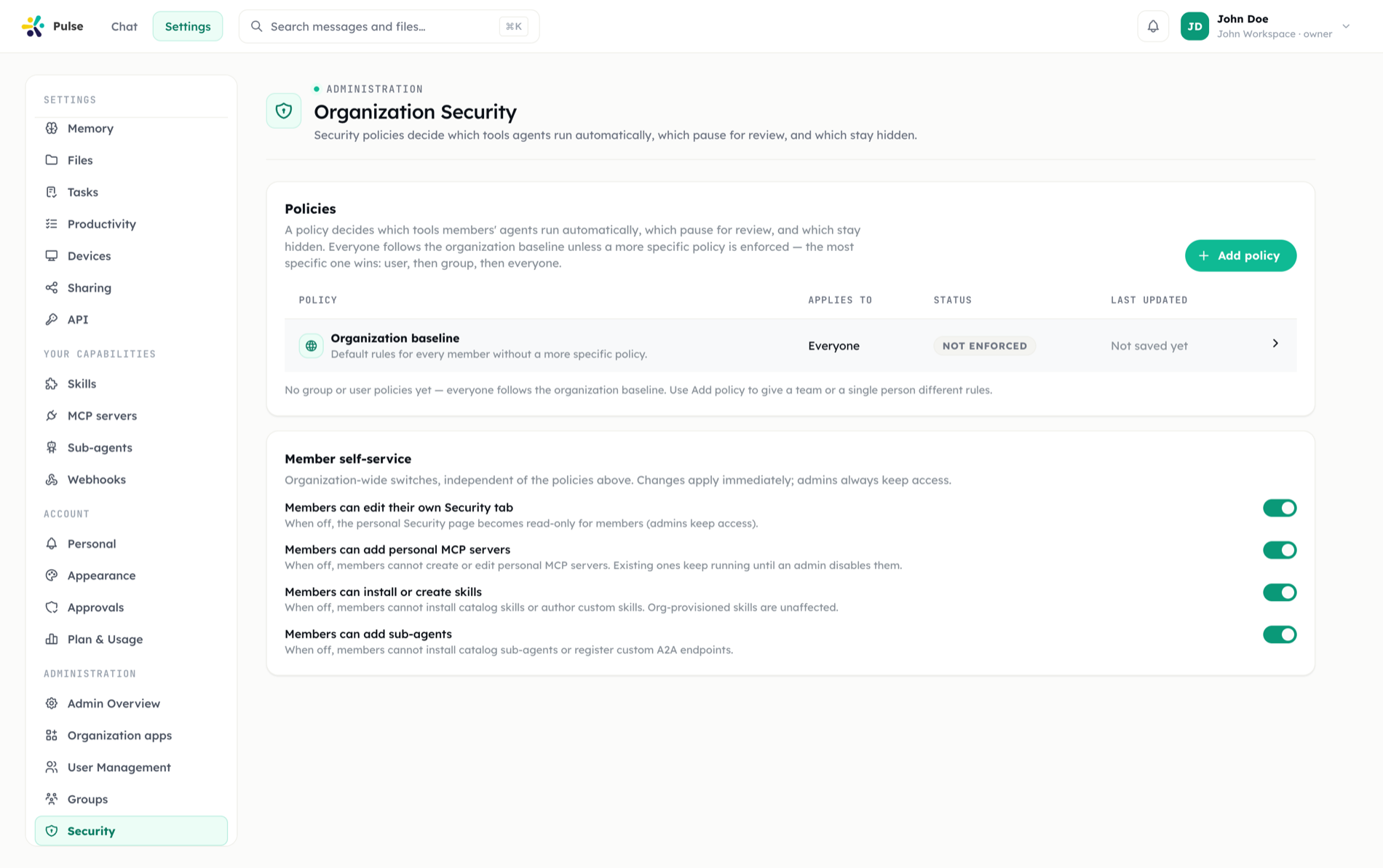
A policy covers any number of subjects at once — everyone, several groups, several people — chosen inside the policy, not when it is created. Creating one asks only for a name; it covers nobody until you say who.
| Subject | Covers |
|---|---|
| Everyone | The whole organization. Every org keeps one such policy — the Organization baseline, created on first save. |
| Group | The members of one group. |
| Person | One member. |
The narrowest match decides. A policy that names you directly beats one that names your group, which beats one that covers everyone. A policy assigned to "everyone plus these three people" counts as a person-level statement about those three — otherwise the baseline would override the very exception it was written to make.
Two policies that reach you at the same level — two groups you belong to — reduce to the stricter answer per setting. The result never depends on which was edited last.
A narrower policy is a delta, not a replacement
A policy changes only what it actually states. Open one to let a single team run sandbox commands and everything you did not mention keeps coming from the baseline — the exception is an exception, not a blank slate.
Active and Inactive
A policy is Active by default from its first save. Turning it Inactive keeps it stored and editable while applying it to nobody, which is what you want during an incident or while drafting a change; the list and the policy header both say so plainly.
Leaving members room
Each rule carries two decisions, not one:
- Default — what a member lands on.
- Ceiling — the most permissive mode they may move to themselves.
Leave the ceiling locked and the rule is a mandate: the member's own setting is not consulted in either direction. Open it and the rule becomes a starting point they may relax for a specific tool — which is often the difference between a policy people work with and one they route around.
The direction rule is one sentence: tightening flows freely, loosening needs permission from above. A member may always be stricter than the rule allows; they may only be more permissive up to the ceiling.
Presets
Four named starting points load the whole matrix into the editor: Open, Balanced, Strict and Read-only. Loading one shows a line-by-line summary of what changed and what it changed from — nothing is saved until you review it and press save.
While a policy applies to a member
- Their own security values are dormant, not deleted, wherever the rule is a mandate. The personal page renders read-only and the service refuses writes with a 403 rather than relying on the UI to hide the button.
- Where the rule leaves a ceiling, their row stays editable and is labelled yours to set, with the limit stated. A mandate is labelled managed.
- App rules are expressed per app, not per connected account. Accounts are personal, so an organization policy cannot name one.
- An Ask first rule outranks the composer's Auto. Admin policy beats a member's per-message choice — that is the whole reason to set it.
- Off is absolute. Nothing — not Auto, not a grant, not an approval — reopens it.
- Automatic does not force anything to run unattended: a member on Manual is still asked about every governed tool.
Policy changes propagate within about 15 seconds — a short cache keeps runtime tool binding from querying on every tool call — and every save is written to the audit log.
TIP
Build the policy you want first, leave it Inactive, and check the rules read the way you expect. Making it Active is a single switch afterwards — and a new policy starts as a copy of the baseline, so turning it on changes nothing until you edit it.
Whose servers appear in the matrix
A member's own matrix lists exactly what their agent loads — including the app-audience filter — so it never shows tools they cannot use. The org profile editor deliberately lists every shared MCP server regardless of the editing admin's own audience, because an org policy applies to every member. One consequence to know: an admin outside an app's audience configures that app's per-tool policies on the app's own page, not in the profile matrix.
4. The personal Security page
Members have their own copy of the same matrix at Settings → Security. It is off by default in current deployments (PULSE_PERSONAL_SECURITY_PAGE), because the composer's Manual/Auto toggle asks the question per message instead of asking a member to configure a matrix once and forget it. The page and its stored policies are untouched when the flag is off — nothing is lost by enabling or disabling it.
While an organization policy applies, the page shows what actually applies rather than the member's dormant own values. Rows the policy mandates are read-only and labelled managed; rows where it left a ceiling stay editable and say how far the member may go.
5. Composer autonomy: Manual and Auto
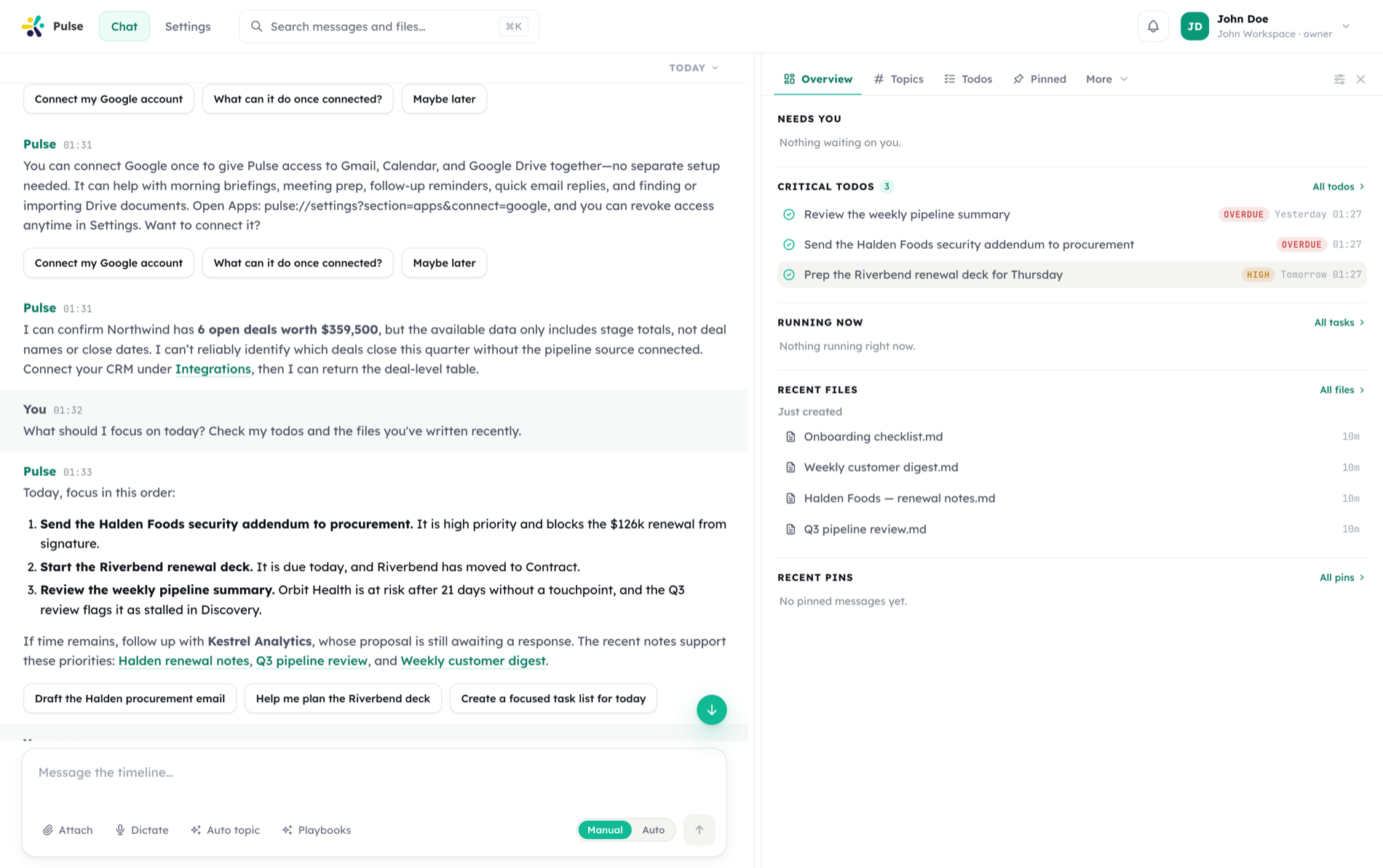
Every message carries an autonomy mode, chosen in the composer:
| Mode | Effect |
|---|---|
| Manual | Every governed tool pauses for approval. Governed reads still run. |
| Auto | Governed tools run without asking — within everything an active org policy still forbids. |
Details that matter:
- The choice is per message and returns to Manual after each send, unless the member opts into sticky mode.
- The first time a member selects Auto they get a one-time explanation and must confirm; sticky mode is armed in the same step.
- Governed reads run in both modes. Manual never asks permission to read a file.
- When an active policy limits what Auto can do, the toggle says so rather than promising autonomy it cannot deliver.
- Background work has no composer. Scheduled routines, listeners and webhook-triggered runs pass no autonomy mode at all, and the stored surface modes decide — exactly as they did before autonomy existed.
- Reduced capability modes (used by some on-prem deployments) clamp Auto down to Manual for governed tools; governed reads are untouched.
A client-supplied mode is treated as a request, never as effective policy. It is applied only inside the decision function below, where an active policy still outranks it and disabled stays absolute.
6. The decision ladder
This is the single point where "may this tool run, and must a human see it first" is decided. Every surface funnels through it, in this order:
| Step | Rule | Outcome |
|---|---|---|
| 0 | Tool is exempt | Runs. Nothing gates it. |
| 1 | Surface resolves to disabled | Not offered. Neither Auto nor a grant opens it. |
| 2 | Tool is protocol-pinned | Always asks. Auto and grants both lose. (Currently empty — reserved for cases where the approval itself is the security mechanism.) |
| 3 | An active "yes to all" grant covers it | Runs. The human already saw this action and approved it for the rest of the job — including against a mandated review. |
| 4 | An active org policy mandates review | Asks. Admin policy beats the composer. |
| 5 | Composer mode is set and the tool is a governed read | Runs. Only step 4 can close a read. |
| 6 | Composer mode is set | Manual → asks. Auto → runs. This deliberately overrides the member's stored surface values. |
| 7 | No composer mode (unattended run) | The stored surface mode decides. |
Read top to bottom, the first matching rule wins.
Steps 1, 4 and 6 all resolve a mode first — and that is where argument conditions apply. A rule with a condition is consulted with the call's arguments in hand, immediately before the tool would run, and its answer becomes the mode this ladder sees. So run_sandbox_command can be Automatic on step 6 for ls and mandated Ask first on step 4 for rm — same tool, same turn, same member.
One consequence worth stating: a tool whose rules depend on arguments is never run in parallel with others. The parallel/sequential split happens before arguments are parsed, so Pulse keeps such a tool sequential and decides once, with the real values.
7. Approvals and "yes to all" grants
When a tool needs a human, Pulse raises an approval with the tool's real arguments and pauses the work. Approving resumes exactly where it stopped; declining abandons that action with the outcome recorded.
Answering with "yes to all" creates a grant, and the scope of that grant is the whole safety story:
| Scope | Bound to | Retired when |
|---|---|---|
task_run | One background worker or code run | The run reaches a terminal state |
chat_turn | One main-agent turn | The turn finishes |
A grant covers one tool in one job. It can never become a standing bypass: the scope id is minted per job and never seen again, so even a grant nothing explicitly revokes cannot bleed into the next turn. A twelve-hour expiry exists purely as a backstop for jobs that crash before reaching a terminal state.
A grant satisfies a review requirement — including a mandated one, because the point of review is that a human sees the action once, and they did. It never opens a disabled tool.
8. Capability self-service gates
Separate from tool policy, an admin can decide whether members may add capability at all. Four switches on the same page, each defaulting to on, each taking effect immediately:
| Switch | Turning it off means |
|---|---|
| Members can edit their own Security tab | The personal Security page becomes read-only for members. Admins keep access. |
| Members can add personal MCP servers | Members cannot create or edit personal MCP servers. Existing ones keep running until an admin disables them. |
| Members can install or create skills | Members cannot install catalog skills or author custom ones. Org-provisioned skills are unaffected. |
| Members can add sub-agents | Members cannot install catalog sub-agents or register custom A2A endpoints. |
Precedence is user rule > organization rule > default (open), so an admin can grant one member an exception — or tighten one member — without touching everyone. Owners and admins always pass; they are the ones managing the gates.
The skills gate reaches further than its name suggests: a workspace that has closed skill self-service has also closed app self-install for members. Personal installs go through the same check.
Slack carries its own two-level governance in the same store — an organization switch and per-workspace monitoring — resolved backend-side both when an event is scheduled and again immediately before an outbound call. Turning the organization switch off also disables existing Slack access rather than merely hiding the setting.
9. Egress and SSRF control
Any request an app, a tool or a manifest can influence passes one gate, in this order:
http/httpsonly — no other schemes.- No credentials in the URL.
- Hostname blocklist —
localhost,0.0.0.0,::,::1,host.docker.internal,gateway.docker.internal,metadata.google.internal, and any.localhost/.local/.internalsuffix. - Literal private or loopback IP — including IPv6 and both spellings of IPv4-mapped addresses.
- DNS resolution, with every resolved address re-checked.
Callers fetch with redirects disabled, which closes the redirect-based bypass.
App manifests are checked twice: hostnames written into a manifest are validated literally at publish time (private ranges, IP literals and internal suffixes are rejected outright), and the resolved address is checked again at request time. A declared tool may only target the manifest's own baseUrl host plus its allowedHosts list.
On-prem deployments that legitimately need to reach an internal service open two gates, never one: the PULSE_CONNECTOR_ALLOW_PRIVATE_EGRESS environment flag and a per-installation allowed-host list. Either one alone changes nothing.
10. Secret storage
Pulse holds four distinct kinds of secret, each with its own store and its own read rules. None of them has a read-back API.
| Secret | Stored on | Scope | Readable by |
|---|---|---|---|
| OAuth client secret | The app installation, encrypted | One per installation, org-wide | Nothing. Write-only; an admin who loses it re-enters it. |
| User token / refresh token | The user's grant, encrypted | One per user | The server, at call time only |
| Installation secrets | The installation's own encrypted column | Org-shared, one per declared scope: "installation" secret field | Only the provisioner, server-side |
| Personal variables & app settings | The user's context profile / user config, encrypted | One per user | Nothing — reads report only that a value exists |
Three properties hold across all of them:
- Write-only means merge, not replace. An admin editing a secrets form only retypes the fields they are changing, so a save merges: an absent key is left alone, an explicit clear removes it. A replacing write would silently wipe every secret the admin did not retouch.
- Keys are public, values are not. APIs return the names of configured secrets so a form can show what is set; they never return a value.
- Installation config is not a secret store. An installation's plain
configis readable by every workspace member — which is precisely what makes{{installation.config.*}}safe to resolve on a member's call path. Secrets therefore get a separate column, and a secret field is refused if it would land inconfig.
Secret values are also redacted out of error messages before an app's failure text reaches a user or a log.
11. API access: token scopes
Programmatic access uses Personal Access Tokens against the public REST surface (/rest/v1/*).
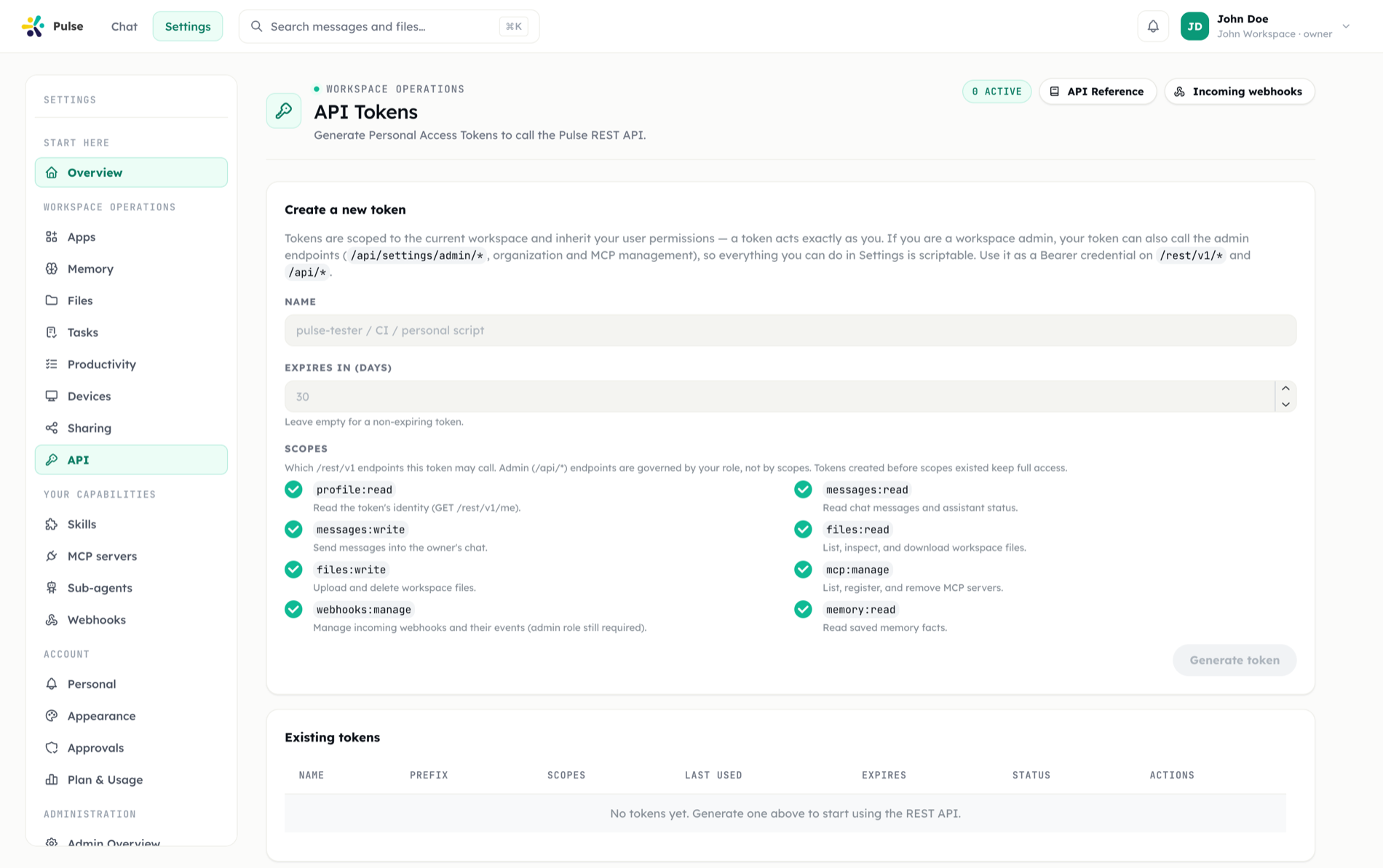
- Tokens are stored as a SHA-256 hash; the plaintext is shown once at creation and never again. A short prefix is stored for display.
- Tokens carry an expiry (optional) and can be revoked; a revoked or expired token verifies as invalid.
- Last-used time is recorded.
Eight coarse scopes exist:
| Scope | Grants |
|---|---|
profile:read | Read the token's identity |
messages:read | Read chat messages and assistant status |
messages:write | Send messages into the owner's chat |
files:read | List, inspect, and download workspace files |
files:write | Upload and delete workspace files |
mcp:manage | List, register, and remove MCP servers |
webhooks:manage | Manage incoming webhooks and their events |
memory:read | Read saved memory facts |
Behavior worth knowing:
- A request whose token lacks the required scope gets 403, with the missing scope named.
- Scopes are an and on top of roles.
webhooks:managedoes not bypass the admin-role requirement on webhook endpoints. - You cannot mint an empty-scoped token. An explicit empty selection is refused, because a scope-less token is the marker for the legacy population below.
- Legacy tokens keep working. Tokens minted before scopes existed carry no scope list and are grandfathered with full access. New tokens always carry an explicit list, so this population only shrinks.
- App-minted tokens are never grandfathered. For a token minted on an app's behalf, an empty scope list means nothing is allowed.
The full endpoint-to-scope table is in Building apps.
12. Plans, licenses, and seats
Some capability is plan-gated — the Meeting Agent requires Enterprise, the Code Agent requires Pro or above. The check runs when the workspace's capabilities are assembled, so a lapsed plan produces a polite refusal from tools already in place: the assistant explains the feature is not licensed rather than failing cryptically, and no Connect card is raised — connecting would not help.
Organizations hold three separate counters: a member limit, a count of Pro licenses, and a count of Enterprise licenses. Pending invitations count against the member limit (they reserve a seat), and none of the three can be lowered below what is currently assigned. On-prem deployments cap seats from the environment license: the org-level member limit can only tighten it, never exceed it.
13. Audit log
Administrative changes are recorded with actor, target, previous value and new value, including:
- Security settings updates (personal and organization profile)
- Capability gate changes
- Slack policy changes
- App state, mode, audience and installation changes
Combined with task run history and the approvals record, this gives a trail of what was requested, who decided, and what happened next.
Troubleshooting
The assistant says it cannot use a tool
Read the reason it gives — Pulse distinguishes them:
| Reason | What fixes it |
|---|---|
| Nothing connected | A Connect card in your timeline |
| Connection expired or revoked | Reconnect from the card or the app's page |
| Two accounts, no default | Pick a default account |
| Hidden by security policy | Only an admin can change this. Connecting does nothing. |
| Account granted narrower access than the tool needs | Reconnect with wider access — a new connection does not help |
| Not licensed by the plan | Only a plan change helps |
My security page is read-only
An organization security policy applies to you. The values shown are the ones that actually apply, not your own dormant settings. Rows where the policy left you room stay editable and say so.
Auto is on but Pulse still asks
Something above the composer applies: an organization rule mandating Ask first on that tool, a condition on the arguments you passed, or a protocol-pinned approval. The decision ladder names which.
Pulse asks about one command but not another
An argument condition is doing its job. A rule like *::run_sandbox_command(rm *) gates the calls whose arguments match and leaves the rest alone — check the Tool rules tab. The rule that matched is named on the approval itself.
A tool disappeared entirely
It resolved to disabled — a surface or per-tool policy, or an app that is disabled or outside your audience. Disabled tools are not offered to the assistant at all, so it cannot mention them either.
An MCP server's tools do not appear
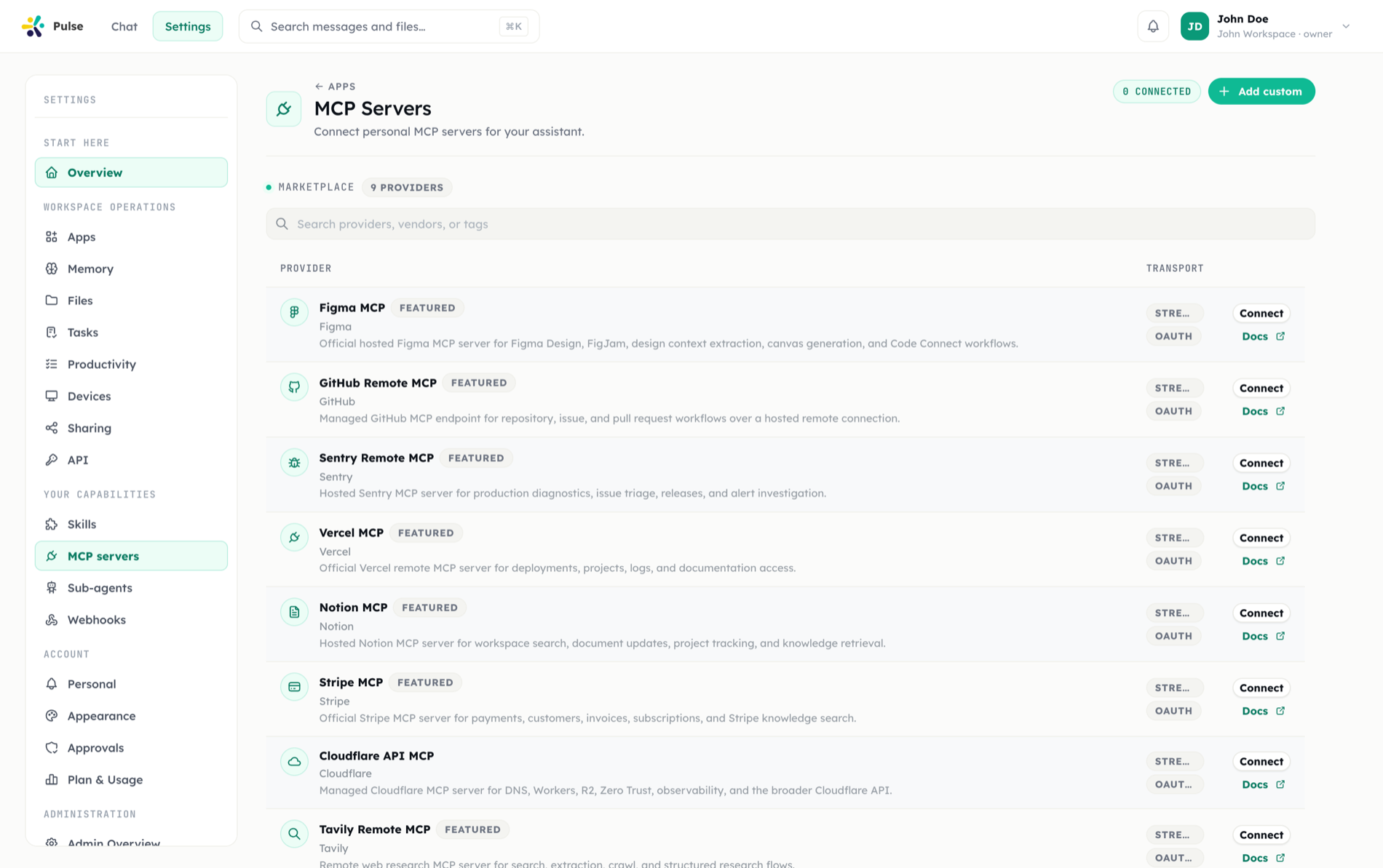
Check the app that carries it. Org-shared MCP servers are declared by an app manifest and rolled out with the app, so audience and app state both apply. Personal MCP servers depend on the MCP self-service gate being open.
Related
- Approvals — the human decision, and where it can be made
- Apps — states, audiences, and connect cards
- Building apps — manifest validation, publish-time checks, token scopes
- Settings & administration
- Devices & desktop — local device capabilities