

Confluence
The Confluence Data Source in Cognipeer allows Peers to access and read content from Confluence spaces. This data source is particularly useful for teams that use Confluence to store and organize their documentation, as it enables Peers to tap into that knowledge to provide relevant responses. While Peers can currently read the textual content of Confluence documents, they do not yet have the capability to access attachments.
How Confluence Integration Works
When you configure a Confluence Data Source, the Peer is able to crawl through the specified Confluence space and retrieve all available documents within that space. The Peer will use the content of these documents to enhance its knowledge and provide more accurate answers.
- Space Access: Once a Confluence space is connected, the Peer can read all documents within that space.
- Text Content Extraction: The Peer extracts and processes the textual content of the documents, making this information available for answering queries.
- Attachments: Currently, Peers cannot read or process attachments within Confluence documents. They can only access the written text inside the documents.
Setting Up a Confluence Data Source
To integrate Confluence as a Data Source for your Peer, follow these steps:
Navigate to the Data Sources Tab: In the Peer’s settings, go to the Data Sources section.
Select Confluence as Data Source Type: Choose Confluence from the available data source types.
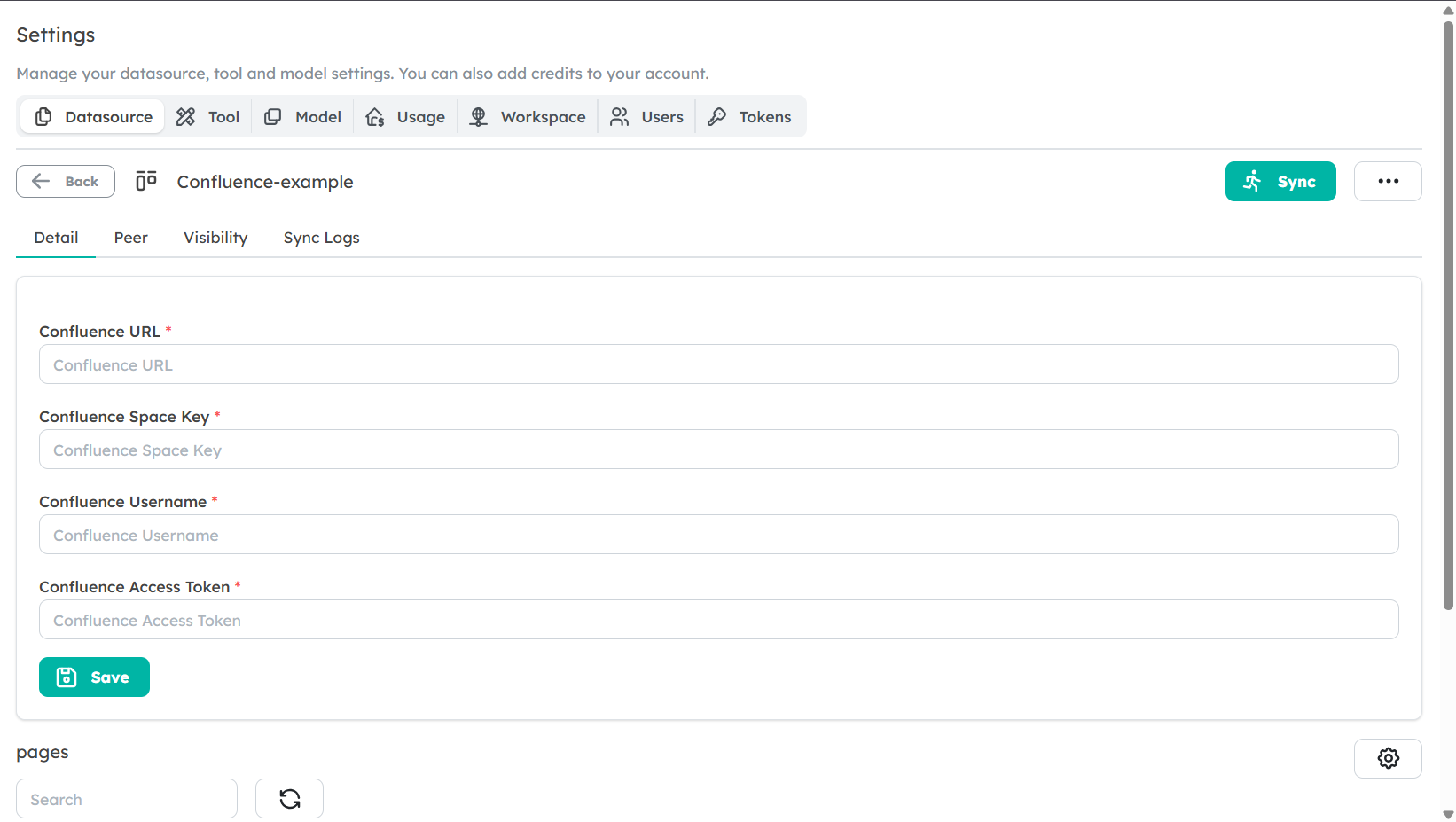
Enter Confluence Space URL and Authentication:
- Provide the URL of the Confluence space you want to connect.
- Add the required authentication details (API token or other credentials) to allow the Peer to access the space.
Save the Data Source: After configuring the space URL and authentication, save the data source. The Peer will now have access to all textual content in the documents within that space.
Data Usage and Extraction
Once the Confluence space is connected, the Peer can:
- Access all documents within the space.
- Read the text content of each document.
- Provide answers based on the knowledge extracted from those documents.
The data is stored in the Peer’s knowledgebase, allowing for quick and accurate responses when users ask questions related to the content stored in Confluence.
Best Practices for Using Confluence Data Sources
- Keep Content Updated: Ensure that the Confluence space connected to the Peer contains the latest information. If the documents are frequently updated, consider re-connecting or refreshing the data source periodically.
- Structure Your Documents: Organize your Confluence space in a way that makes it easy for the Peer to find the most relevant information. Using clear section headings and document titles can help improve the relevance of the Peer's responses.
Limitations
- No Access to Attachments: At present, the Peer cannot read or extract information from attachments (e.g., PDFs, images, spreadsheets) stored within Confluence documents. It can only process the written content in the documents.
- Space-Specific Access: The Peer can only read documents from the specific Confluence space you have connected. If you need access to other spaces, you will need to add additional data sources for those spaces.
Next Steps
Now that you understand how to set up a Confluence Data Source, start integrating your documentation to enrich your Peers' knowledgebase. This will allow your Peer to provide more informed and relevant responses based on your Confluence content.