

Projects & Flows
This is the working guide: how to set a project up, build a flow inside it, give it the resources it needs, hand it work, and watch what it does. Read it top to bottom the first time; after that it is a reference.
For the catalogue of every trigger and step, see the Step Reference.
1. Projects
A Flow Project is a folder with a shared workspace. It groups the flows that belong to the same piece of work, and it owns the four things a single flow cannot own on its own.
| Capability | What the project provides |
|---|---|
| Secrets | API keys and tokens, encrypted at rest, injected into sandboxes as environment variables |
| Sandboxes | Persistent machines that flow steps and agents can run commands and code in |
| Memory | Key/value stores that survive between runs |
| Tasks | A queue of work items people hand to the project's flows |
Flows that are not assigned to a project still work — they appear under Unassigned and simply cannot use any of the above.
Creating a project
- Open Flow from the sidebar.
- In the Projects row, choose New Project (or View all → New Project).
- Give it a name and a description.
The description is not decoration: Flow Copilot reads it as the brief for what the project is meant to do. A sentence about the purpose measurably improves the flows Copilot writes for you.
Moving flows in and out
- From the flow list — a flow card's menu has Move to project.
- From the project — the Flows tab creates them in place.
Remove from project puts a flow back under Unassigned. It keeps working; it just loses access to the project's secrets, sandboxes and memory.
The project page
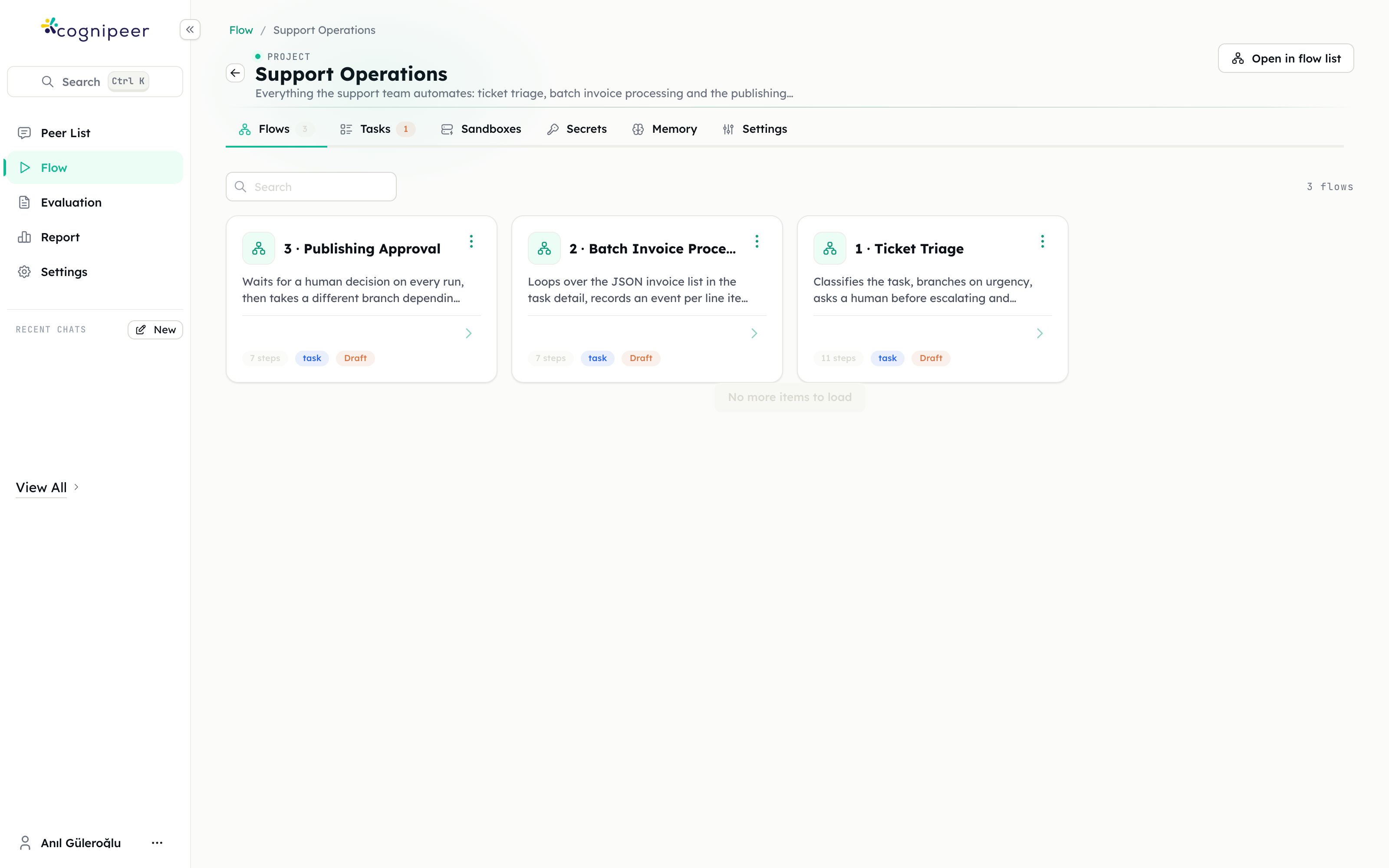
| Tab | For |
|---|---|
| Flows | The flows in this project |
| Tasks | Work items handed to them, as a board or a list |
| Sandboxes | The project's persistent machines |
| Secrets | Credentials, encrypted |
| Memory | What the flows have remembered |
| Settings | Name, description, default task flow, deletion |
The Tasks tab carries a badge whenever a task is waiting for a human decision, so a paused approval is visible without opening the tab.
Project settings
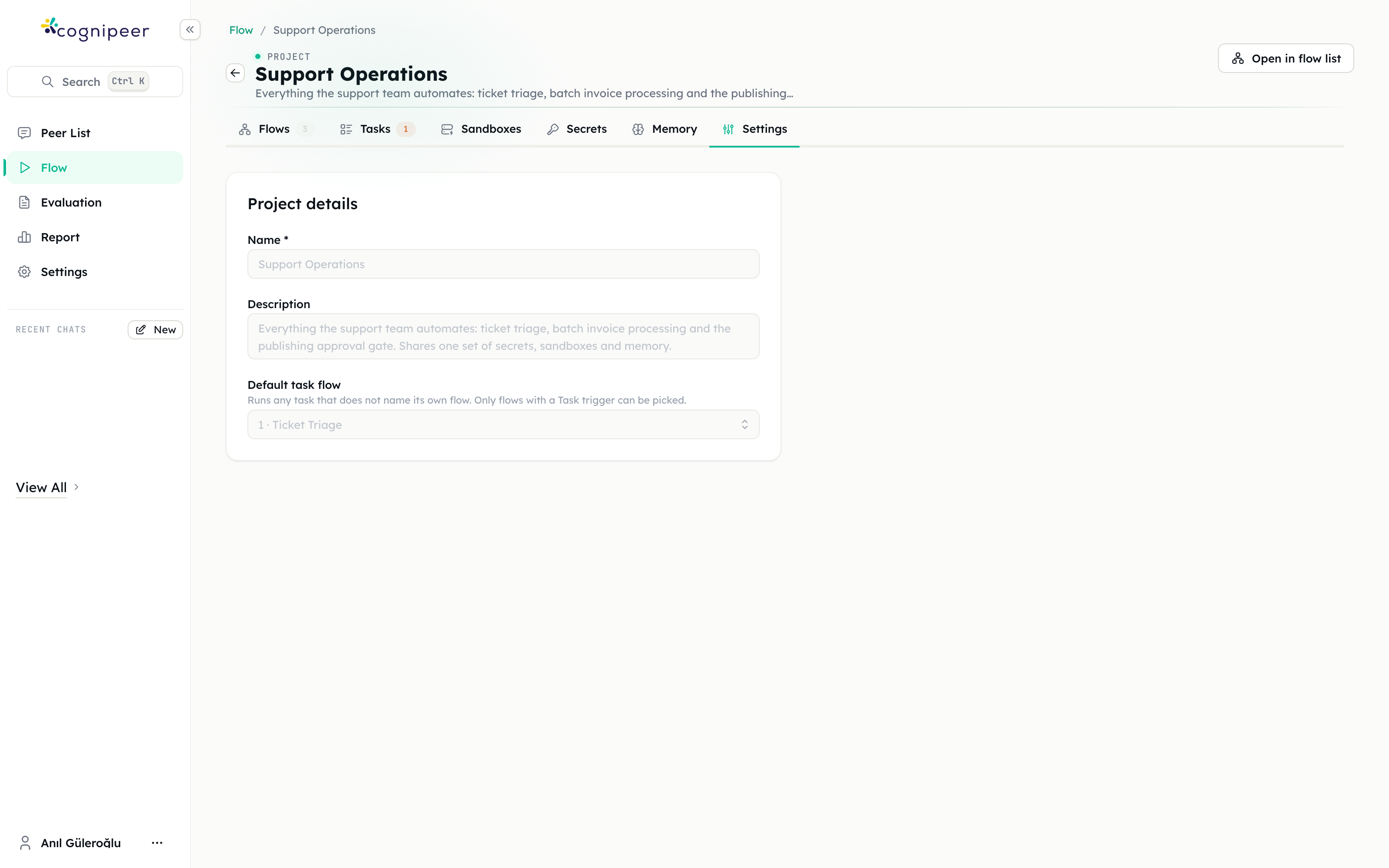
- Default task flow — runs any task that does not name its own flow. Only flows with a Task trigger can be chosen. Setting one lets people create tasks without picking a flow every time.
- Danger zone — deleting a project does not delete its flows; they move to Unassigned. Its secrets, sandboxes, memory and tasks do go away.
2. Building a flow
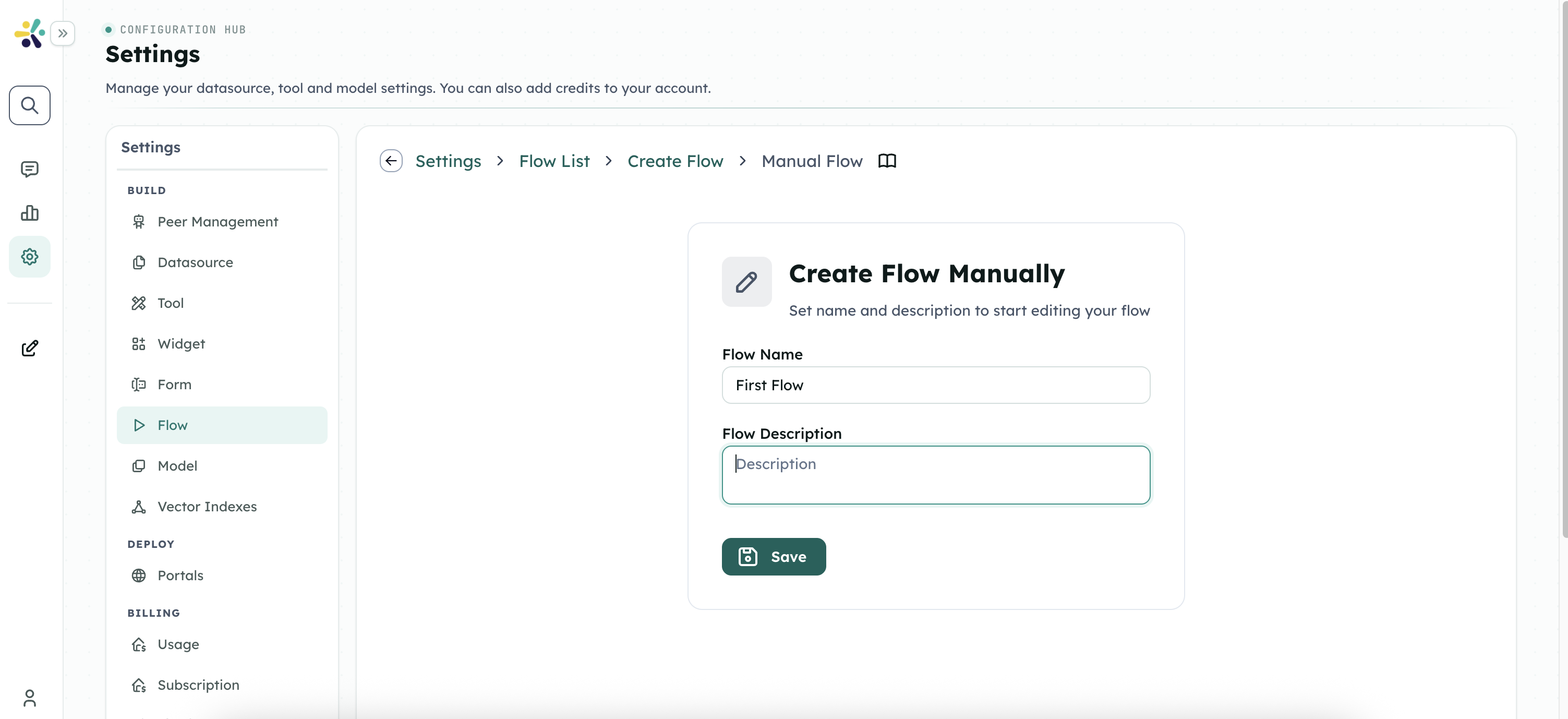
Creating one
From the flow list or a project's Flows tab, New Flow offers three routes:
- Manual — start from an empty canvas with a name and description.
- Import — upload a flow JSON definition.
- Gallery — start from a template.
The editor
The canvas is the flow. Steps are nodes; the lines between them are the order of execution. Add Step inserts a node, and the + handles between nodes insert one in place.
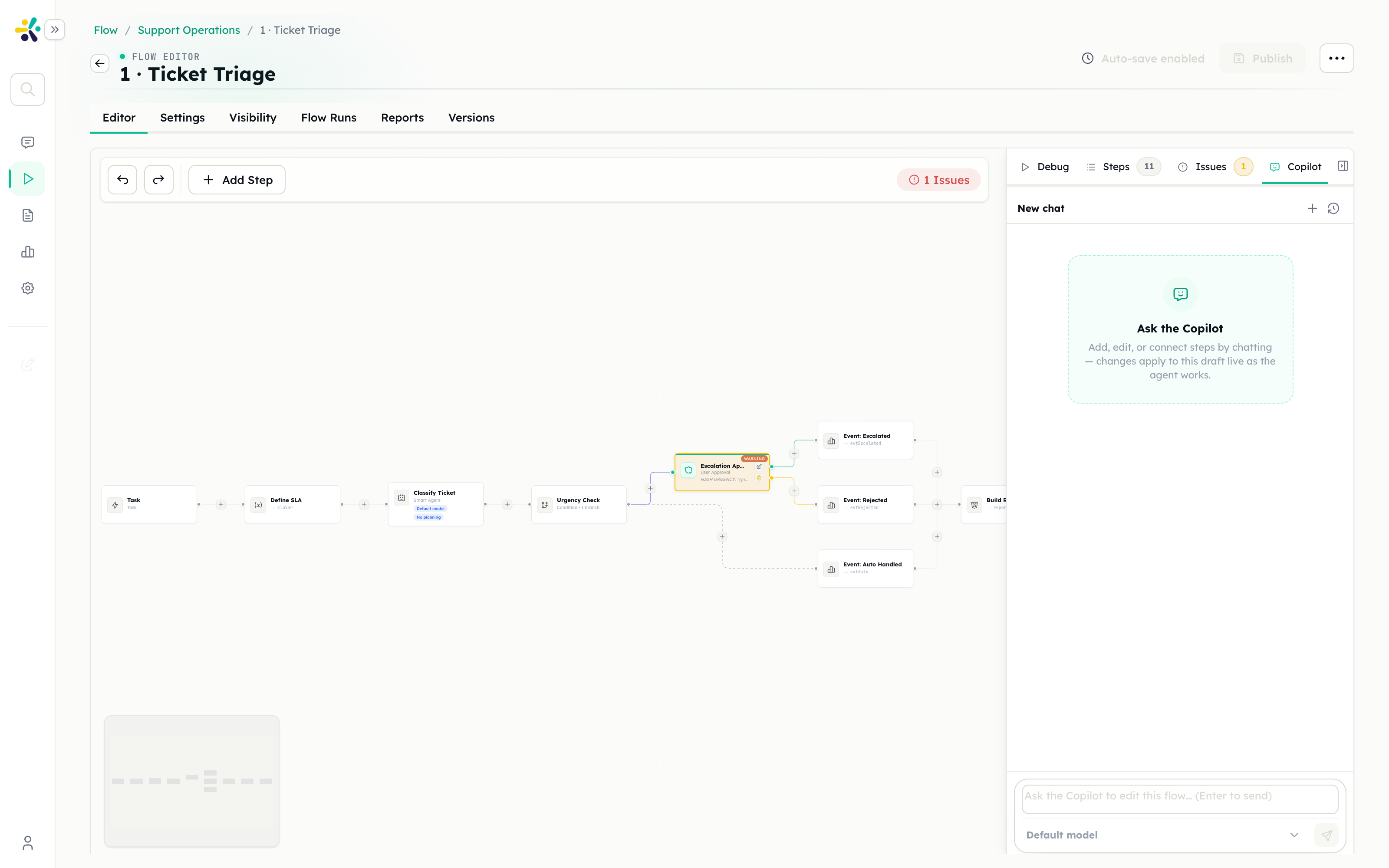
Across the top:
| Tab | What it is |
|---|---|
| Editor | The canvas |
| Settings | Name, description, icon, debug switch |
| Visibility | Who can see and run this flow |
| Flow Runs | Every execution, traced — see Runs |
| Reports | Aggregated business events — see Reports |
| Versions | Published versions and drafts |
The side panel on the right has four tabs:
| Tab | What it shows |
|---|---|
| Debug | Run the flow with test input and watch each step |
| Steps | A flat outline of the flow, with a count |
| Issues | Validation problems, grouped critical / errors / warnings |
| Copilot | The agent that builds the flow for you |
Edits autosave to a draft. Publish promotes the draft to a live version; runs started by a trigger use the published version, while the Debug panel runs the draft.
Triggers
The trigger decides how the flow starts and what information the first step gets.
| Trigger | Use it when |
|---|---|
| Peer message | A Peer should start the flow during a conversation |
| Peer action | A Peer should offer the flow as a specific action |
| Form | Users provide structured inputs before the flow runs |
| Task | A person hands the flow a piece of work from the project's task board |
| Schedule | The flow runs automatically on a cron expression |
| API | Another system starts the flow with a request |
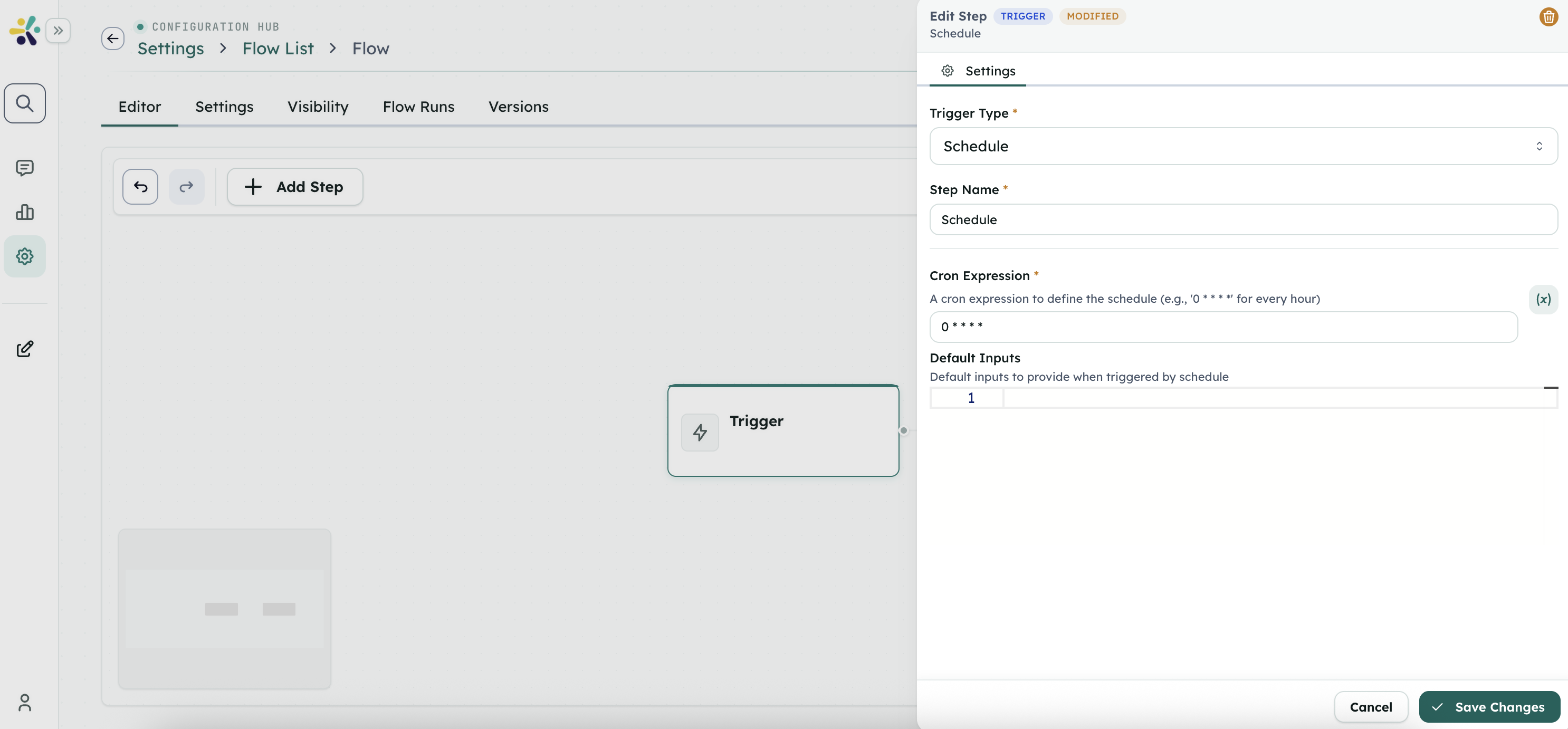
Triggers and capabilities. Not every step works under every trigger — a step that speaks into a live conversation cannot work in a scheduled run, because there is no conversation. The Issues panel flags this and names the missing capability: a conversation session, a live chat message, a chat client that can answer, or an end-user identity. Change the trigger or drop the step.
Full trigger configuration and outputs are in the Step Reference.
Variables and templates
Each step publishes its result under an output name you choose. Later steps read it with a template:
{{triage.data.category}}Rules worth knowing:
- Trigger outputs are flat. A Task trigger publishes
name,detail,attachments— write{{detail}}, not{{trigger.detail}}. - Templates render in most text fields, including prompts, HTTP bodies, file names and variable values.
- Condition and While rules are raw JavaScript, not templates. Write
riskScore > 7, not{{riskScore}} > 7. - Some fields take a bare path, not a template — the Each step's array variable is
outline.data.sections, without braces. - A rule that names a variable which does not exist throws and fails the run. Create it with a Define Variable step first, or guard it with
typeof.
Inside an Each loop you also get item and index. After the loop, a body step's own output holds only the last iteration — to keep every iteration's work, create a variable before the loop and grow it inside with Set Variable or Add Item to Array.
Branching
Three steps branch:
- Condition — JavaScript rules, tried top to bottom; the first truthy one wins. If none match, execution falls through to the step's own next step, so always wire that as the default path.
- Classifier — a model picks one category by matching its description, so descriptions must be mutually exclusive.
- Guardrail — content that fails the check takes the blocked path.
A branch may point at a step earlier in the flow — that backwards edge is how a revise-until-approved loop is built. Bound it in the rule, e.g. approved !== true && revision < 2.
Finishing
Every path through the flow must reach a Final step. A final step declares the run's result: each entry has a name and a template, and those become the fields shown on the run and on the task.
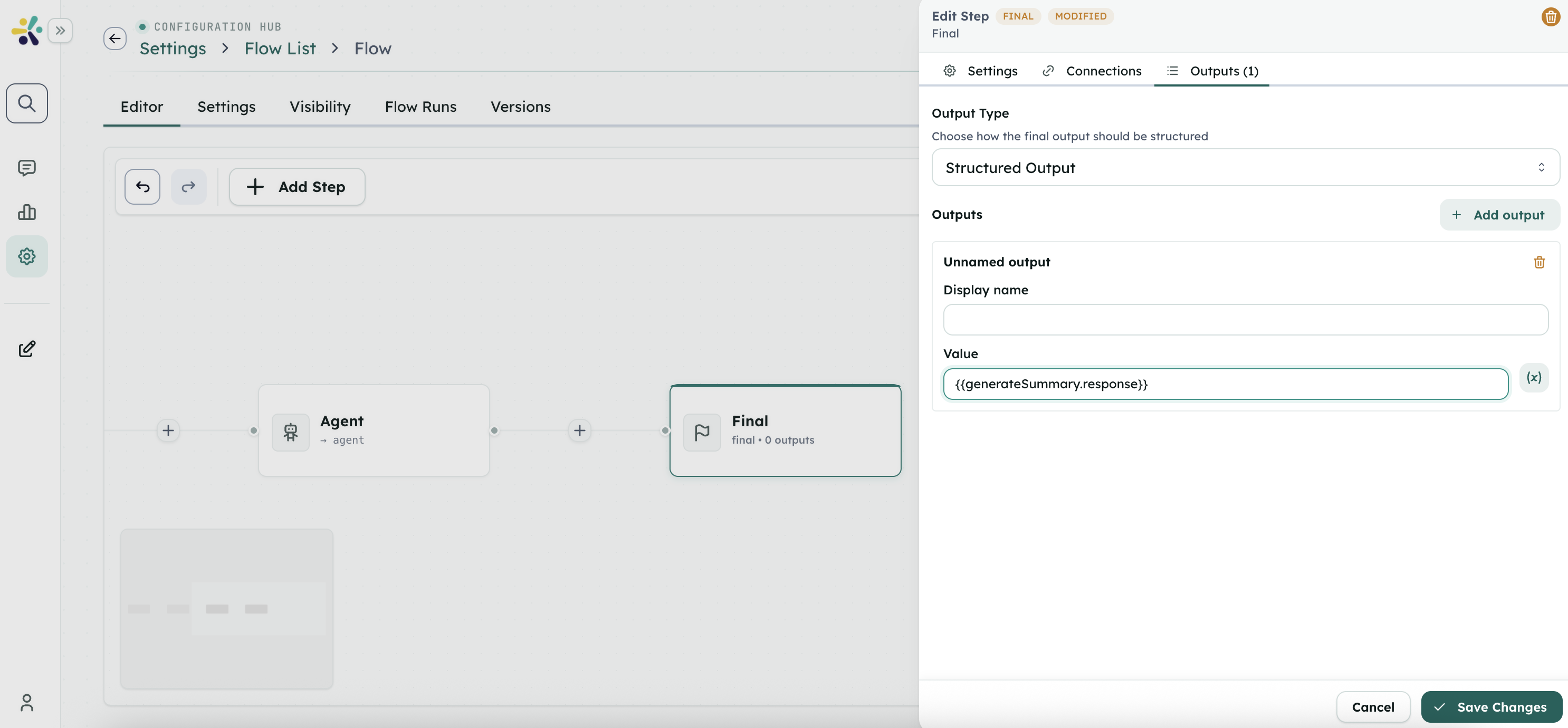
A final step does not create a file. Use Publish File for that.
3. Agents inside a flow
Smart Agent
The Smart Agent step runs an autonomous agent: it plans, calls tools, compacts its own context when it gets long, and can stop to ask a human. Use it where the work cannot be written out as a fixed sequence.
The things that actually decide whether it works:
- Give it tools. An agent with no actions has no tools — it can only reason over what is in its prompt. It cannot search the web, read a URL or call an API. A "research" step with no tools returns confident text with nothing behind it.
- Ask for structure when a later step depends on it. Set the output type to structured JSON with a schema, and the parsed object lands at
<output>.data.<field>. Free text stays at<output>.response. - Feed it through templates.
userMessageandsystemPromptrender as templates —{{detail}}from a task,{{research.response}}from an earlier agent. - Compose small agents. Several narrow agents, each with a structured output, beat one agent asked to do everything.
An agent can also be given skills, memory tools, sandbox tools, other flows to call, and other peers to delegate to.
Subflow
The Subflow step runs another flow as a child and uses its outputs. Reach for it when a piece of logic is needed by more than one flow, so it lives in one place instead of being copied.
The difference from letting an agent call a flow: a Subflow step always runs, in a place you decide; an agent decides for itself whether and when to call.
4. Human in the loop
Two things pause a run and wait for a person:
- User Approval — an explicit gate you place in the flow. It has an approve path and a reject path.
- A Smart Agent asking — either a tool call gated by Require Human Approval, or the agent's own
ask_user.
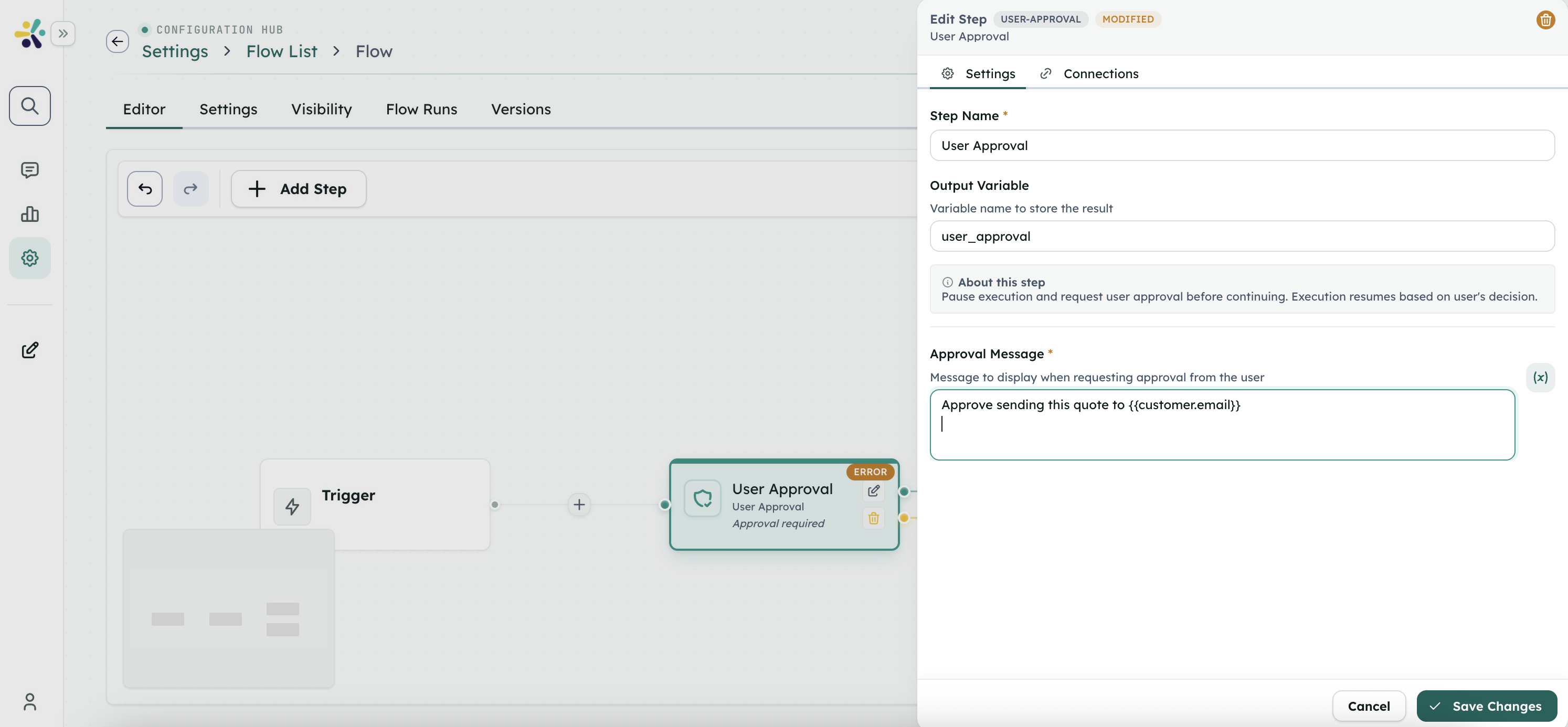
In both cases the run parks with everything it had. When the answer arrives, it continues from exactly where it stopped — nothing re-executes.
Where the question appears depends on how the flow was started:
- Started by a task → in the task detail, as Waiting Approval or Waiting Input.
- Started by a peer conversation → in the chat.
For a gated tool call, the tool name and its arguments are shown alongside the question, so the decision is not a blind yes/no.
5. What a project owns
Secrets
Secrets are the credentials the project needs: API keys, tokens, connection strings. Stored once, encrypted at rest, never returned to the browser by the list endpoint.
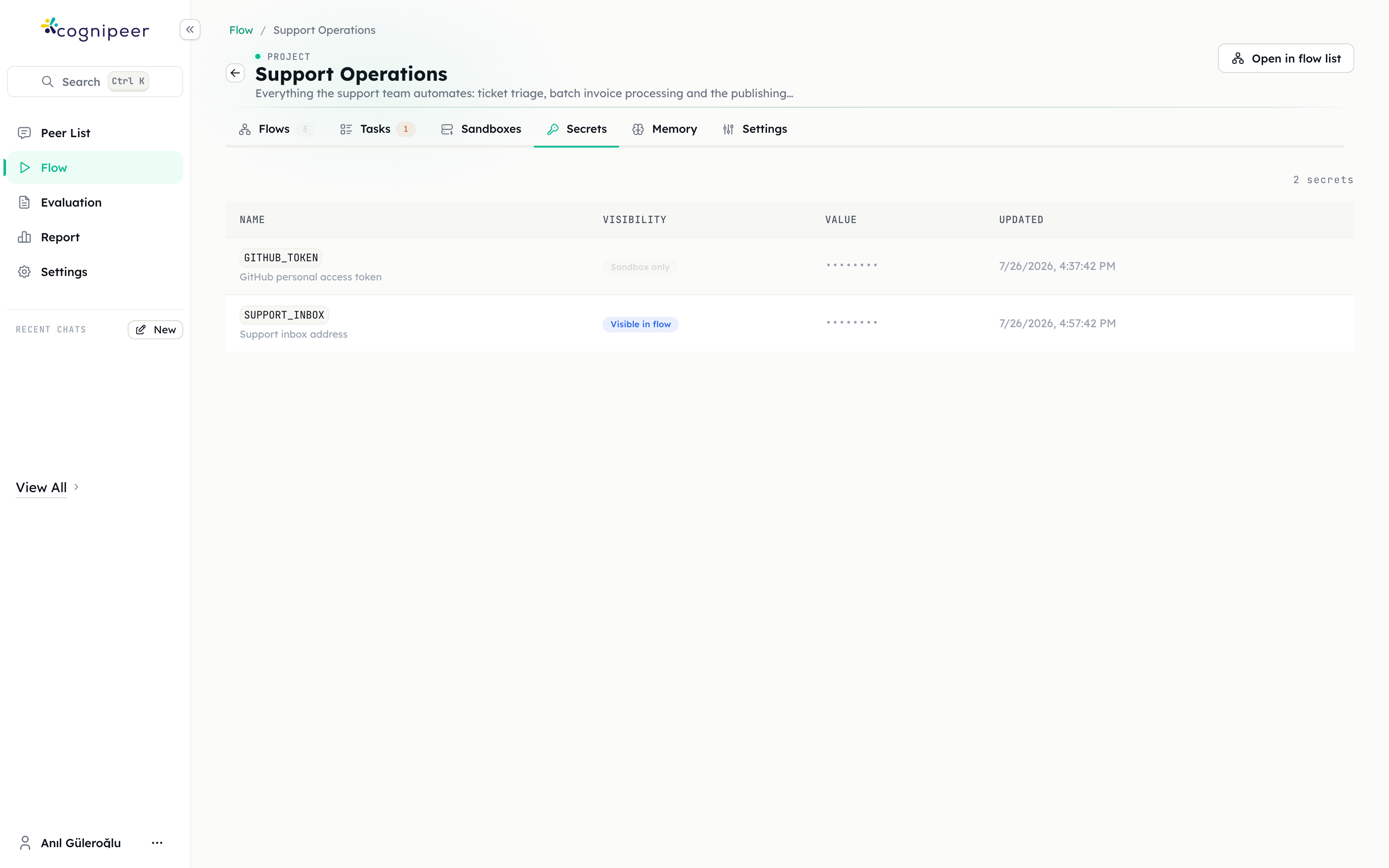
| Field | Notes |
|---|---|
| Name | Used verbatim as the environment variable name inside sandboxes, e.g. GITHUB_TOKEN. Letters, digits and underscore; cannot start with a digit. |
| Value | When editing, leave empty to keep the stored value. |
| Exposure | Visible or Hidden — see below. |
| Display label | A human-friendly name. |
| Description | Shown to agents alongside the name, so describe what it is for — never the value. |
Hidden — sandbox only. The value never enters the flow context. It exists only server-side, to be placed in a sandbox's environment. Steps cannot template it and it never reaches run logs. This is the right default for anything damaging in a log.
Visible — flow steps can read it. The value resolves inside the flow as {{secrets.SUPPORT_INBOX}}. Use it when a step genuinely needs the value — an HTTP header, a recipient address. Its value is written to run logs, so anyone who can read a run can read the secret. Users with flow manage rights can also reveal it in the UI.
How secrets reach an agent. Agent steps have Tell the agent about Project Secrets, on by default. It appends the names of the project's secrets to the system prompt, so the agent knows which credentials exist and that they are already in the sandbox environment. Values are never included — which is enough for it to write git clone https://$GITHUB_TOKEN@… and have the command work. This is why the description field matters: it is what tells the agent when to reach for a credential.
Sandboxes
A sandbox is a persistent machine attached to the project. Flow steps run shell commands and code in it, read and write files, and keep the results between runs.
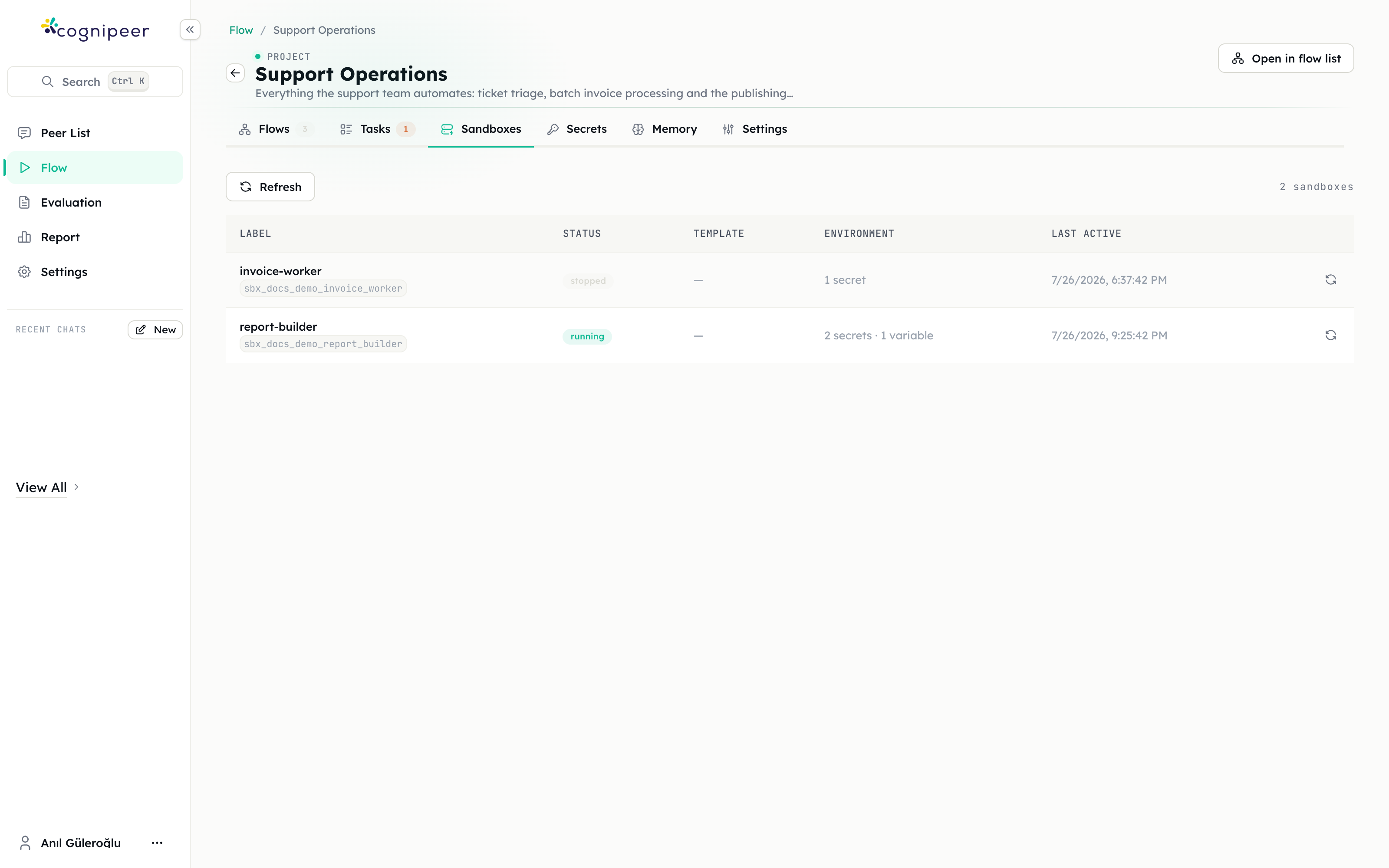
| Field | Notes |
|---|---|
| Label | A friendly name, e.g. report-builder. |
| Template | Empty uses the workspace default template. |
| Project secrets | Inject all, only selected, or none. |
| Extra environment variables | Plain configuration such as NODE_ENV. Stored unencrypted; overrides a project secret with the same name. |
The environment applies to every command the sandbox runs, including commands an agent issues.
Lifecycle controls are Start, Stop (suspends; the filesystem is kept), Refresh status and Delete (destroys everything inside it). The same operations exist as steps, which is what makes long jobs practical: provision on demand, wait until running, do the work, stop it again. See the Sandbox steps.
Steps take a sandbox reference: either the Sandbox Record ID from the Sandboxes tab, or a template expression resolved at run time — typically the sandboxRecordId output of a Sandbox: Create step earlier in the same run.
Giving a sandbox to an agent. Agent steps have Add Sandbox Tools. Point it at a sandbox and the agent gets tool calls for the operations you allow — sandbox_exec, sandbox_run_code, sandbox_list_files, sandbox_read_file, sandbox_write_file, sandbox_mkdir, sandbox_delete, sandbox_move. All are enabled by default; narrow the list when the agent has no business deleting things, and pair consequential ones with Require Human Approval.
An agent can also publish a file as a run output with sandbox_publish_file, which is what makes the result appear under a task's Output files.
Memory
Flow Memory is where a project keeps what it needs to remember after a run ends. It is a key/value store — but there are several, chosen by scope.
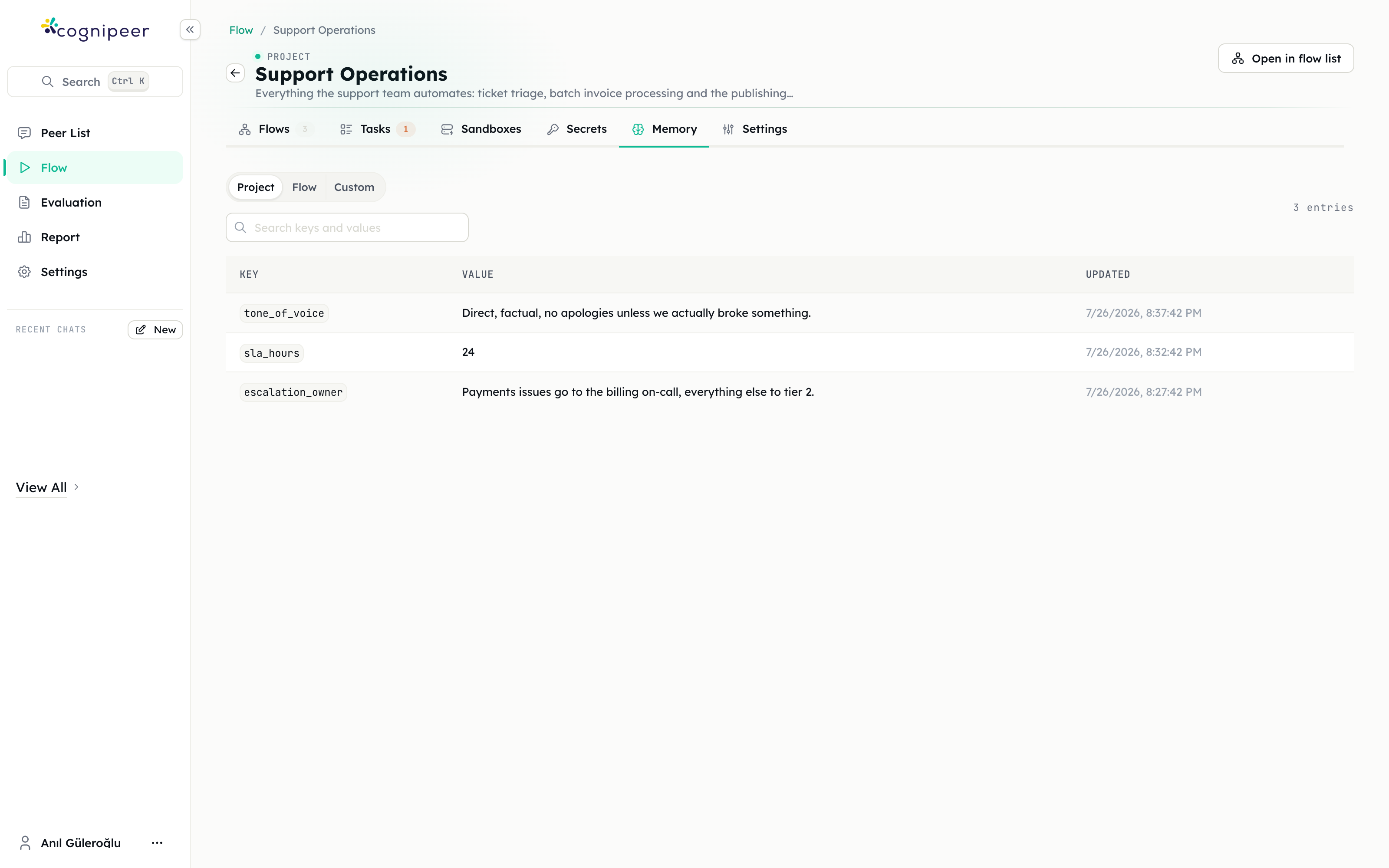
| Scope | One store per | Use it for |
|---|---|---|
| Project | Project | Facts every flow should share — conventions, owners, standing decisions |
| Flow | Flow | State that belongs to one flow and would confuse the others |
| Custom | Any key you supply | Per-customer or per-user memory, e.g. {{trigger.userId}} |
A store is created implicitly the first time something writes to it. Custom keys appear in the Memory tab as soon as a flow writes under one.
Four steps cover it — Put, Read, Search, Delete — and all of them default to the current flow's project and the current flow, so the common cases need no configuration.
Agent steps can also manage memory themselves with Add Memory Tools; you choose the scope and which of Read / Search / Save / Delete they may use. Dropping Delete is a common and sensible restriction.
Studio has three unrelated memories, so keep them straight: Flow Memory belongs to a project; User Memory belongs to an end user talking to a Peer; semantic cache is something else again.
6. Tasks
A task is a piece of work you hand to a flow: a name, a detail, any files, and a priority. Tasks live inside a project and are visible to everyone who can see it, which makes them the natural surface for work a human starts and a human finishes.
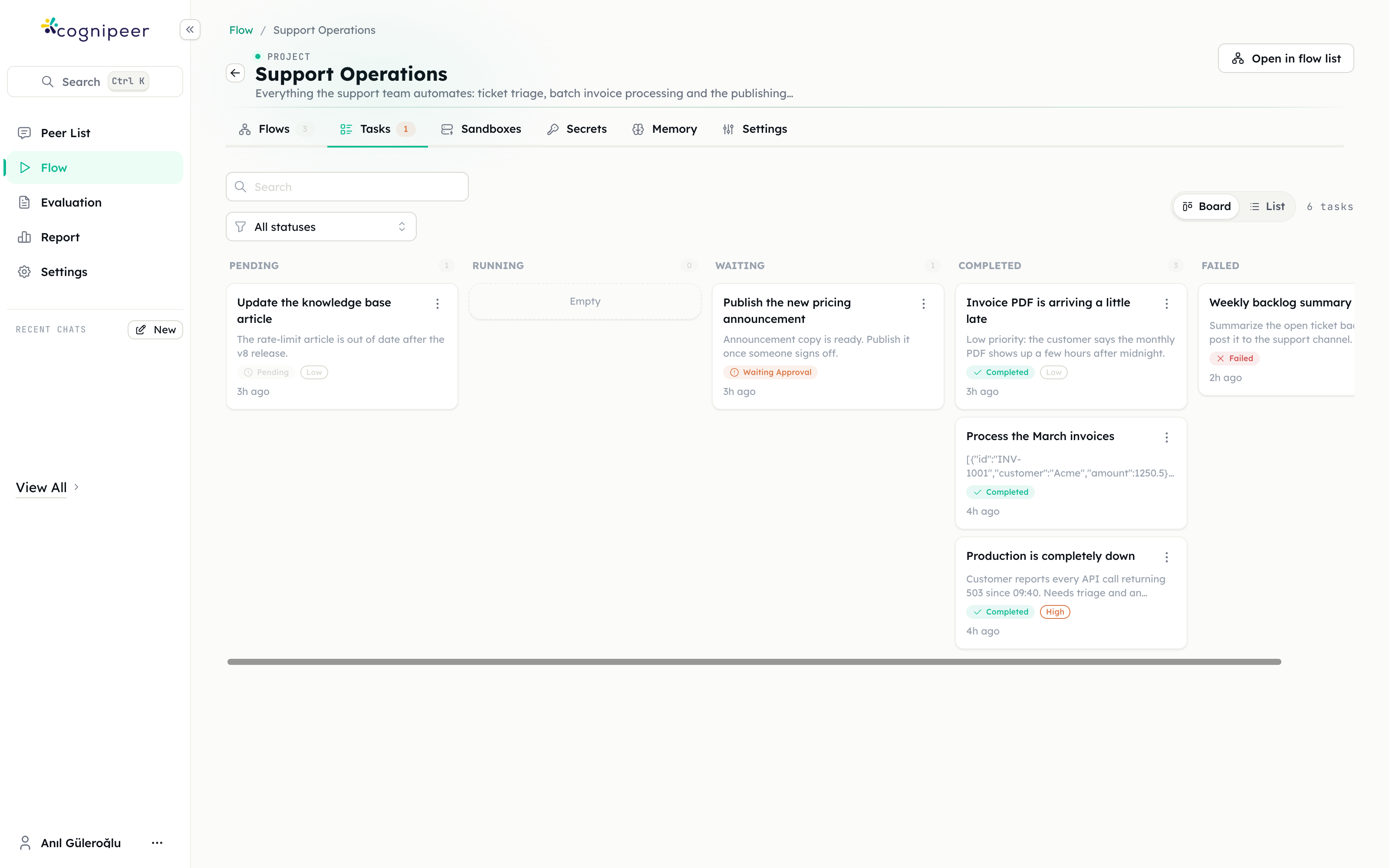
Only flows with a Task trigger can run a task. If no flow in the project has one, the task screen says so rather than letting you create work nothing can pick up.
Creating one
| Field | Meaning |
|---|---|
| Name | Short title. Reaches the flow as name. |
| Detail | Free-text instructions. Reaches the flow as detail. |
| Flow | Which flow runs it, or Project default. |
| Priority | Low / Normal / High — a label for people, not something the engine acts on. |
| Attachments | Files up to 20 MB each. Reachable as attachments. |
Create & Run queues it immediately; Create without running parks it in Pending.
Statuses
| Status | Meaning |
|---|---|
| Pending | Created but not started |
| Queued | Accepted, waiting for a worker |
| Running | A flow run is in progress |
| Waiting Approval | Paused on an approval |
| Waiting Input | Paused on a question |
| Completed | The run reached a Final step |
| Failed | The run stopped on an error |
| Cancelled | Stopped by hand |
The board groups these into Pending / Running / Waiting / Completed / Failed; List gives a denser table, with search and a status filter.
Answering and finishing
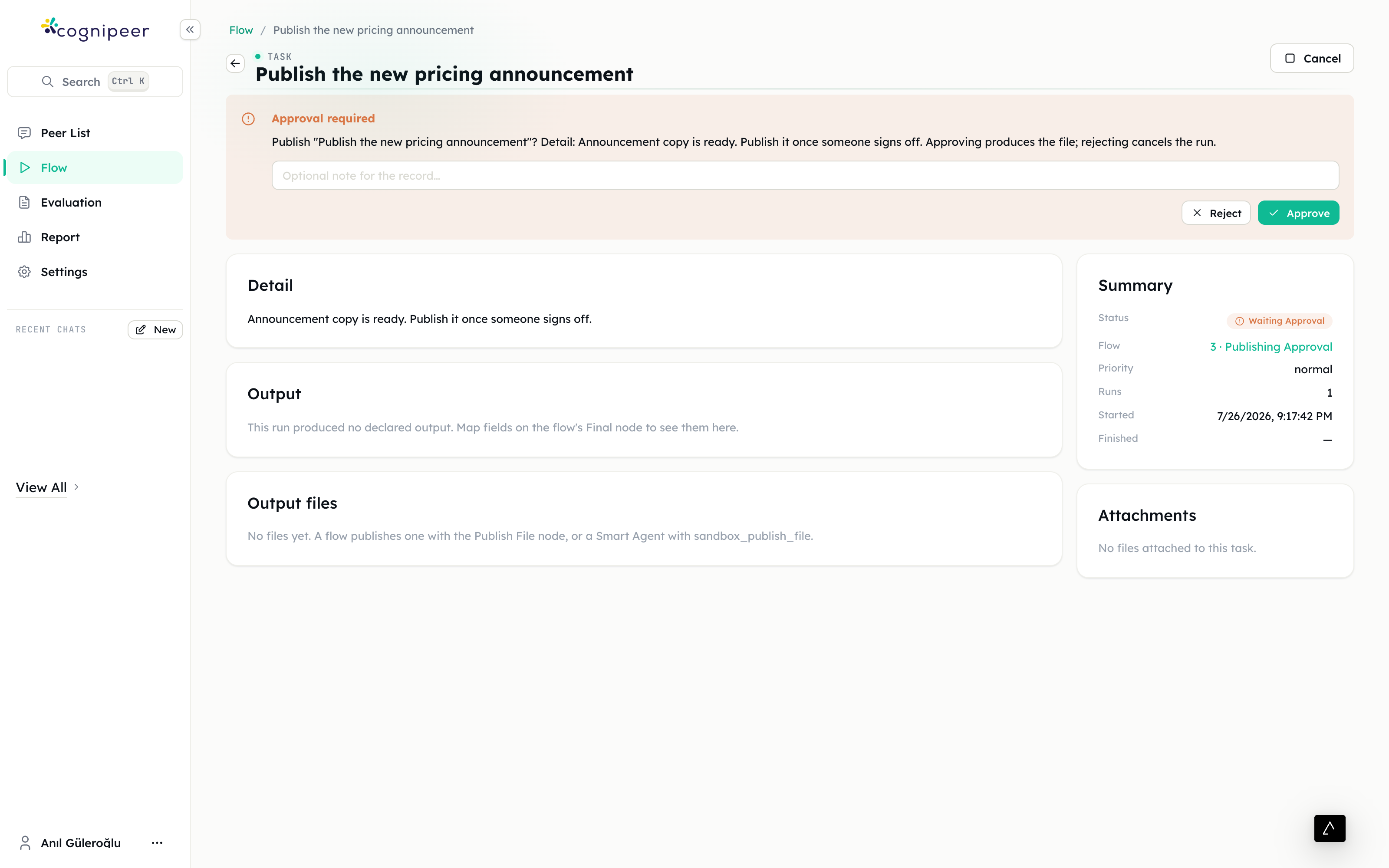
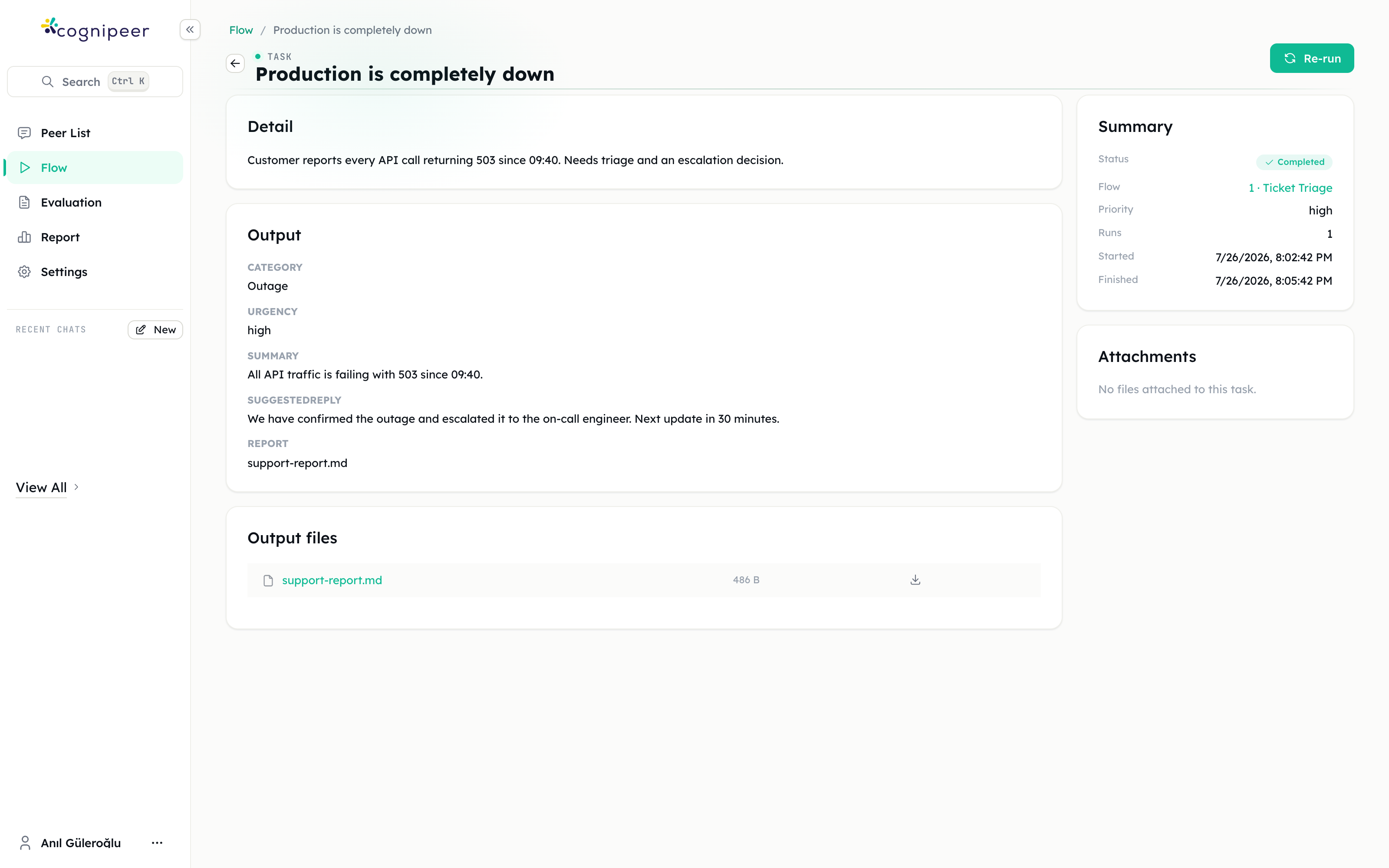
A finished task shows the Detail it was given, the Output fields its flow's Final step declared, any Output files published during the run, and a Summary with status, flow, priority, run count and timings. Open run trace jumps to the full run detail.
Re-run starts it again with the same input; Cancel stops a running task (a step already in progress finishes, but its result is discarded); Delete removes the task and its run history.
Tasks are not limited to the UI — the client API exposes project and task endpoints, so another system can create a task, attach files, poll its status and read its outputs. For endpoint details use the Developer Hub.
7. Flow Copilot
Copilot is an agent docked in the editor's side panel. It reads the flow you have open, changes it, checks its own work, and can look at what a run actually did.
It operates the editor through tools rather than handing you JSON to paste:
- Build — add, update and delete steps, connect them, set the trigger. Batched edits are preferred, so a ten-step flow arrives in one change.
- Inspect — read the graph, list the variables the run context will actually contain, validate the flow.
- Discover — the step types that exist, the workspace's tool actions, models and data sources, and the project context: secrets, sandboxes and sibling flows.
- Runs — list runs and read a run's summary, steps, context and report.
- History — search earlier Copilot conversations about the same flow.
Two consequences worth knowing. It checks its own work: after editing it validates the flow and re-reads the run variables, then fixes what it broke, without spending your turn. And it will not invent capabilities: if you ask for something needing a tool, credential, data source or model this workspace does not have, it builds what does work and says plainly what is missing.
Fixing a failed run. The Debug panel and the run detail offer Fix with Copilot, which carries the run id into the chat. Copilot reads the run report — the failing step with its input and output — before proposing anything, and distinguishes a structural bug from bad input data rather than rewriting a flow that was correct.
Sessions. Each flow keeps a history of Copilot conversations; New chat starts a fresh one, the history menu reopens an old one, and the model selector picks which model answers.
If the Copilot tab is not in the side panel, the feature is not enabled for your workspace.
8. Running and debugging
The Debug panel
Give the flow test input, press Run, and watch the steps execute on the canvas. Each step shows its own input, output and error.
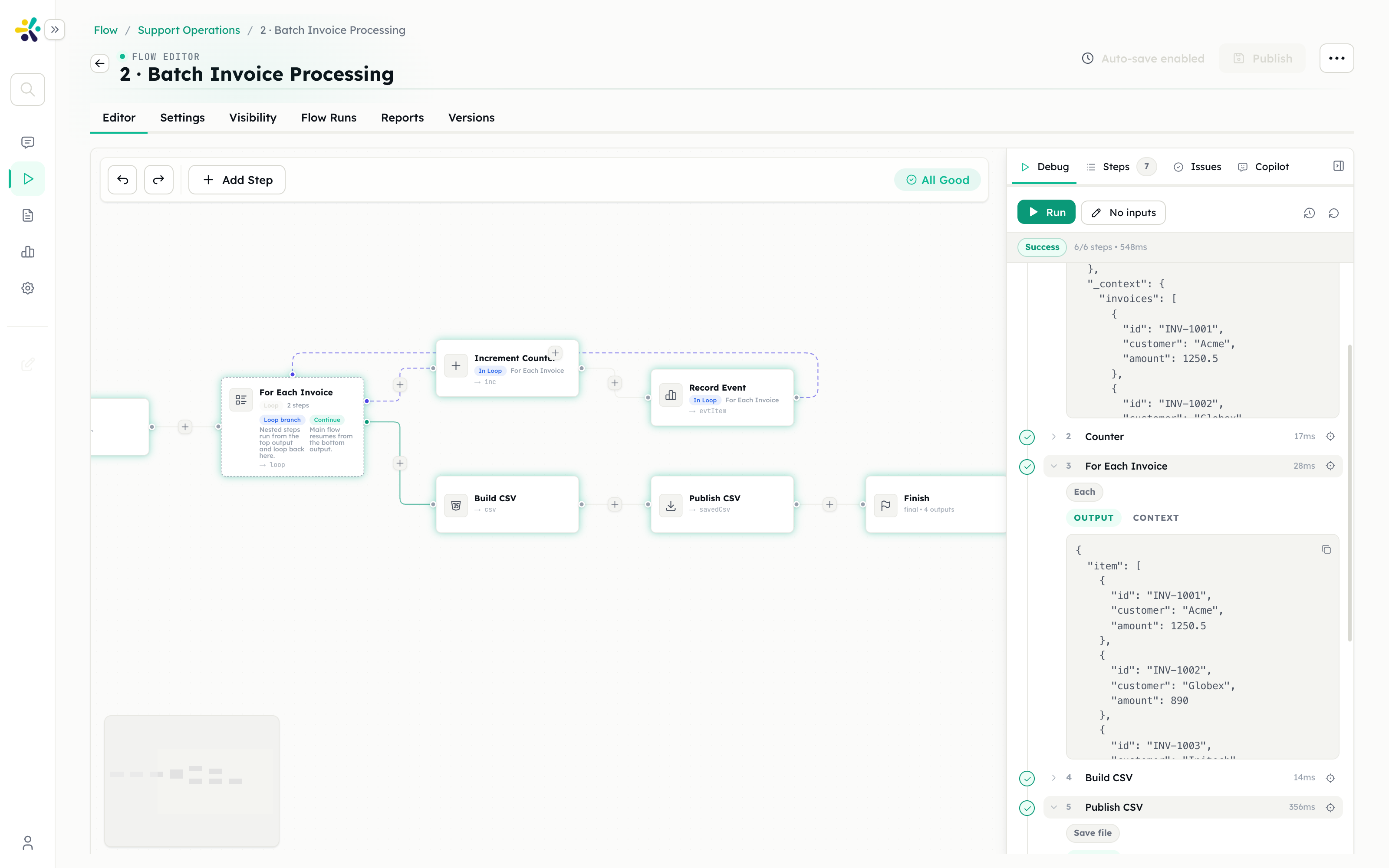
Debug must be enabled in the flow's Settings for step inputs and outputs to be captured. Without it runs are still recorded, but only at summary level.
The Flow Runs tab
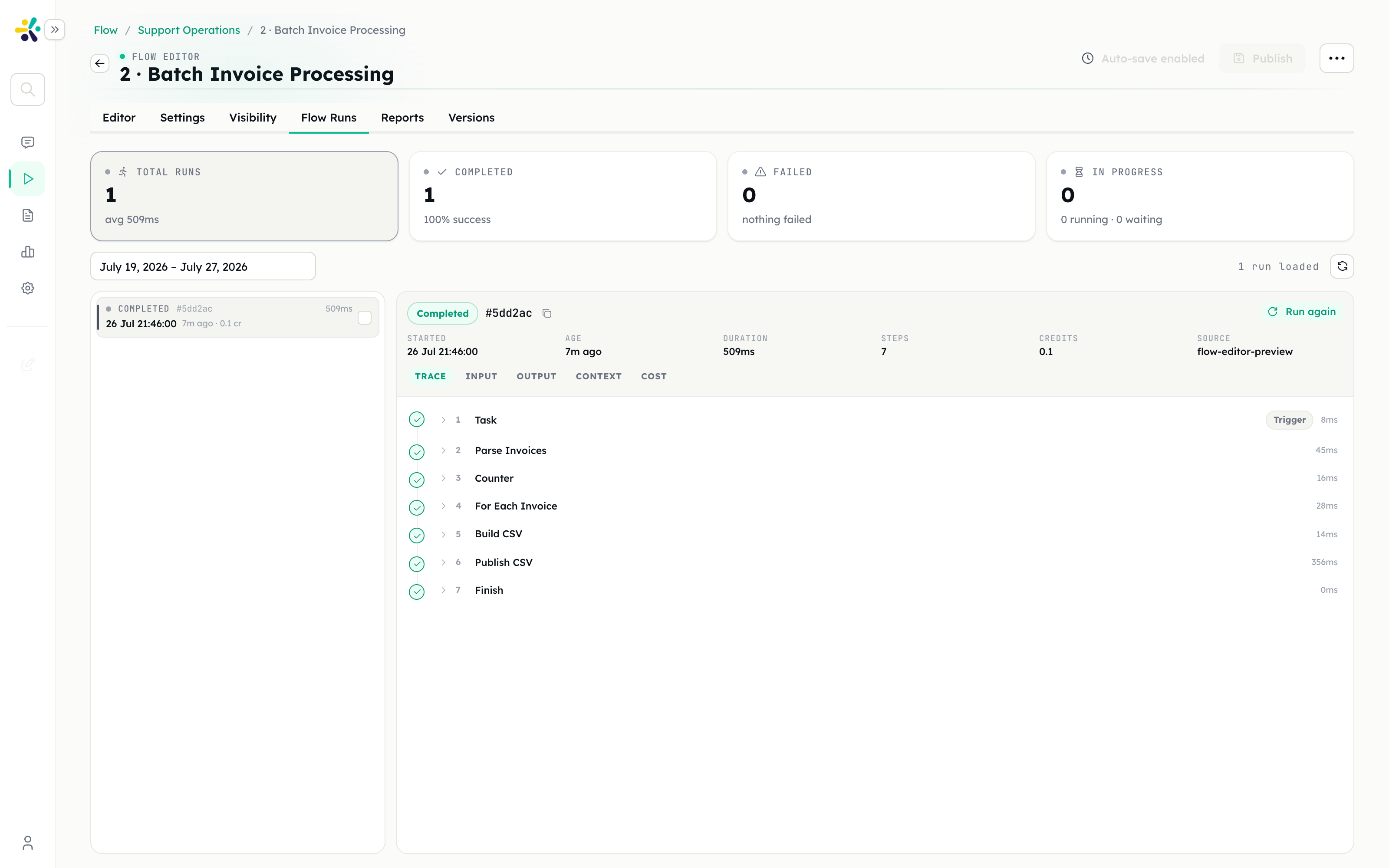
Four tiles — total, completed, failed, in progress — double as status filters over a date range. Selecting a run traces it:
| View | Shows |
|---|---|
| Trace | Each step in execution order, with status, duration and per-step Output / Config / Error |
| Input | What the run was started with |
| Output | What the Final step published |
| Context | The full run context — every variable, as the engine saw it |
| Cost | Token usage and credits |
The header carries the run id, start time, duration, step count, credits, the source that started it (flow-task, api, flow-editor-preview, …), the flow version, and — for a run that paused — how many times it was resumed.
Run again re-executes with exactly the same inputs. If the stored inputs were truncated or contained secrets, the button says so and stays disabled rather than silently running with different data.
Comparing two runs. Pick one run, then a second, and the pane switches to a side-by-side comparison: status, duration, step count and version, then Steps, Input and Output aligned against each other. This is the tool for "it worked yesterday".
Reports
Runs answer what happened in this execution. The Reports tab answers what has been happening across executions, from the events flows record with the Track Event step.
Tracked events persist whether or not Debug is on, which makes them the right place for business reporting. Each event carries dimensions (categorical labels to group by) and measures (numbers to count or sum), aggregated over time with an export.
9. Publishing, versions and sharing
- Publish promotes the current draft to a live version. Triggered runs use the published version; the Debug panel uses the draft.
- Versions lists what has been published, so you can see which version a run used and roll back.
- Visibility controls who in the workspace can see and run the flow.
A flow reaches the outside world in four ways, and they are not exclusive:
- As a Peer tool — attach it to a Peer, which can then call it during a conversation.
- As a task flow — give it a Task trigger; people hand it work from the project board.
- On a schedule — a cron expression, with default inputs.
- Through the API — an API trigger, called by another system.
For endpoint details, authentication and request formats, use the Developer Hub.
10. Permissions
Creating and editing projects and flows needs flow build rights. Deleting a project, revealing a secret's value and managing sandboxes need flow manage rights. Someone without them still sees the project and its flows read-only.
Next
- Step Reference — every trigger and step in detail
- Use Cases — worked end-to-end scenarios
- Skills — reusable playbooks for the agents inside your flows