

Step Reference
Every trigger and step available in the flow editor, with what it takes and what it returns. For how to put them together, see the Projects & Flows guide.
Reading this page:
- Configuration lists the fields you fill in on the node. A field marked required must be set before the flow validates.
- Outputs are what the step publishes into the run context. A step's outputs are namespaced under the output name you give the node, so a Smart Agent named
triagepublishes{{triage.response}}. - How it behaves appears on the steps whose real configuration is not obvious from the field list — branching, loops and agents especially.
Fields whose notes say Shown when … only appear once the field they depend on has that value.
Triggers
Peer Message
Key: peer.message
Triggered when a message is received from a peer
Outputs
| Output | Type | Description |
|---|---|---|
message | text | The message content from the user |
attachments | array | Any files or media attached to the message |
messageId | string | Identifier of the user message that triggered the flow |
responseMessageId | string | Identifier of the assistant's response message when available |
history | array | Previous messages in the conversation |
conversationId | string | Identifier of the conversation |
userId | string | Identifier of the user |
Peer Action
Key: peer.action
Triggered when an action is received from a peer
Configuration
| Field | Type | Notes |
|---|---|---|
inputs | list | Each entry: name, type, description. |
API
Key: api
Triggered when an API request is received
Form
Key: form
Triggered when a form submission UI is received
Configuration
| Field | Type | Notes |
|---|---|---|
inputs | list | Each entry: name, type, description. |
Task
Key: task
Triggered when a Task in this flow's project is run. Give a flow this trigger to make it selectable when creating a task; the task's name, detail and attachments arrive as trigger outputs.
Outputs
| Output | Type | Description |
|---|---|---|
taskId | string | Identifier of the task that started this run |
name | string | The task's name, as typed by whoever created it |
detail | long-text | The task's free-text detail / instructions |
attachments | array | Files attached to the task |
priority | string | low | normal | high |
flowProjectId | string | The project the task belongs to |
task | object | Every field above in one object — handy for passing the task to an agent prompt or a subflow in one piece, e.g. {{task}}. |
Schedule
Key: schedule
Triggered automatically based on a schedule defined by a cron expression
Configuration
| Field | Type | Notes |
|---|---|---|
cron | text, required | A cron expression to define the schedule (e.g., '0 * * * *' for every hour) |
inputs | code | Default inputs to provide when triggered by schedule |
Steps
AI & Language Models
Speech to Text
Key: speech-to-text
Transcribe audio (base64) to text
Configuration
| Field | Type | Notes |
|---|---|---|
base64Key | select | Key in context containing base64 audio (data URL or raw base64) |
base64 | long-text | Provide base64 directly if not using a key |
Outputs
| Output | Type | Description |
|---|---|---|
language | string | — |
duration | number | — |
text | long-text | — |
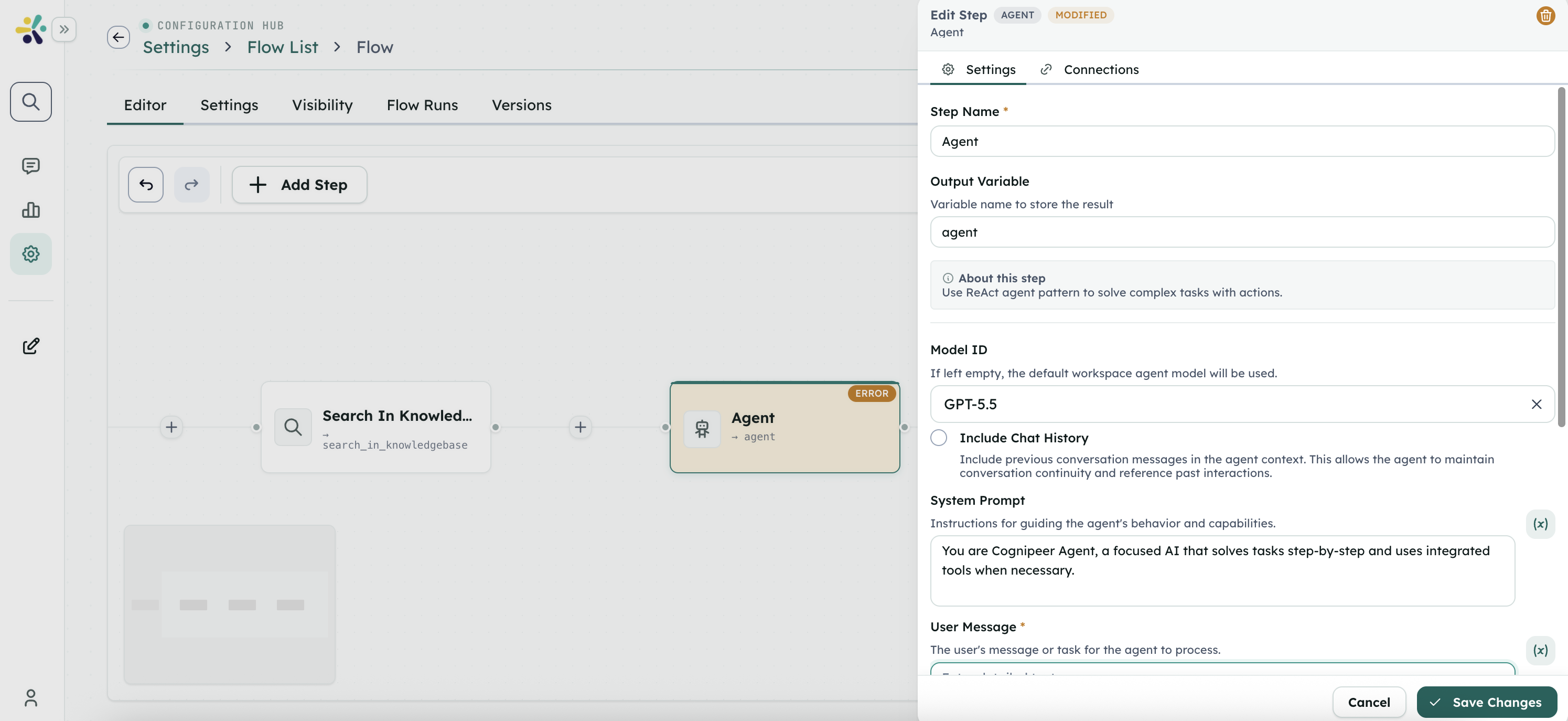
Agent
Key: agent
Use ReAct agent pattern to solve complex tasks with actions.
Configuration
| Field | Type | Notes |
|---|---|---|
modelId | model-select | If left empty, the default workspace agent model will be used. |
includeChatHistory | checkbox | Include previous conversation messages in the agent context. This allows the agent to maintain conversation continuity and reference past interactions. Default false. |
systemPrompt | long-text | Instructions for guiding the agent's behavior and capabilities. Default "You are Cognipeer Agent, a focused AI that solves tasks step-by-step and uses integrated tools when necessary.". |
userMessage | long-text, required | The user's message or task for the agent to process. |
actions | multiple-select | List of actions the agent can use to complete the task. |
media | list | Each entry: type, url. |
output_type | select | Choose how the agent should format its response. Default "text". One of text, structured_output. |
jsonSchema | json-schema | Define the structure of the JSON output when using Structured Output. Shown when output_type is structured_output. |
enableMemoryTools | checkbox | Let the agent read, search, save and delete Flow Project memory on its own via tool calls. Default false. |
memoryScope | select | Default "project". One of project, flow, custom. Shown when enableMemoryTools is true. |
memoryFlowId | text | Only used when Memory Scope is Flow. Leave as default for the current flow. Default "{{flow.id}}". Shown when memoryScope is flow. |
memoryCustomKey | text | Only used when Memory Scope is Custom — any identifier to bucket memory by, e.g. {{trigger.userId}}. Shown when memoryScope is custom. |
memoryOperations | multiple-select | Default ["read","search","put","delete"]. One of read, search, put, delete. Shown when enableMemoryTools is true. |
enableSandboxTools | checkbox | Let the agent run shell commands, code, and file operations inside a sandbox via tool calls. Default false. |
sandboxRef | text | Sandbox Record ID from the project's Sandbox tab (pick one already created), or a template expression resolved at runtime (e.g. from a Create Sandbox node's output). Shown when enableSandboxTools is true. |
sandboxOperations | multiple-select | Default ["exec","run_code","list_files","read_file","write_file","mkdir","delete","move"]. One of exec, run_code, list_files, read_file, write_file, mkdir, delete, move. Shown when enableSandboxTools is true. |
injectSecretNames | checkbox | Append the names of this Flow Project's secrets to the system prompt so the agent knows which credentials are available as environment variables. Values are never included. Default true. |
Outputs
| Output | Type | Description |
|---|---|---|
response | long-text | — |
reasoning | long-text | — |
data | object | Parsed JSON data when using structured output. |
toolCalls | array | List of actions called by the agent during execution. |
Ask to LLM
Key: ask-to-llm
Send a prompt to the llm and get a response.
Configuration
| Field | Type | Notes |
|---|---|---|
modelId | model-select, required | — |
prompt | long-text, required | — |
media | list | Each entry: type, url. |
Outputs
| Output | Type | Description |
|---|---|---|
response | long-text | — |
Ask to Peer
Key: ask-to-peer
Send a prompt to the peer and get a response.
Configuration
| Field | Type | Notes |
|---|---|---|
peerId | select, required | — |
prompt | long-text, required | — |
Outputs
| Output | Type | Description |
|---|---|---|
response | long-text | — |
Guardrail
Key: guardrail
Validate content against guardrail policies for PII detection, prompt shielding, and moderation.
Configuration
| Field | Type | Notes |
|---|---|---|
content | long-text, required | Content or template (supports {{ }}) that will be evaluated against the guardrail policy. |
policy | guardrail-policy | Configure PII detection, PromptShield, and moderation checks applied to this step. |
Outputs
| Output | Type | Description |
|---|---|---|
status | string | Overall evaluation status returned by the guardrail step (passed or blocked). |
passed | boolean | True when the content passes all configured guardrail checks without blocking issues. |
errors | array | List of guardrail violations detailing detected issues, severities, and recommended actions. |
How it behaves
- The pass path is the step's normal nextStepId.
- The blocked path is
data.failNextStepId— set it with connect_steps(branch: 'fail'). If it is left empty, blocked content continues down the normal path.
Extract Data
Key: extract-data
Extract structured data from text using an LLM and JSON schema.
Configuration
| Field | Type | Notes |
|---|---|---|
modelId | model-select, required | — |
prompt | long-text | Optional prompt to guide the extraction. If empty, the entire context will be used. |
jsonSchema | json-schema, required | The JSON schema defining the structure of data to extract |
media | list | Each entry: type, url. |
Outputs
| Output | Type | Description |
|---|---|---|
data | object | — |
Intent Parser
Key: intent-parser
Analyze text to detect user intent and extract parameters.
Configuration
| Field | Type | Notes |
|---|---|---|
modelId | model-select, required | — |
prompt | long-text | — |
media | list | Each entry: type, url. |
intents | list, required | Each entry: name, description. |
Outputs
| Output | Type | Description |
|---|---|---|
name | string | — |
Smart Agent
Key: smart-agent
Run a long-running autonomous agent (Cognipeer Agent SDK) with planning, context summarization and tools. Compose several Smart Agents to accomplish complex work.
Configuration
| Field | Type | Notes |
|---|---|---|
modelId | model-select | If left empty, the default workspace agent model will be used. |
systemPrompt | long-text | Instructions guiding the agent's behavior. Supports {{template}} variables. Default "You are a Cognipeer Smart Agent. Plan your work, use the available tools, and produce a thorough, correct result.". |
userMessage | long-text, required | The task/instructions for the agent to accomplish. Supports {{template}} variables. |
planningMode | select | How the agent plans its work. Todo mode maintains a live checklist of steps. Default "todo". One of todo, planner_executor, reasoning_then_tools, off. |
enableSummarization | checkbox | Automatically compact long context/tool outputs so the agent can run for a long time without exceeding the token window. Default true. |
maxToolCalls | number | Safety limit on the total number of tool calls the agent may make. Default 30. |
toolApprovalMode | select | Pause the whole flow before the agent runs a gated tool, and wait for a human decision. In a Task the pause shows up as 'Waiting approval' with Approve/Reject; the flow continues from where it stopped. Default "off". One of off, all, selected. |
approvalTools | text | Comma-separated tool names, e.g. sandbox_exec, send_email. Names must match the tool names the agent sees. Shown when toolApprovalMode is selected. |
enableAskUser | checkbox | Gives the agent an ask_user tool so it can stop and ask instead of guessing. The flow pauses the same way an approval does, and resumes with the answer. Default false. |
actions | multiple-select | Tools/actions the agent can use to complete the task. |
enableWebSearch | checkbox | Give the agent a web_search tool so it can research online. Requires a Tavily API key on the server; without one the agent simply gets no search tool. Default false. |
connectedApps | multiple-select | Other flows the agent may invoke as tools (each becomes an execute_<flow> tool). |
connectedPeers | multiple-select | Peers the agent may delegate to as sub-agents (each becomes an ask_<peer> tool). |
output_type | select | Choose how the agent should format its final response. Default "text". One of text, structured_output. |
jsonSchema | json-schema | Define the structure of the JSON output when using Structured Output. Shown when output_type is structured_output. |
skillMode | select | Give the agent access to workspace skills (Settings → Skills). Each skill is disclosed as a one-line header; its full prompt and tools load only when the agent opens it. Default "off". One of off, all, selected. |
skillIds | skill-select | Skills this agent may open. Shown when skillMode is selected. |
enableMemoryTools | checkbox | Let the agent read, search, save and delete Flow Project memory on its own via tool calls. Default false. |
memoryScope | select | Default "project". One of project, flow, custom. Shown when enableMemoryTools is true. |
memoryFlowId | text | Only used when Memory Scope is Flow. Leave as default for the current flow. Default "{{flow.id}}". Shown when memoryScope is flow. |
memoryCustomKey | text | Only used when Memory Scope is Custom — any identifier to bucket memory by, e.g. {{trigger.userId}}. Shown when memoryScope is custom. |
memoryOperations | multiple-select | Default ["read","search","put","delete"]. One of read, search, put, delete. Shown when enableMemoryTools is true. |
enableSandboxTools | checkbox | Let the agent run shell commands, code, and file operations inside a sandbox via tool calls. Default false. |
sandboxRef | text | Sandbox Record ID from the project's Sandbox tab (pick one already created), or a template expression resolved at runtime (e.g. from a Create Sandbox node's output). Shown when enableSandboxTools is true. |
sandboxOperations | multiple-select | Default ["exec","run_code","list_files","read_file","write_file","mkdir","delete","move"]. One of exec, run_code, list_files, read_file, write_file, mkdir, delete, move. Shown when enableSandboxTools is true. |
injectSecretNames | checkbox | Append the names of this Flow Project's secrets to the system prompt so the agent knows which credentials are available as environment variables. Values are never included. Default true. |
Outputs
| Output | Type | Description |
|---|---|---|
response | long-text | — |
data | object | Parsed JSON data when using structured output. |
plan | object | The agent's final plan / todo list with step statuses. |
toolCalls | array | Tools the agent invoked during the run. |
summaries | array | Summarization events emitted while compacting context. |
usage | object | Token usage reported for the run. |
events | array | Ordered log of plan/tool/summarization events for detailed inspection. |
How it behaves
userMessageandsystemPromptare rendered as templates, so this is where you feed the agent its input:{{detail}}from a task trigger,{{research.response}}from an earlier agent.- Reading the result: free text is at <output>.response. For anything a later step must branch on or iterate over, set output_type to "structured_output" with a jsonSchema — the parsed object is then at <output>.data.<field>, e.g.
{{outline.data.sections}}. - An agent with no
actionshas NO tools: it can only reason over what you put in its prompt. It cannot search the web, read a URL or call an API unless you give it actions. Call list_workspace_resources to see which tool-actions this workspace actually has, and pass them by id or name. enableWebSearchgives the agent a web_search tool without needing a tool-action, but it only works when the server has a Tavily API key configured; without one the agent gets no search tool.maxToolCalls(default 30) is a hard cap — a research agent that must read many sources needs it raised.- toolApprovalMode/enableAskUser pause the whole flow waiting for a human. Only use them when the user asked for a human in the loop.
Workflow Control
Final
Key: final
Final step that contains outputs for the flow.
Configuration
| Field | Type | Notes |
|---|---|---|
outputType | select | Choose how the final output should be structured. Default "structured". One of structured, message, text. |
How it behaves
- A
finalstep ends its execution path — it has no nextStepId. - Every path through the flow must reach a final step.
- Each entry's
outputis a template string rendered against the run context, andnamebecomes the key it is published under. For a markdown deliverable use type 'markdown' and put the whole document inoutput, e.g. "{{article}}". - A final step declares the run's RESULT. It does not create a downloadable file — use publish-file for that.
Condition
Key: condition
Condition step to control the app.
How it behaves
ruleis evaluated as a raw JavaScript expression with the run context's variables in scope — use bare variable names (riskScore > 7), NOT{{template}}syntax.- Branches are tried top to bottom; the first rule that evaluates truthy wins.
- If no rule matches, execution falls through to the condition step's own nextStepId — always wire that as the default/else path.
- Set each branch's targetStepId with connect_steps(branch: 'condition', conditionKey: <branch id>), not by editing targetStepId directly.
- A rule that names a variable which does not exist yet throws a ReferenceError and FAILS the run. Any variable a rule tests must be created by an earlier step (define-variable), or guarded with typeof.
- A branch may target a step EARLIER in the flow — that backwards edge is how a revise-until-approved loop is built. Always bound it in the rule (e.g.
approved !== true && revision < 2); a run is aborted after ~500 step executions.
Classifier
Key: classifier
Use a model to classify input into one of multiple branches.
Configuration
| Field | Type | Notes |
|---|---|---|
modelId | model-select, required | — |
prompt | long-text, required | Describe what the model should classify. Template variables are supported. |
Outputs
| Output | Type | Description |
|---|---|---|
key | string | — |
reason | string | — |
How it behaves
- The model picks one category by matching its
description, so descriptions must be mutually exclusive. - Wire each category with connect_steps(branch: 'classifier', conditionKey: <category id>).
- If the model returns no category, execution falls through to the step's own nextStepId.
User Approval
Key: user-approval
Pause execution and request user approval before continuing. Execution resumes based on user's decision.
Configuration
| Field | Type | Notes |
|---|---|---|
message | long-text, required | Message to display when requesting approval from the user |
Outputs
| Output | Type | Description |
|---|---|---|
decision | string | The user's decision (approve or reject) |
decidedAt | date | When the decision was made |
decidedBy | string | User who made the decision |
How it behaves
- The approve path is the step's normal nextStepId.
- The reject path is the top-level
rejectNextStepIdfield — set it with connect_steps(branch: 'reject'). If it is left empty, rejecting continues down the SAME path as approving.
Client Tool
Key: client-tool
Pause execution and request client-side tool execution. The client executes the tool locally and provides the result to continue the flow.
Configuration
| Field | Type | Notes |
|---|---|---|
toolName | text, required | Name of the client-side tool to execute |
parameters | list | Parameters to pass to the tool. Each parameter supports template variables. Each entry: key, value. |
Outputs
| Output | Type | Description |
|---|---|---|
result | any | The output returned by the client after executing the tool |
error | boolean | Whether the tool execution failed |
executionId | string | Unique identifier for this tool execution |
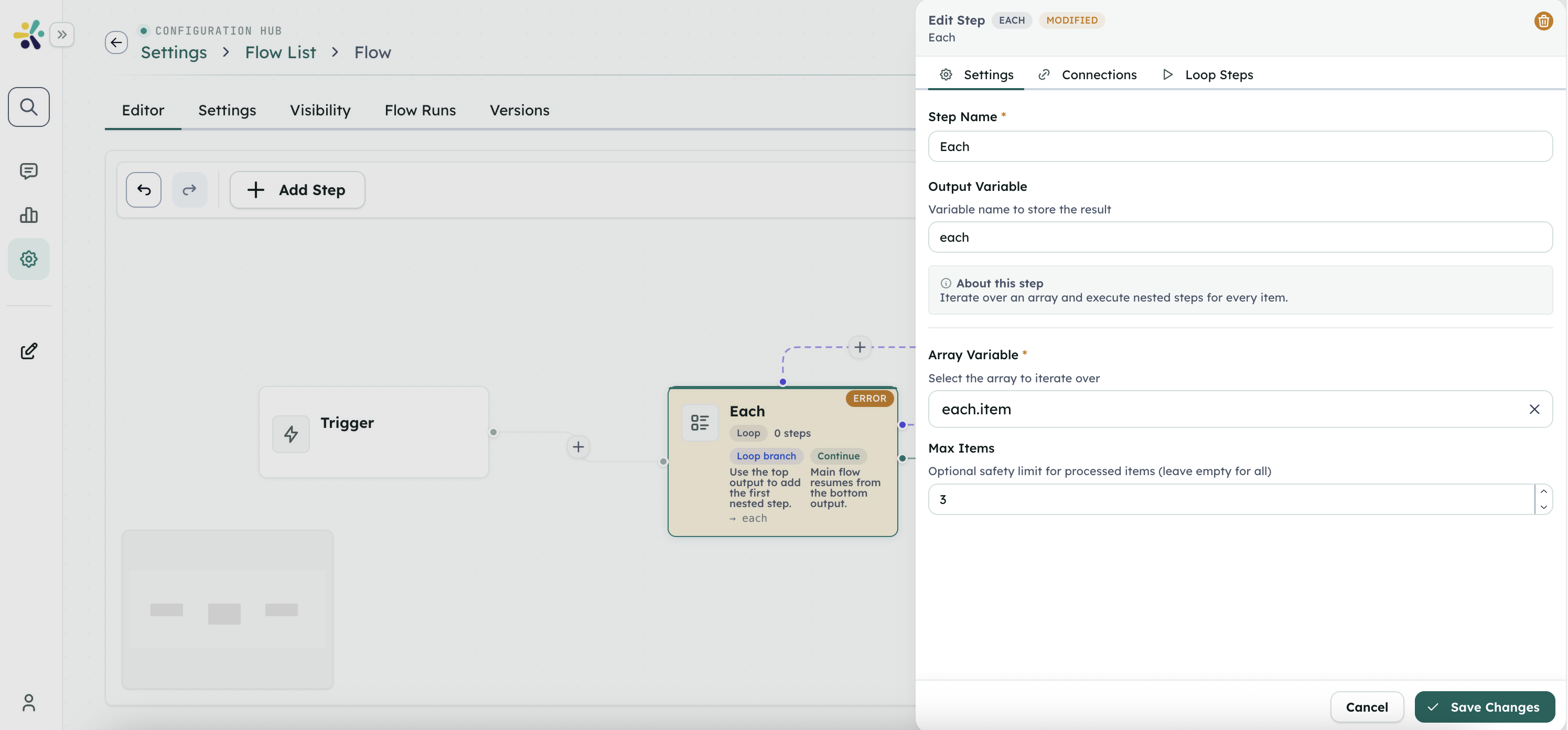
Each
Key: each
Iterate over an array and execute nested steps for every item.
Configuration
| Field | Type | Notes |
|---|---|---|
arrayVariable | select, required | Select the array to iterate over |
maxItems | number | Optional safety limit for processed items (leave empty for all) |
Outputs
| Output | Type | Description |
|---|---|---|
item | array | All items that were processed during the loop |
results | array | Detailed output for each iteration |
errors | array | Errors that occurred during processing |
successfulItems | number | Number of iterations completed without error |
How it behaves
- The loop body lives in
data.steps[]. Add steps to it with add_step(parentStepId: <this step id>), never by writing data.steps directly. - Inside a loop body steps run in array order when nextStepId is empty, so body steps do not each need an explicit connection.
arrayVariableis a BARE context path, not a template — write "outline.data.sections", never "{{outline.data.sections}}". If the path does not resolve to an array the step does nothing and reports an error in its result instead of failing the run.itemandindexare available as context variables inside the body.- A body step's
outputvariable is overwritten on every iteration, so after the loop it holds the LAST iteration only. To keep every iteration's work, create a variable with define-variable BEFORE the loop and grow it inside the body — set-variable for a concatenated string, add-item-to-array for a list.
While
Key: while
Repeat nested steps while the condition evaluates to true.
Configuration
| Field | Type | Notes |
|---|---|---|
condition | long-text, required | JavaScript expression evaluated against the current context (e.g. score > 0) |
maxIterations | number | Safety limit to prevent infinite loops (default 200) |
Outputs
| Output | Type | Description |
|---|---|---|
results | array | Outputs returned from each loop run |
iterations | number | Number of completed iterations |
lastIteration | object | Outputs from the last iteration that ran |
errors | array | Errors captured while evaluating the loop |
How it behaves
conditionis a raw JavaScript expression over context variables, same as a condition step'srule— bare names, no{{templates}}.- The loop body lives in
data.steps[]— add to it with add_step(parentStepId: <this step id>). - Every variable the condition tests MUST already exist when the step is first reached. A condition naming an undefined variable throws, and the step swallows the error and runs ZERO iterations — a silent no-op that looks like a working flow. Initialise the loop state with define-variable steps beforehand.
- The body must change something the condition tests, and
maxIterations(default 200) is the only other backstop.
End Session
Key: end-session
End the current conversation session. When triggered, the active session is marked as ended. A new session will automatically start when the user sends a new message.
Configuration
| Field | Type | Notes |
|---|---|---|
reason | text | The reason for ending the session (e.g., 'flow_completed', 'goal_achieved', 'task_finished'). Defaults to 'flow_completed' if not specified. |
Outputs
| Output | Type | Description |
|---|---|---|
success | boolean | Whether the session was successfully ended |
sessionId | string | ID of the ended session |
endReason | string | The reason the session was ended |
endedAt | date | Timestamp when the session was ended |
error | string | Error message if the session could not be ended |
Subflow
Key: subflow
Run another flow as a child and use its outputs. Enables reusable, composable flows that call each other.
Configuration
| Field | Type | Notes |
|---|---|---|
appId | select, required | The flow to run as a subflow. |
version | select | Which version of the target flow to execute. Default "latest". One of latest, draft. |
inputs | list | Values mapped into the subflow's trigger inputs. Each value supports {{template}} variables from the current flow. Each entry: key, value. |
Outputs
| Output | Type | Description |
|---|---|---|
output | object | The final outputs produced by the subflow. |
response | long-text | Stringified subflow output, convenient for prompts. |
appRunId | string | The subflow's execution run id. |
status | string | — |
How it behaves
inputsis a list of { key, value } pairs;valuesupports{{template}}variables from the current flow.
User Interaction
Show Form
Key: show-form
Display a form to collect user input. Supports both predefined forms (from form library) and inline form definitions with cascading/conditional fields.
Configuration
| Field | Type | Notes |
|---|---|---|
formId | select | Select a predefined form from your form library. Leave empty to use inline form definition. |
inlineForm | object | Define form fields directly in the step. Use this for flow-specific forms or cascading scenarios. |
title | text | Override the form title (optional). |
description | text | Override the form description (optional). |
waitForSubmission | boolean | If true, the flow will pause until the form is submitted. Default true. |
Outputs
| Output | Type | Description |
|---|---|---|
messageWidgetId | string | ID of the created form widget instance |
formId | string | ID of the form (null for inline forms) |
formTitle | string | Title of the displayed form |
waitingForSubmission | boolean | Whether the flow is waiting for user to submit the form |
Data & Databases
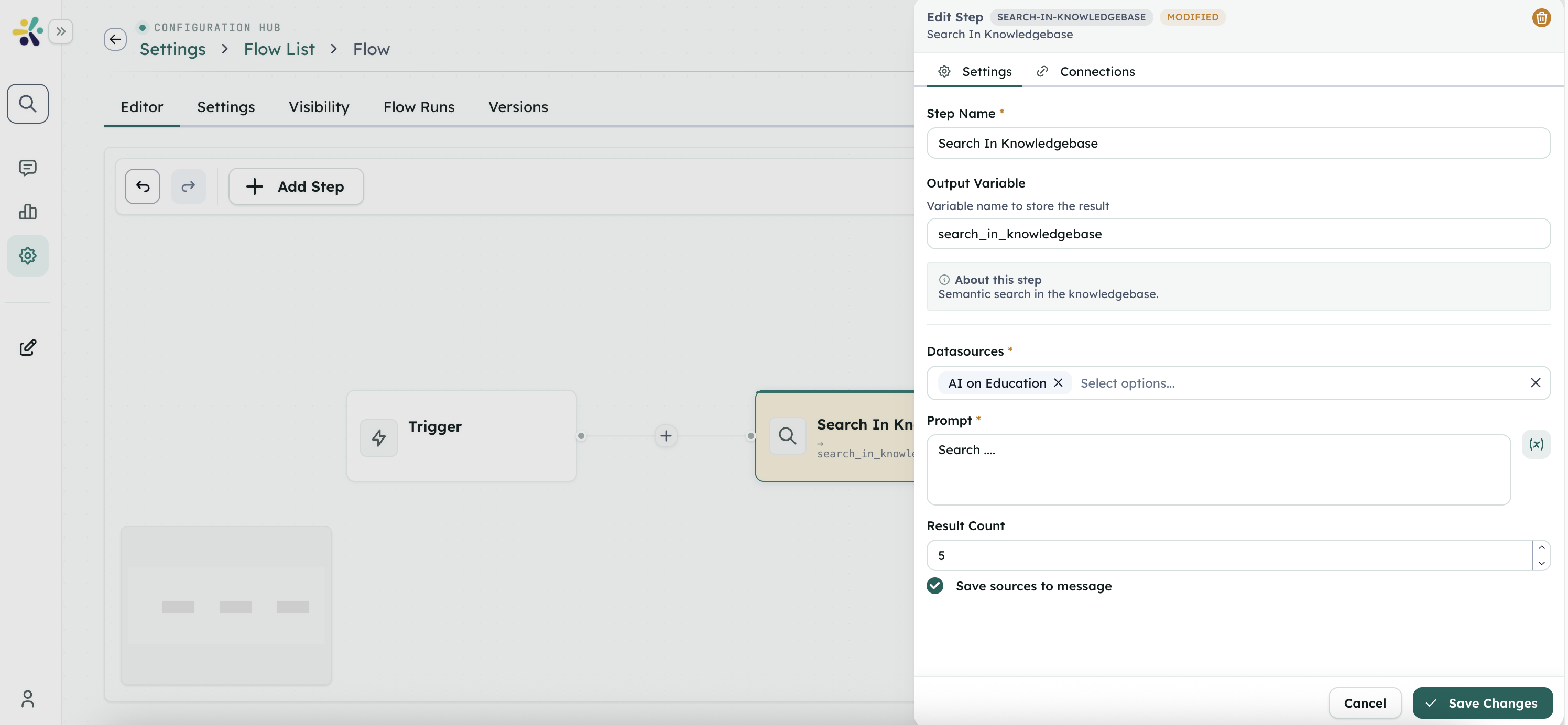
Search In Knowledgebase
Key: search-in-knowledgebase
Semantic search in the knowledgebase.
Configuration
| Field | Type | Notes |
|---|---|---|
datasourceIds | multiple-select, required | — |
prompt | long-text, required | — |
resultsCount | number | — |
saveSourcesToMessage | checkbox | — |
Outputs
| Output | Type | Description |
|---|---|---|
results | array | — |
How it behaves
datasourceIdsare workspace datasource ids — get them from list_workspace_resources. Do not invent them.
Web & Internet
Http Request
Key: http-request
Send a http request and get a response.
Configuration
| Field | Type | Notes |
|---|---|---|
url | text, required | — |
method | select, required | One of GET, POST, PUT, PATCH, DELETE. |
headers | long-text | — |
body | code | — |
Outputs
| Output | Type | Description |
|---|---|---|
response | object | — |
Scrape Web Page
Key: scrape-web-page
Scrape web page using puppeteer.
Configuration
| Field | Type | Notes |
|---|---|---|
url | long-text, required | — |
Outputs
| Output | Type | Description |
|---|---|---|
url | text | — |
title | text | — |
description | long-text | — |
body | long-text | — |
Variable Manipulation
Define Variable
Key: define-variable
Define a new variable with a specific value.
Configuration
| Field | Type | Notes |
|---|---|---|
name | text, required | Name of the variable to define |
type | select, required | Type of the variable to define One of string, number, boolean, array, object. |
value | long-text | Initial value for the variable |
Outputs
| Output | Type | Description |
|---|---|---|
value | text | The value of the defined variable |
How it behaves
nameis the bare context key the variable is created under — read it back as{{name}}, and reference it in condition rules as a bare identifier. Do NOT also set the step'soutputfield for this purpose.valueis rendered as a template, so a variable can be initialised from earlier results.- Use this to initialise loop state (counters, accumulators) BEFORE any condition/while rule tests it — an undefined variable in a rule is a ReferenceError.
- For an accumulator, type 'string' with an empty value (concatenate with set-variable) or type 'array' with an empty value (append with add-item-to-array).
Set Variable
Key: set-variable
Set an existing variable to a new value.
Configuration
| Field | Type | Notes |
|---|---|---|
name | select, required | Name of the variable to set |
value | long-text, required | New value for the variable |
Outputs
| Output | Type | Description |
|---|---|---|
value | text | The new value of the variable |
How it behaves
valueis rendered as a template, which is what makes accumulation work: value "{{article}}\n\n{{sectionDraft.response}}" appends to the variable namedarticle.- The variable must already exist (create it with define-variable); the new value is coerced to the existing variable's type.
Set State
Key: set-state
Set a state variable that persists across flow executions within the same conversation. State is stored in context.state and in the conversation document.
Configuration
| Field | Type | Notes |
|---|---|---|
name | text, required | Name of the state variable to set (accessible via state.variableName) |
value | long-text, required | Value to store in the state variable |
Outputs
| Output | Type | Description |
|---|---|---|
value | text | The value that was set in the state |
Add Item to Array
Key: add-item-to-array
Add an item to an array variable.
Configuration
| Field | Type | Notes |
|---|---|---|
arrayName | select, required | Name of the array variable |
item | list, required | Item to add to the array Each entry: name, type, value. |
Outputs
| Output | Type | Description |
|---|---|---|
array | array | The array after adding the item |
length | number | The new length of the array |
How it behaves
arrayNameis a BARE context variable name, not a template.itemis a LIST of field descriptors — [{ name, type, value }] — and eachvalueis rendered as a template. The step pushes one object built from those fields, so item [{name:"content",type:"string",value:"{{draft.response}}"}] appends { content: "..." }.- The array is created if it does not exist, but initialising it with define-variable first is clearer and is required if a condition rule tests it.
Add Items to Array
Key: add-items-to-array
Add multiple items from context to an existing array variable.
Configuration
| Field | Type | Notes |
|---|---|---|
arrayVariableName | select, required | Name of the array variable to add items to |
itemsKey | text, required | Key from context containing items to add to the array |
Outputs
| Output | Type | Description |
|---|---|---|
array | array | The array after adding the items |
addedCount | number | Number of items added to the array |
totalLength | number | The new total length of the array |
success | boolean | Whether the operation was successful |
Increment Variable
Key: increment-variable
Increment a numeric variable by a specific amount.
Configuration
| Field | Type | Notes |
|---|---|---|
variableName | select, required | Name of the numeric variable to increment |
amount | number | Amount to increment by (default: 1) Default 1. |
Outputs
| Output | Type | Description |
|---|---|---|
value | number | The variable after incrementing |
Decrement Variable
Key: decrement-variable
Decrement a numeric variable by a specific amount.
Configuration
| Field | Type | Notes |
|---|---|---|
variableName | select, required | Name of the numeric variable to decrement |
amount | number | Amount to decrement by (default: 1) Default 1. |
Outputs
| Output | Type | Description |
|---|---|---|
value | number | The variable after decrementing |
Memory Management
Save User Memory
Key: save-user-memory
Save information to user memory for later retrieval.
Configuration
| Field | Type | Notes |
|---|---|---|
peerId | text, required | ID of the peer to save memory for |
key | text, required | Unique key to identify this memory |
value | long-text, required | Value to store in memory |
description | text, required | Description for this memory (required for better organization) |
metadata | long-text | Additional metadata as JSON object |
Outputs
| Output | Type | Description |
|---|---|---|
success | boolean | Whether the memory was saved successfully |
memoryId | text | ID of the saved memory record |
key | text | The key used to save the memory |
saved | boolean | Whether the memory was saved |
Search User Memory
Key: search-user-memory
Search for user memories using text query across keys, values, and descriptions.
Configuration
| Field | Type | Notes |
|---|---|---|
peerId | text, required | ID of the peer to search memory for |
query | text | Text to search for in memory (leave empty to get all records) |
limit | number | Maximum number of results (default: 10) |
Outputs
| Output | Type | Description |
|---|---|---|
success | boolean | Whether the search was successful |
found | boolean | Whether any memories were found |
count | number | Number of memories found |
results | array | Array of found memories |
Delete User Memory
Key: delete-user-memory
Delete a specific user memory record using its key.
Configuration
| Field | Type | Notes |
|---|---|---|
peerId | text, required | ID of the peer to delete memory from |
key | text, required | Key of the memory to delete |
confirmDelete | boolean, required | Safety confirmation for deletion (must be true) |
Outputs
| Output | Type | Description |
|---|---|---|
success | boolean | Whether the deletion was successful |
deleted | boolean | Whether the memory was deleted |
found | boolean | Whether the memory was found before deletion |
key | text | The key that was deleted |
deletedValue | text | The value that was deleted |
Memory: Read
Key: flow-memory-read
Read entries from Flow Project memory (Project, Flow, or Custom scope), newest/oldest first.
Configuration
| Field | Type | Notes |
|---|---|---|
flowProjectId | text | Leave as default to use the current flow's project. Default "{{flow.flowProjectId}}". |
scope | select, required | Default "project". One of project, flow, custom. |
flowId | text | Only used when Scope is Flow. Leave as default for the current flow. Default "{{flow.id}}". Shown when scope is flow. |
customKey | text | Only used when Scope is Custom — any identifier you want to bucket memory by. Shown when scope is custom. |
limit | number | Maximum number of items to return. Default 20. |
order | select | Default "newest". One of newest, oldest. |
Outputs
| Output | Type | Description |
|---|---|---|
items | array | — |
count | number | — |
memoryStoreId | text | — |
Memory: Search
Key: flow-memory-search
Search Flow Project memory (Project, Flow, or Custom scope) by text across key and value.
Configuration
| Field | Type | Notes |
|---|---|---|
flowProjectId | text | Leave as default to use the current flow's project. Default "{{flow.flowProjectId}}". |
scope | select, required | Default "project". One of project, flow, custom. |
flowId | text | Only used when Scope is Flow. Leave as default for the current flow. Default "{{flow.id}}". Shown when scope is flow. |
customKey | text | Only used when Scope is Custom — any identifier you want to bucket memory by. Shown when scope is custom. |
query | text | Text to search for across keys and values (leave empty to get all records). |
limit | number | Default 20. |
Outputs
| Output | Type | Description |
|---|---|---|
items | array | — |
count | number | — |
found | boolean | — |
memoryStoreId | text | — |
Memory: Put
Key: flow-memory-put
Save (create or update) a key/value entry in Flow Project memory (Project, Flow, or Custom scope).
Configuration
| Field | Type | Notes |
|---|---|---|
flowProjectId | text | Leave as default to use the current flow's project. Default "{{flow.flowProjectId}}". |
scope | select, required | Default "project". One of project, flow, custom. |
flowId | text | Only used when Scope is Flow. Leave as default for the current flow. Default "{{flow.id}}". Shown when scope is flow. |
customKey | text | Only used when Scope is Custom — any identifier you want to bucket memory by. Created automatically on first write. Shown when scope is custom. |
key | text, required | Unique key to identify this memory entry within its scope. |
value | long-text, required | Value to store. |
Outputs
| Output | Type | Description |
|---|---|---|
success | boolean | — |
memoryStoreId | text | — |
key | text | — |
Memory: Delete
Key: flow-memory-delete
Delete a specific entry from Flow Project memory using its key.
Configuration
| Field | Type | Notes |
|---|---|---|
flowProjectId | text | Leave as default to use the current flow's project. Default "{{flow.flowProjectId}}". |
scope | select, required | Default "project". One of project, flow, custom. |
flowId | text | Only used when Scope is Flow. Leave as default for the current flow. Default "{{flow.id}}". Shown when scope is flow. |
customKey | text | Only used when Scope is Custom — any identifier you want to bucket memory by. Shown when scope is custom. |
key | text, required | Key of the memory entry to delete. |
confirmDelete | boolean, required | Safety confirmation for deletion (must be true). |
Outputs
| Output | Type | Description |
|---|---|---|
success | boolean | — |
deleted | boolean | — |
found | boolean | — |
key | text | — |
deletedValue | text | — |
Sandbox
Sandbox: Create
Key: flow-sandbox-create
Create a new persistent sandbox and add it to the Flow Project's Sandbox list.
Configuration
| Field | Type | Notes |
|---|---|---|
flowProjectId | text | Leave as default to use the current flow's project. Default "{{flow.flowProjectId}}". |
label | text | A friendly name shown in the project's Sandbox tab. |
template | text | Leave empty to use the workspace default sandbox template. |
secretMode | select | Which of the Flow Project's secrets are set as environment variables inside this sandbox. Default "all". One of all, selected, none. |
secretKeys | text | Comma-separated secret names to inject, e.g. GITHUB_TOKEN, STRIPE_KEY. Only used when Project Secrets is set to "selected". Shown when secretMode is selected. |
env | code | Additional non-secret environment variables as a JSON object, e.g. {"NODE_ENV": "production"}. These override project secrets on a name clash. |
Outputs
| Output | Type | Description |
|---|---|---|
sandboxRecordId | text | — |
sandboxId | text | — |
status | text | — |
Sandbox: Run
Key: flow-sandbox-run
Run an operation inside an existing sandbox — shell command, code execution, or a file operation.
Configuration
| Field | Type | Notes |
|---|---|---|
sandboxRef | text, required | Sandbox Record ID from the project's Sandbox tab (or a Create Sandbox node's output), or a template expression resolved at runtime. |
operation | select, required | Default "exec". One of exec, run_code, list_files, read_file, write_file, mkdir, delete, move. |
command | long-text | Shown when operation is exec. |
timeoutSec | number | Default 120. Shown when operation is exec. |
language | select | Default "python". One of python, javascript. Shown when operation is run_code. |
code | long-text | Shown when operation is run_code. |
path | text | Sandbox-relative path, e.g. /workspace/data.csv Shown when operation is list_files / read_file / write_file / mkdir / delete / move. |
destination | text | Shown when operation is move. |
content | long-text | Shown when operation is write_file. |
encoding | select | Default "utf8". One of utf8, base64. Shown when operation is read_file / write_file. |
recursive | checkbox | Default true. Shown when operation is delete. |
Outputs
| Output | Type | Description |
|---|---|---|
success | boolean | — |
stdout | long-text | — |
stderr | long-text | — |
exitCode | number | — |
items | array | — |
content | long-text | — |
Sandbox: Start
Key: flow-sandbox-start
Start a stopped sandbox.
Configuration
| Field | Type | Notes |
|---|---|---|
sandboxRef | text, required | Sandbox Record ID from the project's Sandbox tab, or a template expression. |
Outputs
| Output | Type | Description |
|---|---|---|
status | text | — |
Sandbox: Wait Until Running
Key: flow-sandbox-wait-until-running
Pass through immediately if the sandbox is already running; otherwise poll every 500ms until it is.
Configuration
| Field | Type | Notes |
|---|---|---|
sandboxRef | text, required | Sandbox Record ID from the project's Sandbox tab, or a template expression. |
timeoutSec | number | Give up and fail the step if the sandbox hasn't reached running within this time. Default 120. |
Outputs
| Output | Type | Description |
|---|---|---|
status | text | — |
success | boolean | — |
Sandbox: Stop
Key: flow-sandbox-stop
Stop (suspend) a running sandbox. Data is kept.
Configuration
| Field | Type | Notes |
|---|---|---|
sandboxRef | text, required | Sandbox Record ID from the project's Sandbox tab, or a template expression. |
Outputs
| Output | Type | Description |
|---|---|---|
status | text | — |
Sandbox: Delete
Key: flow-sandbox-delete
Permanently delete a sandbox and remove it from the project's Sandbox list.
Configuration
| Field | Type | Notes |
|---|---|---|
sandboxRef | text, required | Sandbox Record ID from the project's Sandbox tab, or a template expression. |
confirmDelete | boolean, required | Safety confirmation for deletion (must be true). |
Outputs
| Output | Type | Description |
|---|---|---|
success | boolean | — |
deleted | boolean | — |
Files
Publish File
Key: publish-file
Publish a file as a downloadable output of this run. Takes a file already inside a sandbox (by path) or base64 content, stores it, and attaches it to the run — where the Task detail view lists it under Output files.
Configuration
| Field | Type | Notes |
|---|---|---|
source | select, required | Default "sandbox". One of sandbox, text, base64. |
text | long-text | Text to publish as a file, e.g. {{article}} for a markdown document the flow assembled. Set File Name with a matching extension. Shown when source is text. |
sandboxRef | text | Sandbox Record ID from the project's Sandbox tab, or a template expression. Shown when source is sandbox. |
path | text | Absolute path inside the sandbox, e.g. /workspace/report.pdf Shown when source is sandbox. |
base64 | text | Template expression resolving to base64 content, e.g. {{steps.x.data}} Shown when source is base64. |
fileName | text | Name shown to the user. Defaults to the sandbox file's own name. |
Outputs
| Output | Type | Description |
|---|---|---|
success | boolean | — |
key | text | — |
fileName | text | — |
downloadPath | text | — |
downloadLink | text | — |
How it behaves
- This is the only step that attaches a real file to the run — it is what appears under a Task's "Output files" for download. save-text-file merely returns a temporary link.
- source 'text' is the simplest form: put the rendered document in
text(e.g. "{{article}}") and set a fileName with the right extension (report.md). source 'sandbox' reads a path from a sandbox; source 'base64' takes already-encoded content.
Reporting & Analytics
Track Event
Key: track-event
Record a structured, durable business event for reporting (e.g. 'this email was routed to support'). Unlike debug logs, this always persists regardless of the flow's debug setting, and is meant to be queried/aggregated later (counts, breakdowns by dimension, trends). Use this after a decision/classification/output point whenever the flow author wants durable domain reporting, not raw technical tracing.
Configuration
| Field | Type | Notes |
|---|---|---|
eventName | text, required | Stable identifier for this kind of event, e.g. 'email_processed'. |
dimensions | list | Categorical labels to group/filter by later (e.g. category, destination). Each entry: key, value. |
measures | list | Numeric values to count/sum later (e.g. count, amount). Each entry: key, value. |
Outputs
| Output | Type | Description |
|---|---|---|
success | boolean | — |
eventId | text | ID of the persisted event record. |
Utilities
Execute NodeJS
Key: execute-nodejs
Execute NodeJS code.
Configuration
| Field | Type | Notes |
|---|---|---|
code | code | — |
Outputs
| Output | Type | Description |
|---|---|---|
response | object | — |
Check Regex
Key: check-regex
Check if a string matches a regular expression pattern.
Configuration
| Field | Type | Notes |
|---|---|---|
input | long-text, required | The string to check against the regex pattern |
pattern | text, required | Regular expression pattern to test |
flags | text | Optional regex flags (e.g., 'g', 'i', 'm') |
Outputs
| Output | Type | Description |
|---|---|---|
isMatch | boolean | Whether the input matches the pattern |
matches | array | Array of matched substrings |
Read File
Key: read-file
Read File from url or file key in Cognipeer with context.
Configuration
| Field | Type | Notes |
|---|---|---|
fileKey | select, required | — |
Outputs
| Output | Type | Description |
|---|---|---|
base64 | text | — |
Read File From URL
Key: read-file-from-url
Read File from url
Configuration
| Field | Type | Notes |
|---|---|---|
url | text | — |
Outputs
| Output | Type | Description |
|---|---|---|
base64 | text | — |
Convert To Markdown
Key: convert-to-markdown
Convert base64 content to markdown.
Configuration
| Field | Type | Notes |
|---|---|---|
key | select, required | — |
Outputs
| Output | Type | Description |
|---|---|---|
markdown | long-text | — |
Markdown To PDF
Key: markdown-to-pdf
Convert markdown content to a PDF file and return it as base64.
Configuration
| Field | Type | Notes |
|---|---|---|
markdownKey | select, required | Key from context containing markdown content to convert |
fileName | text | Optional file name to expose in outputs (defaults to document.pdf) |
title | text | Optional document title used in PDF metadata |
Outputs
| Output | Type | Description |
|---|---|---|
base64 | text | PDF file content as base64 string |
mimeType | text | MIME type of the generated PDF |
fileName | text | Suggested PDF file name |
size | number | Size of the generated PDF in bytes |
Chunk Content
Key: chunk-content
Split content into chunks based on specified parameters.
Configuration
| Field | Type | Notes |
|---|---|---|
content | long-text, required | The content to be chunked |
chunkType | select, required | The type of chunking method to use One of sentenceSplitter, tokenizer, recursiveCharacterWithSpecialSeparators, paragraphSplitter, regexSplitter. |
chunkSize | number | Maximum size of each chunk (for recursive character and paragraph splitters) |
chunkOverlap | number | Number of characters to overlap between chunks |
maxTokens | number | Maximum number of tokens per chunk (for tokenizer) |
maxChunkSize | number | Maximum size of each chunk (for paragraph and regex splitters) |
separators | long-text | JSON array of separators for recursive character splitter (e.g., ["\n\n", "\n", " "]) |
regexPattern | text | Regular expression pattern for regex splitter |
Outputs
| Output | Type | Description |
|---|---|---|
chunks | array | Array of chunked content strings |
chunkCount | number | Total number of chunks generated |
JSON to Excel
Key: json-to-excel
Convert JSON data to Excel file and return as base64.
Configuration
| Field | Type | Notes |
|---|---|---|
jsonDataKey | select, required | Key from context containing JSON data to convert to Excel |
worksheetName | text | Name for the worksheet (default: Sheet1) |
Outputs
| Output | Type | Description |
|---|---|---|
base64 | text | Excel file content as base64 string |
fileName | text | Generated file name |
mimeType | text | MIME type of the Excel file |
size | number | Size of the file in bytes |
Save File
Key: save-file
Save base64 content as a file and generate download link.
Configuration
| Field | Type | Notes |
|---|---|---|
base64Key | select, required | Key from context containing base64 encoded file content to save |
fileName | text, required | Name for the file including extension |
expiryMinutes | number | How long the download link should be valid (default: 1440 minutes / 24 hours) |
Outputs
| Output | Type | Description |
|---|---|---|
success | boolean | Whether the file was saved successfully |
fileKey | text | Unique key for the saved file |
fileName | text | Name of the saved file |
downloadLink | text | Temporary download link for the file |
expiryMinutes | number | How long the download link is valid |
message | text | Status message |
error | text | Error message if operation failed |
Save Text File
Key: save-text-file
Save plain text content as a file and generate a direct download link.
Configuration
| Field | Type | Notes |
|---|---|---|
textKey | select | Key in context that holds the text content. If not set, uses the inline Text field. |
text | long-text | Inline text content to save. If both textKey and text are provided, inline text is used. |
fileName | text, required | Name for the file including extension (e.g., notes.txt) |
expiryMinutes | number | How long the download link should be valid (default: 1440 minutes / 24 hours) |
Outputs
| Output | Type | Description |
|---|---|---|
success | boolean | Whether the file was saved successfully |
fileKey | text | Unique key for the saved file |
fileName | text | Name of the saved file |
downloadLink | text | Temporary download link for the file |
expiryMinutes | number | How long the download link is valid |
message | text | Status message |
error | text | Error message if operation failed |
How it behaves
textKeyis a BARE context path (e.g. "article"), whiletextis a template string. If both are set,textwins.- This does NOT attach the file to the run — use publish-file when the user should be able to download the result from the task.
String to JSON
Key: string-to-json
Parse a string and convert it to JSON object.
Configuration
| Field | Type | Notes |
|---|---|---|
stringValue | long-text, required | The string content to parse as JSON |
Outputs
| Output | Type | Description |
|---|---|---|
jsonObject | object | Parsed JSON object from the string |
success | boolean | Whether the parsing was successful |
error | text | Error message if parsing failed |
JSON to String
Key: json-to-string
Convert JSON object to string representation.
Configuration
| Field | Type | Notes |
|---|---|---|
jsonKey | select, required | Key from context containing JSON data to convert to string |
prettyFormat | boolean | Format the JSON string with indentation for readability |
Outputs
| Output | Type | Description |
|---|---|---|
stringValue | text | JSON object converted to string format |
success | boolean | Whether the conversion was successful |
error | text | Error message if conversion failed |
Widgets
Add Widget to Message
Key: add-widget-to-message
Attach a widget to the assistant's response message and prefill its initial state.
Outputs
| Output | Type | Description |
|---|---|---|
messageWidgetId | string | Identifier of the created message widget record |
widgetId | string | Identifier of the attached widget |
widgetName | string | Name of the attached widget |
initialState | object | Initial state passed to the widget |