

Support ticket triage that escalates safely
The problem
A support inbox does not fail gracefully. It fails all at once, on the day a real outage arrives behind eleven password resets and a question about invoice formatting.
What it costs today:
- Triage time. Someone reads every ticket to decide what it is. At 200 tickets a week and two minutes each, that is a day a week of a senior person.
- The miss that matters. The tickets that get buried are disproportionately the urgent ones, because urgent tickets are written badly by people who are panicking.
- No defensible record. When a customer asks why their outage took four hours to acknowledge, "we were busy" is the honest answer and the useless one.
The obvious fix — let an AI classify and reply — is the one nobody signs off on, because the failure mode is an AI confidently telling a customer something wrong on company letterhead.
What good looks like
Everything gets classified in seconds. Routine tickets flow straight through. Anything that is about to leave the building stops at a human, with the classification and the proposed reply on screen. And every decision — escalated, rejected, auto-handled — is recorded as a countable event, so the SLA conversation has numbers in it.
What you build
Task ("Production is completely down")
      │
      ▼
 [Define SLA]  slaHours = 24
      │
      ▼
 [Classify Ticket]  Smart Agent → structured output
      │              { category, urgency, summary, suggestedReply }
      ▼
 [Urgency Check]  Condition: urgency === 'high'
      │
      ├── high ──▶ [Escalation Approval] ──approve──▶ [Event: Escalated] ──┐
      │                                  └─reject───▶ [Event: Rejected]  ──┤
      │                                                                    │
      └── else ──▶ [Event: Auto Handled] ───────────────────────────────────┤
                                                                           ▼
                                                                    [Build Report]
                                                                           │
                                                                           ▼
                                                                    [Publish File]
                                                                           │
                                                                           ▼
[Finish]Pieces used: a Flow Project, a Task trigger, a Smart Agent, a Condition, a User Approval, three Track Event steps, Publish File and a Final step.
Implementation
1. Create the project
Make a Flow Project called Support Operations. Give it a real description — Copilot reads it as the brief, and so does the next person who opens it.
Everything in this build lives in that project, which is what lets the flows share memory and secrets later.
2. Start the flow with a Task trigger
Add a flow and set its trigger to Task. That single choice is what makes it selectable when someone creates a piece of work on the project's board, and it publishes the task's fields as flat variables:
| Variable | Contains |
|---|---|
name | The ticket title |
detail | The ticket body |
attachments | Screenshots, logs, exports |
priority | What the human filing it thought |
Write {{detail}}, not {{trigger.detail}} — trigger outputs are flat.
Then set this flow as the project's default task flow in project settings, so people can file tickets without picking a flow every time.
3. Classify with structured output
Add a Smart Agent step named triage.
System prompt — short and restrictive:
You are a customer support triage specialist. Classify the ticket you are
given. Be short and decisive, and never invent facts. If the ticket does not
contain enough information to judge urgency, say so in the summary rather
than guessing high.Task — feed it the trigger:
Ticket title: {{name}}
Ticket detail: {{detail}}

Classify this ticket: category, urgency (low/normal/high), a one-sentence
summary and a suggested first reply.Output type: Structured Output, with this schema:
{
  "type": "object",
  "properties": {
    "category":       { "type": "string" },
    "urgency":        { "type": "string", "enum": ["low", "normal", "high"] },
    "summary":        { "type": "string" },
    "suggestedReply": { "type": "string" }
  },
  "required": ["category", "urgency", "summary", "suggestedReply"]
}This is the decision that makes the rest of the flow possible. Free text at triage.response cannot be branched on; a parsed object at triage.data.urgency can.
Set Planning Mode to off and Max Tool Calls low — this is one classification, not a research project.
4. Branch on urgency
Add a Condition step. One branch:
triage && triage.data && triage.data.urgency === 'high'Wire that branch to the approval step, and wire the condition's own next step to the auto-handled path — that is the else.
Two things bite people here. Condition rules are raw JavaScript, not templates: write triage.data.urgency, never {{triage.data.urgency}}. And a rule that names a variable which does not exist throws and fails the run, which is why the rule guards triage && triage.data before reaching into it.
5. Put a human in front of the consequential path
Add a User Approval step on the high-urgency branch:
HIGH URGENCY: "{{name}}" was classified as {{triage.data.category}}.

Summary: {{triage.data.summary}}

Proposed reply:
{{triage.data.suggestedReply}}

Send the customer an urgent reply?Set its reject path to the rejected-event step. If you leave the reject path empty, rejecting continues down the same path as approving — a quiet way to make an approval gate meaningless.
6. Record what was decided
Add a Track Event step on each of the three outcomes:
| Step | Event name | Dimensions | Measures |
|---|---|---|---|
| Escalated | ticket_escalated | category, urgency | count = 1 |
| Rejected | ticket_escalation_rejected | category | count = 1 |
| Auto handled | ticket_auto_handled | category, urgency | count = 1 |
Tracked events persist whether or not debug is on, which is exactly why they are the right place for anything you will later have to defend. Dimensions are what you group by; measures are what you add up.
7. Produce the artefact
Assemble a Markdown report with an Execute Node.js step, then hand it to Publish File with source text and file name support-report.md.
Finish with a Final step declaring what the run produced:
| Name | Value |
|---|---|
category | {{triage.data.category}} |
urgency | {{triage.data.urgency}} |
summary | {{triage.data.summary}} |
suggestedReply | {{triage.data.suggestedReply}} |
report | {{savedReport.fileName}} |
A Final step declares the result. It does not create a file — that is what Publish File is for.
What happens at run time
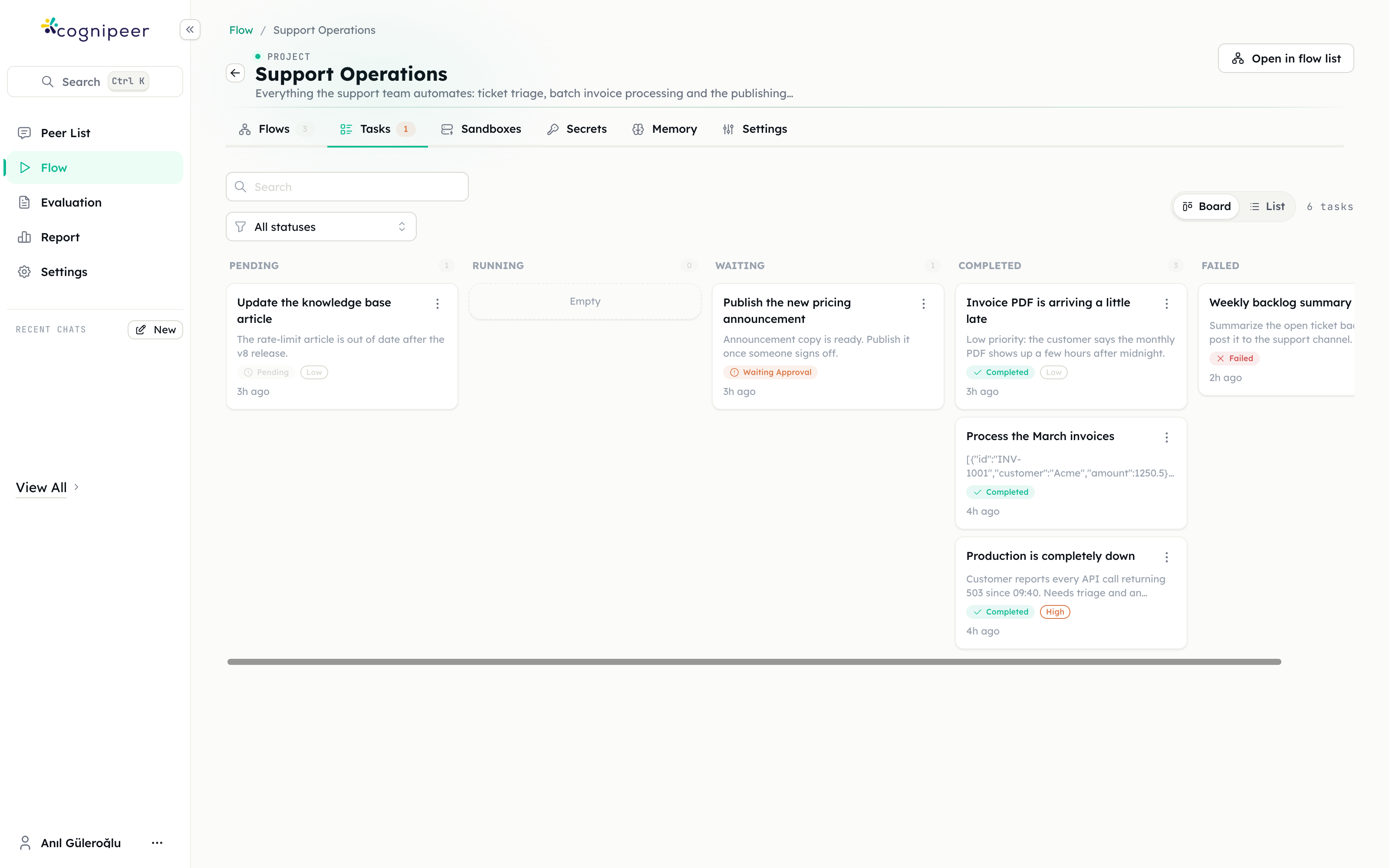
Someone files the ticket as a task. Within seconds it is classified.
Low or normal urgency: the run goes straight through — event recorded, report published, task Completed. Nobody was involved.
High urgency: the run stops. The task moves to Waiting Approval, the project's Tasks tab shows a badge, and the task detail shows the classification and the proposed reply with Approve and Reject.
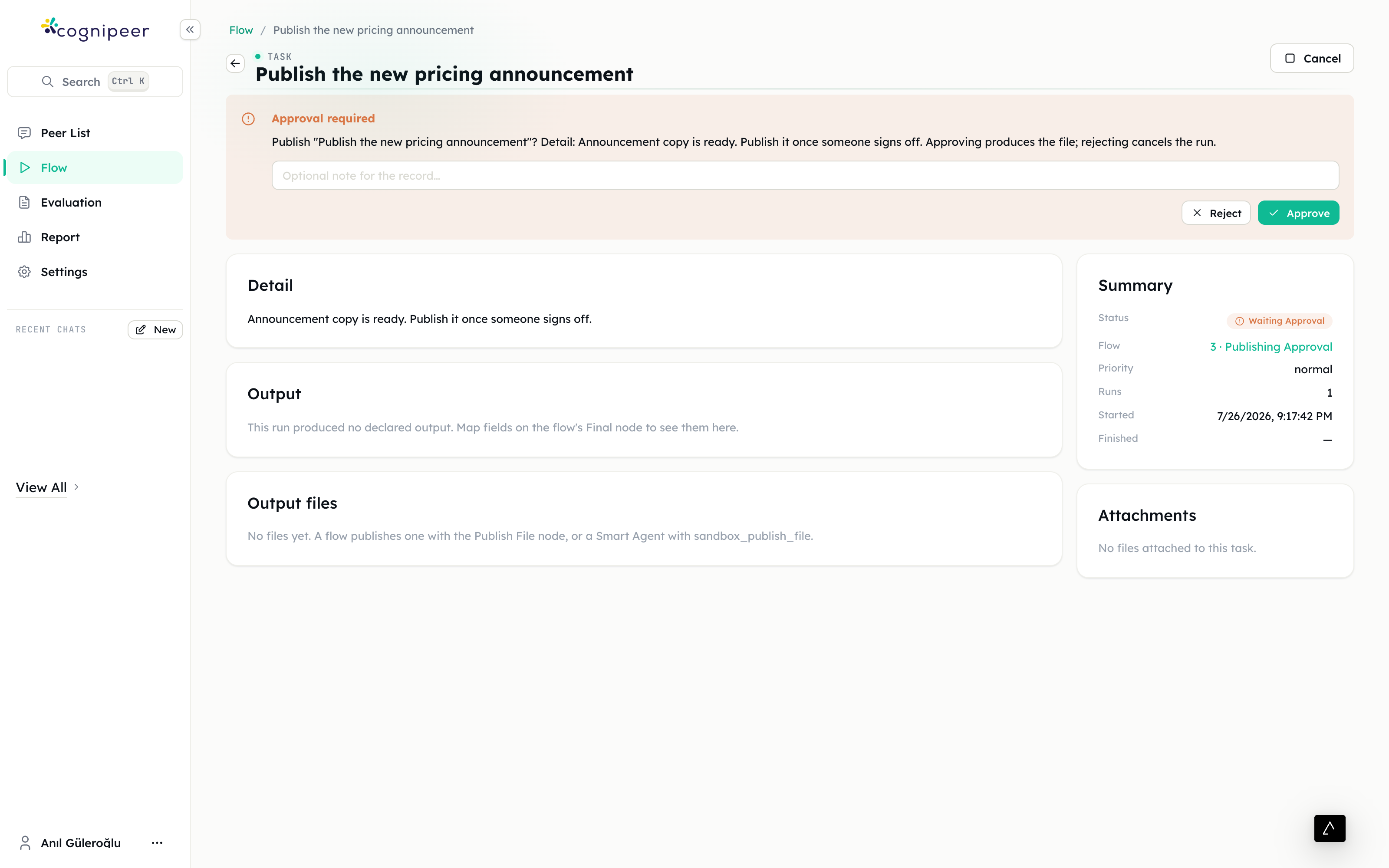
The run is not stuck or failed — it is parked, with its full context, for as long as it takes. When someone answers, it continues from exactly where it stopped. Nothing re-executes.
What you get
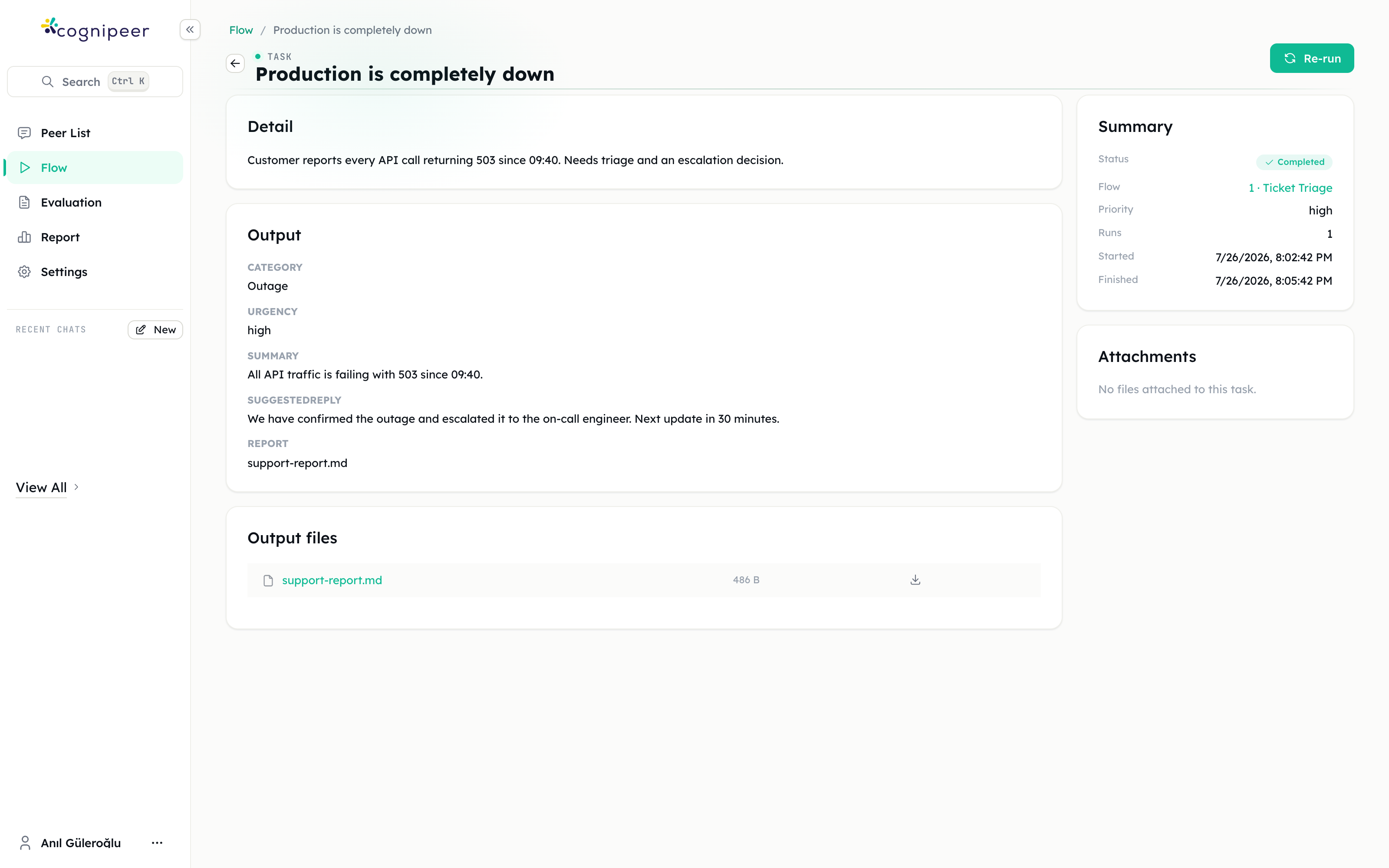
- A task with the classification, the suggested reply and a downloadable report.
- A run trace showing every step with its input and output, so "why did it decide that" has an answer.
- A Reports tab that answers how many outages did we escalate last month, by category from the tracked events — without anyone building a report.
Extensions
- Pull the ticket in automatically. Swap the Task trigger for an API trigger and have your helpdesk POST new tickets. Keep the approval gate exactly where it is.
- Let it act, carefully. Give the agent a tool action for your helpdesk and turn on Require Human Approval for just that tool, so it drafts the reply into the ticket only after someone says yes.
- Give it institutional memory. Store escalation rules in Flow Memory at project scope — who owns billing incidents, what tone to use — and let the agent read them.
- Teach it your escalation playbook. Write a Skill whose description says when to use it ("use when a ticket looks like an outage") and enable it on the agent.
Pitfalls
An agent with no actions has no tools. This one does not need any — it reasons over the prompt. But if you extend it to look things up, you must attach the actions, or it will answer confidently from nothing.
Free text cannot be branched on. If you skip the JSON schema, triage.response is prose and your condition silently never matches.
An empty reject path is not a gate. Always wire the reject branch somewhere different from the approve branch.
Debug off means no step detail. Turn Debug on in the flow's Settings while you are building, or the run trace records only summaries.
Related
- Projects & Flows guide — the full mechanics
- Smart Agent step
- Customer feedback analysis — the batch cousin of this build