

Custom
The Custom Data Source in Cognipeer allows you to add structured data to a Peer. Import custom datasets, such as product lists or contact directories, via an Excel file to let the Peer retrieve and use this information to answer queries.
How Custom Integration Works
When a Custom type is selected, you can upload an Excel file that contains your data. This could be a list of products, customer information, or any structured data that’s important for your Peer to use. After the data is imported, the Peer can access this data.
Additionally, custom data sources can be synchronized automatically with external systems to keep records up to date.
Setting Up a Custom Data Source
Follow these steps to configure a custom data source:
Navigate to the Data Sources Tab: In the Peer’s settings, go to the Data Sources section.
Select Custom as Data Source Type: Choose Custom from the available data source types.
Upload an Excel File: Provide an Excel file (e.g., product list, contact directory) containing the structured data you want the Peer to use.
- Supported Excel Formats:
.xlsx,.csv - Example columns for a product list might include:
Product ID,Name,Price,Category.
- Supported Excel Formats:
Save the Data Source: Once the file is uploaded, save the data source.
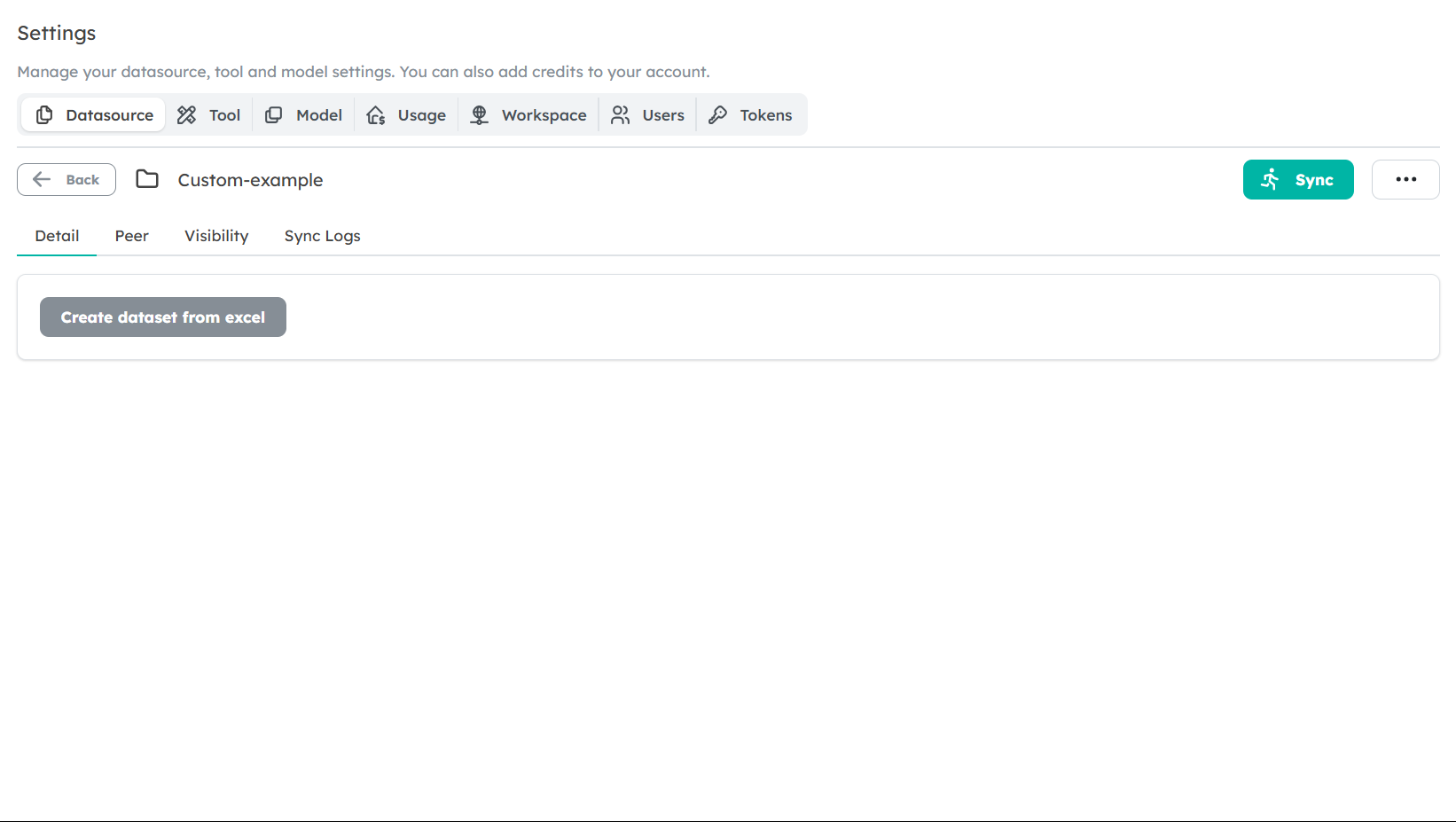
Accessing Custom Data
Once the Custom data source is set up, the Peer can access the data. This allows the Peer to fetch and list specific data items, depending on the request. For example, if you have a list of products in the dataset, the Peer can retrieve product details or list all products based on the user's query.
- Example: If the Peer has access to a product list, it can respond to requests like:
- Show me all products in the 'Electronics' category.
- What is the price of 'Product X'?
The Peer uses the data stored in the custom data source to provide precise, up-to-date responses.
Synchronizing Custom Data
In addition to manual Excel file uploads, custom datasets can be synchronized with external systems (such as CRMs, ERPs, or e-commerce platforms). To configure automated data synchronization, refer to the Developer Hub.
Use Cases for Custom Data Source
The Custom Data Source is ideal for the following scenarios:
- Product Lists: Upload a list of products to allow the Peer to provide product details, pricing, and availability on request.
- Customer Directories: Use a list of contacts to help the Peer manage and retrieve customer information during conversations.
- Inventory Management: Synchronize your inventory system to ensure the Peer has access to live stock levels and product details.
Best Practices
- Keep Data Updated: Regularly update or sync your custom data source to ensure the Peer has access to the most relevant information.
- Automated Synchronization: Set up automated sync for datasets that change frequently, such as active product catalogs or contact sheets. Ensure that your Excel files are well-structured, with clear headers and consistent data types. This will help the Peer retrieve and use the data more effectively.
Next Steps
Now that you understand how to set up and use the Custom Data Source, you can start integrating your own datasets into Cognipeer. This will enable your Peer to provide more personalized and precise responses based on your custom data. Ensure that data is synchronized regularly so that your Peer has the latest information.